Netgear FS726T - ProSAFE Smart Switch QIG - Quick Install Guide
Summary
Master the setup of your connected network with this comprehensive guide to the Smart Switch series. The manual walks you through every step, starting with installing the required discovery utility and ensuring proper IP configuration for both DHCP and static networking environments. Learn how to successfully discover your device, secure initial web access, and connect powered accessories using Power over Ethernet (PoE). Ideal for network enthusiasts or IT professionals setting up a reliable, robust smart network infrastructure.
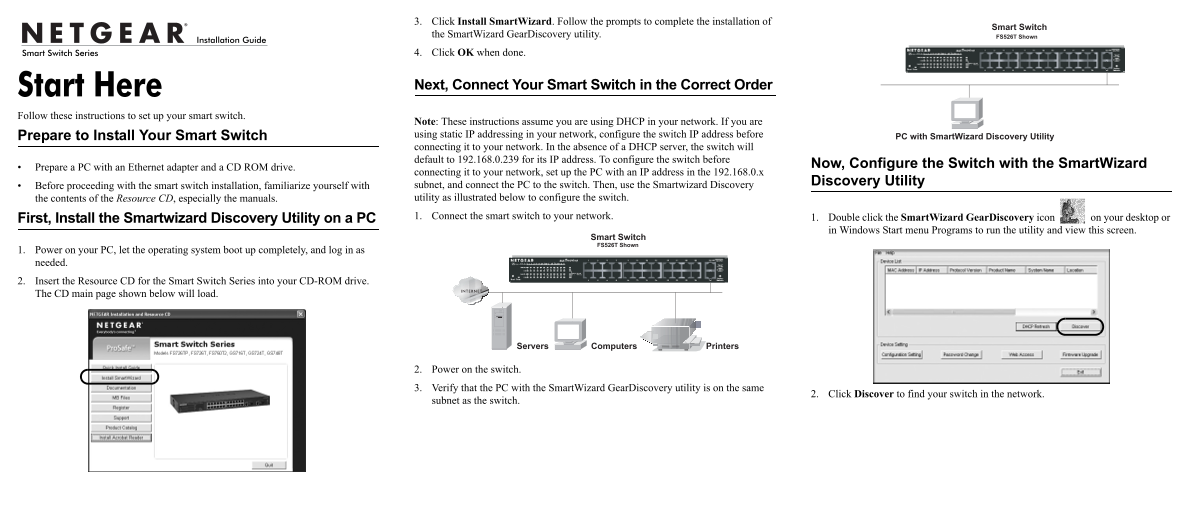
Page 1 Text Content
3. Click Install Smart Wizard. Follow the prompts to complete the installation of the Smart Wizard Gear Discovery utility. 4. Click OK when done.
Next, Connect Your Smart Switch in the Correct Order
Start Here Follow these instructions to set up your smart switch.
Note: These instructions assume you are using DHCP in your network. If you are Prepare to Install Your Smart Switch using static IP addressing in your network, configure the switch IP address before connecting it to your network. In the absence of a DHCP server, the switch will default to 192.168.0.239 for its IP address. To configure the switch before
Now, Configure the Switch with the Smart Wizard
Prepare a PC with an Ethernet adapter and a CD ROM drive.
connecting it to your network, set up the PC with an IP address in the 192.168.0.x
Discovery Utility
Before proceeding with the smart switch installation, familiarize yourself with subnet, and connect the PC to the switch. Then, use the Smartwizard Discovery the contents of the Resource CD, especially the manuals. utility as illustrated below to configure the switch. First, Install the Smartwizard Discovery Utility on a PC 1. Connect the smart switch to your network. 1. Double click the Smart Wizard Gear Discovery icon on your desktop or
in Windows Start menu Programs to run the utility and view this screen.
1. Power on your PC, let the operating system boot up completely, and log in as needed. 2. Insert the Resource CD for the Smart Switch Series into your CD-ROM drive. The CD main page shown below will load.
2. Power on the switch. 3. Verify that the PC with the Smart Wizard Gear Discovery utility is on the same
2. Click Discover to find your switch in the network.
subnet as the switch.
Page Summary Contents For Netgear FS726T - ProSAFE Smart Switch QIG - Quick Install Guide
Manual Details
| Brand | NETGEAR |
|---|---|
| Pages | 2 |
| File Size | 371.98 KB |
| Published | June 05, 2026 |
Enter the captcha to get the download link:

Frequently Asked Questions
Which IP setting should my computers use for best compatibility?
Computers should generally be configured to obtain an IP address automatically via DHCP.
How do I configure a smart switch if I cannot connect to it?
Verify the cable connections are secure, ensure the PC is in the same subnet as the switch, and then click 'Discover' in the SmartWizard utility.
What is the process for setting up the smart switch initially?
Power on the smart switch first, wait two minutes, and then power on the computer while using the SmartWizard Discovery Utility.
Does this switch support Power over Ethernet (PoE)?
Yes, if your model includes the PoE option (like FS726TP), you can use it to power devices like VoIP phones or wireless access points by plugging in a Cat5 or better cable.