# A B C D E F G H I J K L M N O P Q R S T U V W X Y Z

D-Link DSL-584T Quick Installation Guide

Summary

The DSL-584T is a reliable ADSL router designed for connecting homes and small networks to the internet. This manual provides comprehensive, step-by-step guidance covering everything from initial hardware setup—including connecting power, ethernet, and the telephone line—to advanced configuration. Whether you are using the intuitive Setup Wizard or manual web browser settings (DHCP), learn how to correctly configure your router, set up your Time Zone, and finalize your connection details specific to your Internet Service Provider (ISP). Ideal for new users setting up ADSL internet service at home.
📄 Preview PAGE OF 15

Page 1 Text Content

This product can be set up using any current web browser, i.e.,

DSL-584T

Internet Explorer 6, Netscape

Navigator 6.2.3, Mozilla or Firefox. ADSL2+ Router

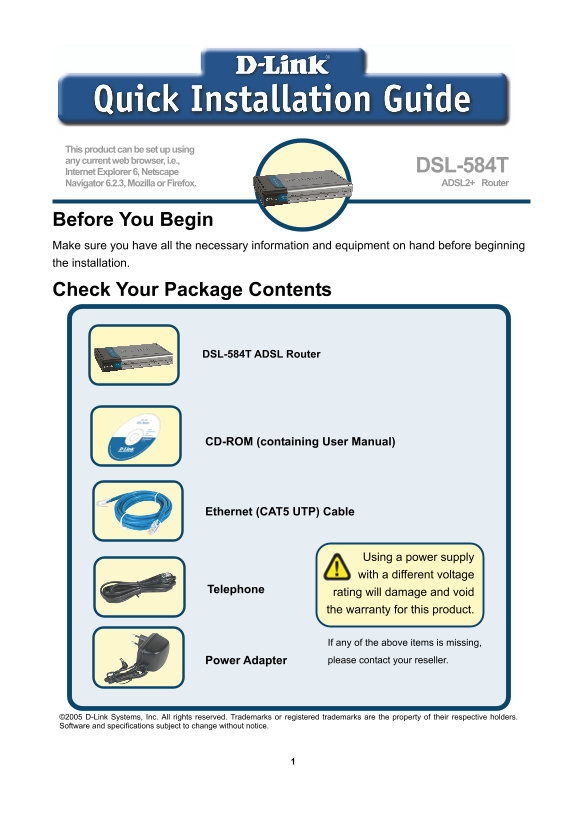
Before You Begin Make sure you have all the necessary information and equipment on hand before beginning the installation.

Check Your Package Contents

DSL-584T ADSL Router

CD-ROM (containing User Manual)

Ethernet (CAT5 UTP) Cable

Using a power supply with a different voltage

Telephone rating will damage and void

the warranty for this product.

If any of the above items is missing, Power Adapter please contact your reseller.

©2005 D-Link Systems, Inc. All rights reserved. Trademarks or registered trademarks are the property of their respective holders. Software and specifications subject to change without notice.

Page Summary Contents For D-Link DSL-584T Quick Installation Guide

Page 1 This product can be set up using any current web browser, i.e., DSL-584T Internet Explorer 6, Netscape Navigator 6.2.3, Mozilla or Firefox. ADSL2+ Router Before You Begin Make sure you have all the ne...
Page 2 Connecting the Router to Your Computer A. First, connect the power adapter to the receptor at the back panel of the DSL-584T and then plug the other end of the power adapter to a wall outlet or power ...
Page 3 Connecting the Router to Your Computer Front Panel Connections The LED indicators on the front panel include the Power, Status, ADSL and Ethernet indicators. Status: A blinking green LED Ethernet Link...
Page 4 Configuring the Router You can select two methods to configure your new router. The first method is by using D-Link Click’n Connect Utility, which is included on the CD designed to run on Windows XP/2...
Page 5 Configuring the Router (continued) Once you have logged in, the Home directory tab is prominent with the Setup Wizard menu displayed. Most users will be able to use the Setup Wizard to establish the A...
Page 6 Configuring the Router (continued) The first Setup Wizard menu lists a summary of the steps required to complete the setup. Click the Next button to begin setup. Click the Next button.
Page 7 Configuring the Router (continued) Now configure the Time Zone used for the Router’s system clock. Select the appropriate time zone and Daylight Saving Time setting for your location. Select the Time ...
Page 8 Configuring the Router (continued) Next you will Set the Internet Connection Type for the WAN interface. Your ISP has given this information to you. If you do not know what type of connection to use, ...
Page 9 Configuring the Router (continued) PPPo E/PPPo A Connections If you selected the PPPo E/PPPo A connection type in the previous menu, you will see the Setup Wizard menu pictured here. Type in the Usern...
Page 10 Configuring the Router (continued) Dynamic IP Address Connections For this connection type, the user may choose Bridged IP LLC or Bridged IP VC-Mux. Both of these connections require the user to have ...
Page 11 Configuring the Router (continued) Bridged Connections Bridged is used to set the Bridged mode for the Router. This window is for users who have software on their computer or other network device to t...
Page 12 Configuring the Router (continued) Static IP Connections Static IP is used to set the Static IP mode for the Router. Static IP is used whenever a known static IP address is assigned. The accompanying ...
Page 13 Configuring the Router (continued) Setup Completed All the settings for the ADSL connection are now completed. Click the Restart button to save the new settings and restart the Router. It will take ab...
Page 14 Appendix For additional settings or information, refer to the Advanced, Tools, or Status tabs on the Web Management interface; or to the manual located on the CD-ROM. Configuring IP Settings in Window...
Page 15 3. In the Network and Internet Connections window, click Network Connections. Click Network Connections. 4. In the Network Connections window, right-click on Local Area Connection, then click Properti...

Manual Details

Brand D-Link
Pages 15
File Size 6.98 MB
Published May 30, 2026
63 views

Enter the captcha to get the download link:

captcha

Frequently Asked Questions

How do I initially power on and connect the DSL-584T Router?

Connect the power adapter to the rear panel and plug it into a wall outlet. Then, use an Ethernet cable to connect one end to the router’s port and the other to your computer's Ethernet adapter.

What is required for setting up the ADSL connection via web browser?

Your computer must be configured as a DHCP Client (Obtain IP address automatically), and you need credentials provided by your ISP (IP addresses, VPI, VCI, etc.).

Where can I find advanced settings or troubleshooting info?

For additional information, refer to the Advanced, Tools, or Status tabs on the Web Management interface, or consult the User Manual CD-ROM.