# A B C D E F G H I J K L M N O P Q R S T U V W X Y Z

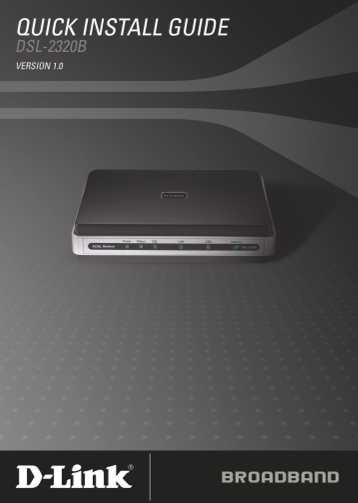
D-Link DSL-2320B Quick Install Guide

Summary

The D-Link DSL-2320B is a reliable ADSL2+ modem providing flexible internet connectivity through both Ethernet and USB ports. This comprehensive quick installation guide walks new users through seamlessly setting up and configuring your device to maximize performance over an existing DSL line. It is designed for homeowners and small businesses requiring straightforward, dual-port connection setup and basic system troubleshooting, ensuring you get online quickly with minimal technical hassle.
📄 Preview PAGE OF 12

Page Summary Contents For D-Link DSL-2320B Quick Install Guide

Page 2 General Information The D-Link DSL-2320B is an ADSL2+ modem offering the convenience of both Ethernet and USB connections. This Quick Install Guide provides you with a simple and easy-to-understand fo...
Page 3 Important Safety Instructions • Place your modem on a flat surface close to the cables in a location with sufficient ventilation. • To prevent overheating, do not obstruct the ventilation openings of ...
Page 4 Front Panel View Local Network LED A solid light indicates a connection to an Ethernet-enabled computer. This LED blinks during data transmission. Status LED A blinking light indicates Internet LED tr...
Page 5 Rear Panel View LAN Port Connect Ethernet devices such as computers, switches, and hubs. DSL Line Connect to an active ON/OFF telephone line (RJ-11). Press this button to turn the unit on or off. Powe...
Page 6 Installing the Modem Connect the ADSL and Telephone Lines • Connect an RJ-11 cable between the wall phone jack and the line- end of the splitter (see diagram below). • Attach another RJ-11 phone cable...
Page 7 Connect the Power Adapter • Complete the process by connecting the supplied 12VAC, 1A power adapter to the POWER connector on the back of the device and plug the adapter into a wall outlet or power st...
Page 8 The following are general steps (may vary for each computer) to complete the USB driver installation on a Windows® 2000. The following pop-up window appears when you connect the USB cable to your comp...
Page 9 Next, you can specify the search locations. Make sure CD-ROM drives and Specify a Location are selected and click Next. Click Next At this point, you can insert the CD-ROM into your computer’s CD-ROM ...
Page 10 After the file has been selected, the following screen will appear, verifying the location where the file will be extracted from. Click on OK to continue. Click OK This next screen shows the device an...
Page 11 Log in to the Modem This section will explain how to log in to your modem using the following steps: 1. Launch your web browser. 2. Enter the URL http://192.168.1.1 in the address bar and press Enter....
Page 12 Technical Support D-Link’s website contains the latest user documentation and software updates for D-Link products. U.S. and Canadian customers can contact D-Link Technical Support through our website...

Manual Details

Brand D-Link
Pages 12
File Size 1.10 MB
Published May 30, 2026
54 views

Enter the captcha to get the download link:

captcha

Frequently Asked Questions

What essential warning applies to powering the modem?

Do not use a power supply with a different voltage rating than the included 12VDC, 1A adapter, as this may cause damage and void the warranty.

What does pressing the Reset button achieve?

Pressing the Reset button restores the modem to its original factory default settings.

How do I determine if my internet connection is active and successfully connected?

A solid green light on the Status LED indicates that the modem has an IP address and is connected to the internet.

Can I connect multiple computers using Ethernet via the LAN port?

Yes, you can attach one end of an Ethernet cable to a hub or switch, and plug the other end into the LAN port on the modem.