# A B C D E F G H I J K L M N O P Q R S T U V W X Y Z

D-Link DSL- G604T User Guide

Summary

The DSL-G604T Wireless ADSL Router provides a robust solution for setting up your home or small office internet connection using ADSL technology. This comprehensive manual guides step-by-step through initial setup, hardware port connections, and monitoring indicators. Users will find detailed instructions in the setup wizard covering various advanced networking configurations, including Dynamic IP, Static IP, PPPoE/PPPoA, and Bridge Modes, ensuring a reliable and tailored internet service regardless of your ISP's requirements.
📄 Preview PAGE OF 12

Page 1 Text Content

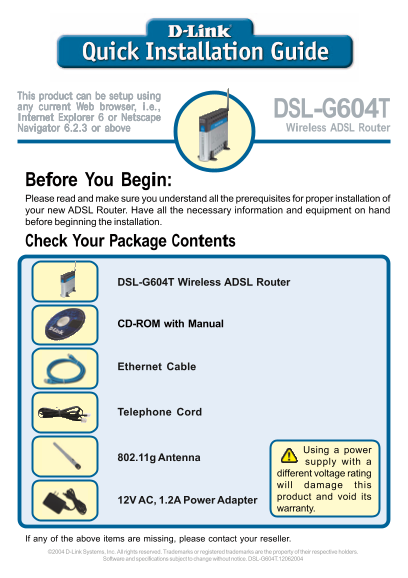
This product can be setup using any current Web browser, i.e.,

DSL-G604T

Internet Explorer 6 or Netscape

Navigator 6.2.3 or above Wireless ADSL Router

Before You Begin: Please read and make sure you understand all the prerequisites for proper installation of your new ADSL Router. Have all the necessary information and equipment on hand before beginning the installation. Check Your Package Contents

DSL-G604T Wireless ADSL Router

CD-ROM with Manual

Ethernet Cable

Telephone Cord

Using a power

802.11g Antenna

supply with a different voltage rating will damage this product and void its

12V AC, 1.2A Power Adapter

warranty.

If any of the above items are missing, please contact your reseller. ©2004 D-Link Systems, Inc. All rights reserved. Trademarks or registered trademarks are the property of their respective holders.

Software and specifications subject to change without notice. DSL-G604T.12062004

Page Summary Contents For D-Link DSL- G604T User Guide

Page 1 This product can be setup using any current Web browser, i.e., DSL-G604T Internet Explorer 6 or Netscape Navigator 6.2.3 or above Wireless ADSL Router Before You Begin: Please read and make sure you u...
Page 2 Hardware Overview Front Panel Power LED: Solid light Status LED: A blinking indicates a connection to light indicates normal a good power connector. operation. If this light is not lit and the power l...
Page 3 Hardware Overview (continued) Rear Panel Wireless Antenna: Used for wireless communication. ADSL Port: Connects to your telephone jack using a standard telephone cord. LAN Ports: Your computers connec...
Page 4 Hardware Installation Step a Step b Step a Step c
Page 5 Hardware Installation (continued) Step a Connect the telephone cord from your phone jack to the ADSL port on the DSL-G604T. Step b Connect an Ethernet cable from your computer to a LAN port on the DSL...
Page 6 Using the Setup Wizard Step a Launch your Web browser (a shortcut is typically found on your desktop). Step b Type http://192.168.1.1 into the URL address box and press the Enter or Return key. Step c...
Page 7 Using the Setup Wizard (continued) Step e Click Next Step f This screen allows you to enter a new password for the admin account. This password is used to log into the web-based management interface. ...
Page 8 Using the Setup Wizard (continued) You will need to select the Internet Connection Type. If you are unsure which type of Internet Connection you have, please contact your Internet Service Provider. Th...
Page 9 Using the Setup Wizard (continued) Step h2 Static IP Address The DSL-G604T defaults to the most commonly used values in the United States. The IP address information on the right is only shown as an e...
Page 10 Using the Setup Wizard (continued) Step h4 Bridge Mode Click Next Step i Click Restart Step j Configuration is complete! Type in a URL such as www.dlink.com to test your connection.
Page 11 Appendix - Settings Checklist Your ISP has provided you one of the four methods listed on the right for connecting to the Internet. You may need to contact them to find out which method you are using ...
Page 12 Technical Support You can find software updates and user documentation on the D-Link website. D-Link provides free technical support for customers within the United States and within Canada for the du...

Manual Details

Brand D-Link
Pages 12
File Size 1.89 MB
Published May 30, 2026
54 views

Enter the captcha to get the download link:

captcha

Frequently Asked Questions

What browsers are compatible with setup?

The product can be set up using web browsers like Internet Explorer 6 or Netscape Navigator 6.2.3 or above.

How do I perform a factory reset?

Hold down the Reset Button on the rear panel for seven seconds to factory reset the DSL-G604T.

Which ports are used for connecting devices?

LAN Ports use standard Ethernet cables for computers, and the ADSL Port uses a telephone cord connected from your phone jack.

What is the default login username and password?

The default User Name and Password for the web-based management interface (Admin) are 'admin' for both fields.