D-Link DWL-G122 Quick Installation Guide
Summary
Establish reliable 802.11g wireless connectivity using this USB adapter. This comprehensive guide details step-by-step setup instructions, covering initial installation on popular operating systems like Windows XP and Windows Me, through configuring secure network profiles and connecting to various wired and wireless environments. Ideal for users who need simple integration of Wi-Fi capability into desktop or laptop computers via an available USB port.
Page 1 Text Content
This product works with the following operating
system software: Windows XP, Windows DWL-G122 Air Plus TM G 802.11g
2000, Windows Me, Windows 98SE
USB Wireless Adapter
Before You Begin You must have at least the following: You will need a computer with an available USB port to connect the DWL-G122 Wireless USB adapter. At least a 300 MHz processor and 32 MB of memory An 802.11b/g Access Point (for Infrastructure Mode) or another 802.11b/g wireless adapter (for Ad-Hoc; Peer-to-Peer networking mode.) Properly installed and working USB Controller.
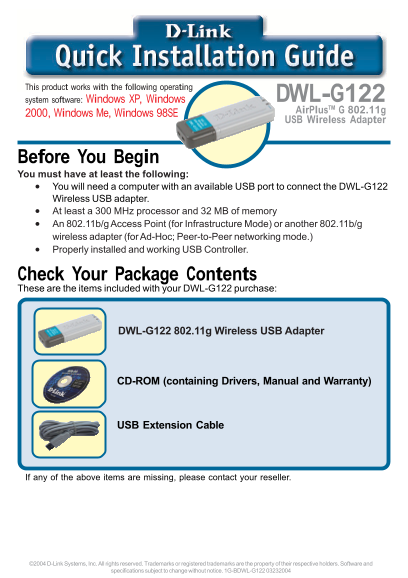
Check Your Package Contents These are the items included with your DWL-G122 purchase:
DWL-G122 802.11g Wireless USB Adapter
CD-ROM (containing Drivers, Manual and Warranty)
USB Extension Cable
If any of the above items are missing, please contact your reseller.
©2004 D-Link Systems, Inc. All rights reserved. Trademarks or registered trademarks are the property of their respective holders. Software and
specifications subject to change without notice. 1G-BDWL-G122 03232004
Page Summary Contents For D-Link DWL-G122 Quick Installation Guide
Manual Details
| Brand | D-Link |
|---|---|
| Pages | 12 |
| File Size | 1.50 MB |
| Published | May 28, 2026 |
Enter the captcha to get the download link:

Frequently Asked Questions
What minimum hardware is required for the DWL-G122 adapter?
You need a computer with an available USB port, at least a 300 MHz processor and 32 MB of memory, and either an 802.11b/g Access Point or another 802.11b/g wireless adapter.
How do I install the DWL-G122 adapter?
Plug it into a USB port, turn on your computer, and follow the prompts; the "New Hardware Wizard" screen will guide you, recommending automatic software installation.
What is the default encryption setting for connecting to a network?
By initial factory settings, WEP encryption is turned off when connecting to available wireless networks.
Where can I find technical support and updates for this product?
Software updates and documentation can be found on the D-Link website. U.S. customers can call (877) 453-5465, and Canadian customers can call (800) 361-5265.