D-Link DI-624 Quick Installation Guide
Summary
Establish robust connectivity with the DI-624 Multimode Wireless Router, designed to efficiently share high-speed internet connections across multiple devices. This comprehensive manual guides users through every step of installation, from initial power connection and physical LAN/WAN setup to the complete use of the Setup Wizard via web browser interface. It provides detailed instructions for configuring network parameters, such as obtaining dynamic IPs and managing wireless encryption settings. Ideal for home or small office users connecting to Cable or DSL modems, this router ensures a seamless and reliable internet experience across both wired and wireless networks.
Page 1 Text Content
This product can be set up using
DI-624
any current web browser, i.e.,
Internet Explorer 6 or Netscape Xtreme G 2.4GHz Navigator 6.2.3. Wireless Router
Before You Begin 1. If you purchased this router to share your high-speed Internet connection with other computers, you must have either an Ethernet-based Cable or DSL modem with an established Internet account from an Internet Service Provider (ISP). 2. It’s best to use the same computer that is connected to your modem for configuring the DI-624 Multimode Wireless Router. The DI-624 acts as a DHCP server and will assign all the necessary IP address information on your network. See Appendix at the end of this Quick Installation Guide or the Manual on the CD-ROM for setting each network adapter to automatically obtain an IP address.
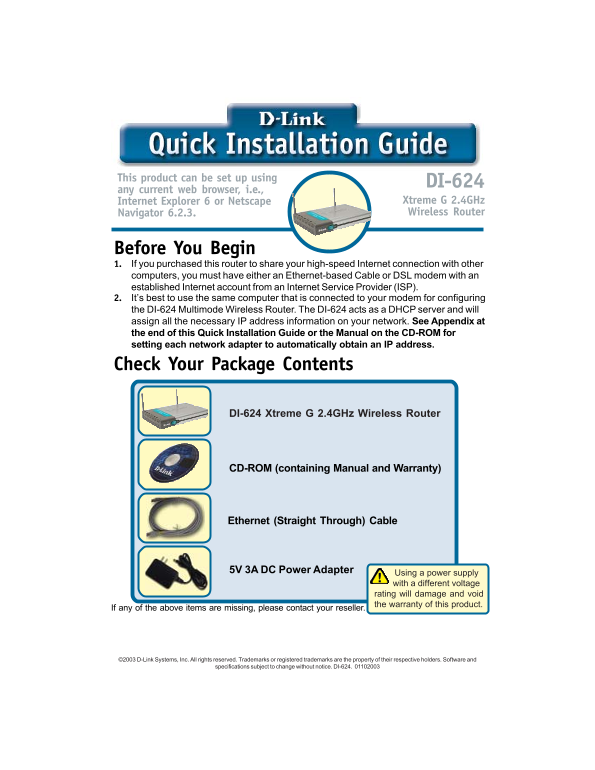
Check Your Package Contents
DI-624 Xtreme G 2.4GHz Wireless Router
CD-ROM (containing Manual and Warranty)
Ethernet (Straight Through) Cable
5V 3A DC Power Adapter
Using a power supply with a different voltage rating will damage and void the warranty of this product.If any of the above items are missing, please contact your reseller.
©2003 D-Link Systems, Inc. All rights reserved. Trademarks or registered trademarks are the property of their respective holders. Software and
specifications subject to change without notice. DI-624. 01102003
Page Summary Contents For D-Link DI-624 Quick Installation Guide
Manual Details
| Brand | D-Link |
|---|---|
| Pages | 13 |
| File Size | 436.63 KB |
| Published | May 30, 2026 |
Enter the captcha to get the download link:

Frequently Asked Questions
How do I physically connect the router to my modem?
Connect one end of an Ethernet cable to the WAN port on the DI-624 and the other end to your Cable or DSL modem's Ethernet port.
Can I use straight-through or crossover cables on the ports?
Yes, the WAN Port and LAN Ports are Auto-MDI/MDIX, allowing you to use either a straight-through or crossover cable.
What is the recommended procedure if I need to reset the router settings?
Pressing the Reset Button will restore the Router to its original factory default settings.
Is it safe to use any power adapter?
No. You must use the proper power supply; using one with a different voltage rating will damage and void the warranty.