D-Link DI-524UP Installation Guide
Summary
Upgrade your D-Link DI-524UP Wi-Fi router's capabilities with this comprehensive guide. Learn how to perform a full firmware update and seamlessly configure your device to operate as a functional Tomizone Hotspot. This manual walks users through connecting the hardware, accessing advanced settings via the web interface, enabling robust wireless functionality, and finally assigning the unit to the Tomizone network. Essential reading for owners aiming to maximize their router's potential and provide professional hotspot access.
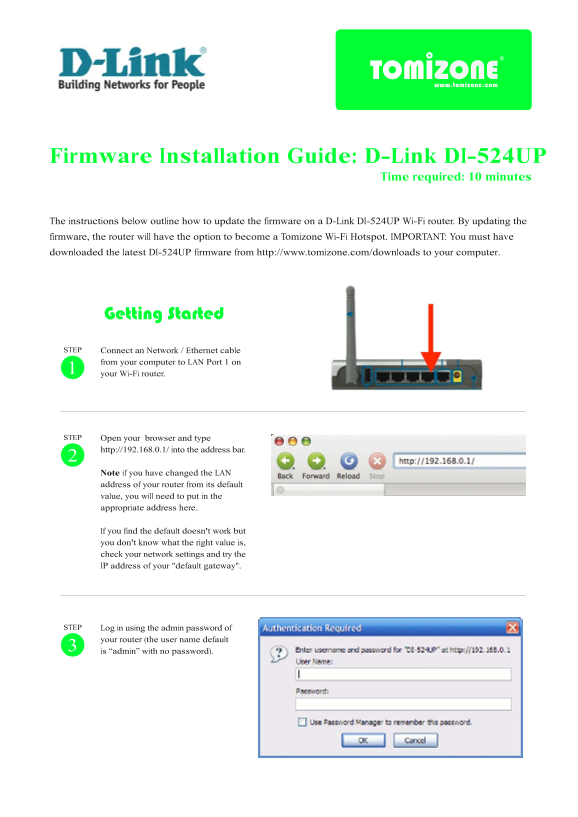
Page 1 Text Content
Firmware Installation Guide: D-Link DI-524UP
Time required: 10 minutes
The instructions below outline how to update the firmware on a D-Link DI-524UP Wi-Fi router. By updating the firmware, the router will have the option to become a Tomizone Wi-Fi Hotspot. IMPORTANT: You must have downloaded the latest DI-524UP firmware from http://www.tomizone.com/downloads to your computer.
STEP Connect an Network / Ethernet cable
from your computer to LAN Port 1 on your Wi-Fi router.
STEP Open your browser and type
http://192.168.0.1/ into the address bar.
Note if you have changed the LAN address of your router from its default value, you will need to put in the appropriate address here.
If you find the default doesn't work but you don't know what the right value is, check your network settings and try the IP address of your "default gateway".
STEP Log in using the admin password of
your router (the user name default is “admin” with no password).3
Page Summary Contents For D-Link DI-524UP Installation Guide
Manual Details
| Brand | D-Link |
|---|---|
| Pages | 4 |
| File Size | 415.39 KB |
| Published | May 30, 2026 |
Enter the captcha to get the download link:

Frequently Asked Questions
Where do I download the needed firmware file?
You must download the latest DI-524UP firmware from http://www.tomizone.com/downloads to your computer.
What sequence of actions should I take after applying the firmware?
Do not unplug the router until the counter reaches zero. Then, unplug and plug it back in; finally, log back into the router.
How do I set up the Tomizone Hotspot features?
Ensure the ‘Tomizone Wireless Hotspot’ is enabled on the left panel, nominate an SSID, and choose which LAN port(s) will act as Tomizone Ports.
What IP address should I use to log in to configure the router?
Open your browser and type http://192.168.0.1/ into the address bar. If this fails, check network settings for the default gateway's IP address.