# A B C D E F G H I J K L M N O P Q R S T U V W X Y Z

HP Photosmart Premium All-in-One Series - C309 Reference Guide

Summary

Experience fun, easy wireless photo printing with the HP Photosmart Premium series. This smart printer allows users to effortlessly print from USB drives, memory cards, phones (via iPrint Photo), and Bluetooth devices while seamlessly supporting multiple connected computers on a single network. The comprehensive manual guides you through everything from initial WPS-enabled setup to advanced features like high-resolution scanning, photo editing with Snapfish, and duplex printing. It provides detailed instructions for connecting the printer wirelessly or via Ethernet, ensuring reliable operation whether setting up your home office or enjoying a personal photo archive.
📄 Preview PAGE OF 16

Page 1 Text Content

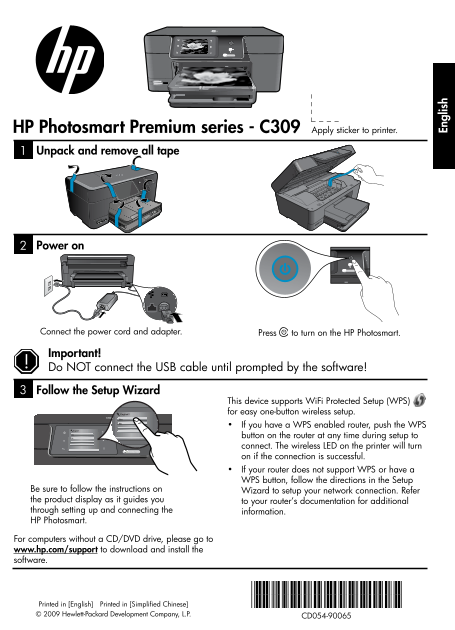
HP Photosmart Premium series - C309 Apply sticker to printer. Unpack and remove all tape

Power on

Connect the power cord and adapter. Press to turn on the HP Photosmart.

Important! Do NOT connect the USB cable until prompted by the software! Follow the Setup Wizard

This device supports Wi Fi Protected Setup (WPS) English? for easy one-button wireless setup.

If you have a WPS enabled router, push the WPS button on the router at any time during setup to

connect. The wireless LED on the printer will turn En gl is

on if the connection is successful. If your router does not support WPS or have a WPS button, follow the directions in the Setup

Be sure to follow the instructions on Wizard to setup your network connection. Refer the product display as it guides you to your router’s documentation for additional through setting up and connecting the information. HP Photosmart.

For computers without a CD/DVD drive, please go to www.hp.com/support to download and install the software.

*CD054-90065* Printed in [English] Printed in [Simplified Chinese] *CD054-90065*

© 2009 Hewlett-Packard Development Company, L.P.

CD054-90065

Page Summary Contents For HP Photosmart Premium All-in-One Series - C309 Reference Guide

Page 1 HP Photosmart Premium series - C309 Apply sticker to printer. Unpack and remove all tape Power on Connect the power cord and adapter. Press to turn on the HP Photosmart. Important! Do NOT connect the ...
Page 2 Get to know the HP Photosmart Home: Cancel: Returns to the Home screen (the default Stops the current operation. screen when you turn on the product). Directional keys: Help: Allow you to navigate thr...
Page 3 Get the most out of your HP Photosmart Print your photos without connecting to Connect the HP Photosmart to as many a computer— just insert your memory as five computers over a wired or card or USB dr...
Page 4 Get the most out of your HP Photosmart Change the HP Photosmart from a USB connection to a network connection If you first install the HP Photosmart with a USB connection, you can later change to a wi...
Page 5 Troubleshooting Setup Troubleshooting If the HP Photosmart does not turn on: 1. Check the power cord. Make sure the power cord is firmly connected to both the product and the power adapter. If you are...
Page 6 Troubleshooting Network Troubleshooting Use this section to solve problems you might encounter when setting up a network connection. The product cannot be found during software installation If the HP ...
Page 7 Troubleshooting Ethernet and wireless connections Step 3: Check for and resolve the following possible conditions: Your computer may not be connected to your network. Make sure that the computer is co...
Page 8 HP printer limited warranty statement HP product Duration of limited warranty Software Media 90 days Printer 1 year Print or Ink cartridges Until the HP ink is depleted or the “end of warranty” date p...
Page 9 HP Photosmart Premium series - C309 打开包装并拆除所有胶带 连接电源线和适配器。 按下 打开 HP Photosmart。 重要提示! 在软件没有提示之前,请勿连接 USB 电缆! 按照设置向导进行操作 本设备支持通过 Wi Fi 保护设置 (WPS) 进行单键 English? 无线设置。 如果您的路由器启用了 WPS,您可以在设置过 程中的任何时间按下 WP...
Page 10 HP Photosmart 入门 Snapfish: 快速表格: 打开 Snapfish 菜单,在此菜单中可以上 打印多种空表格,例如学校专用纸、乐谱 传、编辑和共享照片。根据您所在的国 用纸、迷宫和清单。根据您所在的国家/地 家/地区,Snapfish 可能不可用。 区,“快速表格”可能在主屏幕上可用。
Page 11 尽情使用 HP Photosmart 在不连接计算机的情况下打印照片 - 通过有线或无线网络将 HP Photosmart 只要将存储卡或 USB 闪存盘插入 HP 连接到最多 5 台计算机。 Photosmart 插槽中即可开始打印。 使用 HP Photosmart 的编辑功能进行细 打印多种项目,如游戏、清单、乐谱用 微调整,使您的照片具有复古效果,或 纸、相册和全景照片。 从诸如 PDA、...
Page 12 尽情使用 HP Photosmart 将 HP Photosmart 从 USB 连接更改为网络连接 如果初始安装 HP Photosmart 时使用了 USB 连接,则稍后可以更改为无线或 Ethernet 网络连接。如果您已经 了解如何连接至网络,则可以使用以下一般性说明。 将 USB 连接更改为网络连接 1. 拔掉产品背面的 USB 电缆。 2. 根据要切换到的连接类型,执行以下操作之一: ...
Page 13 故障排除 安装故障排除 如果 HP Photosmart 无法开启: 1. 检查电源线。 确保电源线紧紧地连接到该产品和电源适配器上。 如果使用插线板,请确保插线板的开关已打开。或尝试将该产品电源线直接插入电源插座。 测试电源插座,确保其工作正常。插上一台可正常工作的设备,查看该设备是否有电。如果没有,则 电源插座可能有问题。 如果将该产品插入到带开关的插座中,请确保该插座开关已打开。如果将开关打...
Page 14 故障排除 网络故障排除 使用本节以解决设置网络连接时可能遇到的问题。 软件安装期间无法找到产品 如果在软件安装期间 HP 软件无法在网络上找到您的产品,请尝试执行下列故障排除步骤。步骤 1 和 2 仅适用于无线连接,步骤 3 和 4 适用于无线连接和 Ethernet 连接。如果您进行了无线连接,请根据需要 执行步骤 1 至 4。如果您进行了 Ethernet 连接,请从步骤 3 开始。 步骤 2...
Page 15 故障排除 Ethernet 和无线连接 步骤 3:检查下列各种可能的情况并采取相应的解决措施: 您的计算机可能没有连接到网络。确保将计算机与 HP Photosmart 连接到同一网络。例如,如果是无线 连接,则计算机可能已错误地连接到相邻网络中。 您的计算机可能已连接到虚拟专用网络 (VPN)。在继续安装前暂时禁用 VPN。连接到 VPN 如同位于其 他网络;您需要断开与 VPN 的连接才能访问...
Page 16 HP 打印机有限保修声明

Manual Details

Brand HP
Pages 16
File Size 4.21 MB
Published June 17, 2026
5 views

Enter the captcha to get the download link:

captcha

Frequently Asked Questions

How do I connect the printer wirelessly or to my network?

Use WiFi Protected Setup (WPS) by pushing the WPS button on your router, or follow the setup wizard via the product display for manual connection.

What software do I use if my computer lacks a CD/DVD drive?

Download and install the required software from www.hp.com/support.

How can I troubleshoot network connectivity issues?

Check that all devices (router, printer, computer) are powered off and then turned on in sequence: router first, then printer, then computer.

What is the fastest way to print photos from my smartphone?

Use iPrint Photo, a free downloadable software application designed for quick wireless printing of 4 x 6 inch photos from iPhone or iPod Touch.