HP Photosmart e-All-in-One Printer Series - D110 Reference Guide
Summary
Maximize your printing and copying capabilities with the HP Photosmart D110 Series printer. This essential guide provides comprehensive instructions for setting up and operating this multi-function device, whether you are connecting via Wi-Fi (including WPS setup) or troubleshooting connectivity issues. Learn how to utilize advanced features like high-quality photo printing, scanning documents, and copying materials. Perfect for new owners needing full confidence in getting a quick, reliable, and hassle-free print experience.
Page 1 Text Content
Inside...
HP Photosmart D110 series Setup troubleshooting 2
Get to know your HP Photosmart 3 Print, copy, scan features and tips 4 What’s new? Web Services 5
Start setup here...
Networked printer setup and use 6
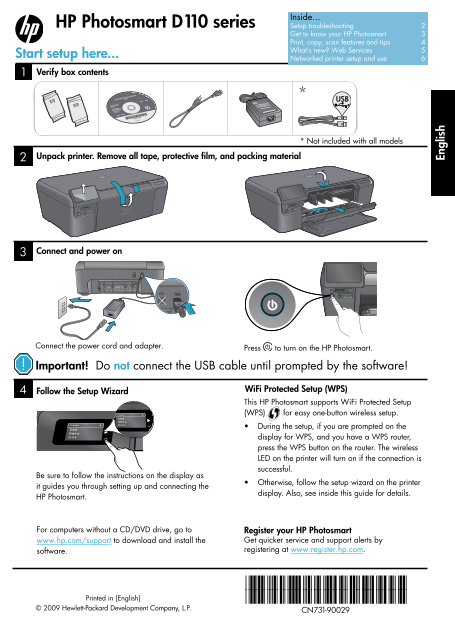
Verify box contents
* Not included with all models
Unpack printer. Remove all tape, protective film, and packing material
Connect and power on
Connect the power cord and adapter.
Press to turn on the HP Photosmart.
Important! Do not connect the USB cable until prompted by the software!
Wi Fi Protected Setup (WPS)
Follow the Setup Wizard
This HP Photosmart supports Wi Fi Protected Setup (WPS) for easy one-button wireless setup. During the setup, if you are prompted on the display for WPS, and you have a WPS router,
En gl is
press the WPS button on the router. The wireless LED on the printer will turn on if the connection is successful.
Be sure to follow the instructions on the display as
Otherwise, follow the setup wizard on the printer
it guides you through setting up and connecting the
display. Also, see inside this guide for details.
HP Photosmart.
For computers without a CD/DVD drive, go to Register your HP Photosmart
www.hp.com/support to download and install the Get quicker service and support alerts by software. registering at www.register.hp.com.
*CN731-90029*
Printed in [English] *CN731-90029*
© 2009 Hewlett-Packard Development Company, L.P.
CN731-90029
Page Summary Contents For HP Photosmart e-All-in-One Printer Series - D110 Reference Guide
Manual Details
| Brand | HP |
|---|---|
| Pages | 8 |
| File Size | 2.99 MB |
| Published | June 20, 2026 |
Enter the captcha to get the download link:

Frequently Asked Questions
What is the first step after unpacking the HP Photosmart?
Connect the power cord and adapter. Then press the power button to turn on the printer.
How can I easily set up wireless connectivity?
Use WiFi Protected Setup (WPS). If prompted, press the WPS button on your router while following display instructions.
What should I do if my printer won't turn on?
Check the power cord connections; ensure the adapter is working by plugging in another appliance, or try restarting the unit by unplugging and replugging the power cord.
How can I fix printing issues after a software update?
Disconnect the printer, uninstall all HP components via Control Panel, and then reinstall using the CD/Installer, following the onscreen instructions.