HP ENVY 110 e-All-in-One Printer Series - D411 Reference Guide
Summary
Maximize efficiency with this comprehensive guide for your wireless multifunction printer. Learn how to easily set up your device—including connecting securely to your wireless network and troubleshooting power issues. This manual details advanced features like ePrint, allowing you to print directly from emails, managing mobile apps for scanning/photo transfers, and utilizing web-based faxing services. Ideal for home users needing seamless printing, scanning, copying, and communication from any connected device.
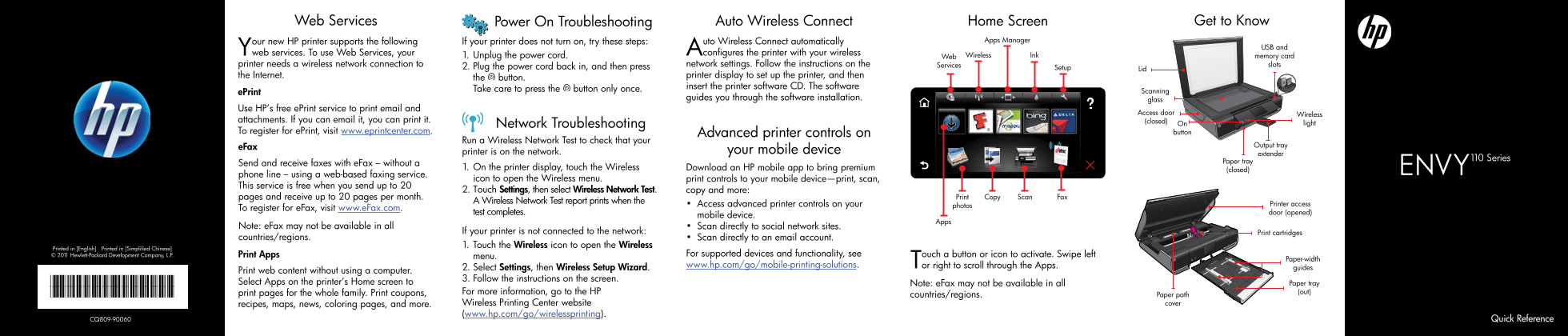
Page 1 Text Content
details
Power On Troubleshooting Web Services Auto Wireless Connect Home Screen Get to Know
If your printer does not turn on, try these steps: Apps Manager
USB and
Your new HP printer supports the following web services. To use Web Services, your Auto Wireless Connect automatically configures the printer with your wireless
1. Unplug the power cord. Web Wireless Ink memory card
printer needs a wireless network connection to network settings. Follow the instructions on the Services slots
2. Plug the power cord back in, and then press Setup
the Internet. printer display to set up the printer, and then
the button.
insert the printer software CD. The software
Take care to press the button only once. Scanning
e Print
guides you through the software installation. glass
Use HP’s free e Print service to print email and
Access door
Wireless
attachments. If you can email it, you can print it. (closed)
Network Troubleshooting light On
To register for e Print, visit www.eprintcenter.com. Advanced printer controls on button
Run a Wireless Network Test to check that your
e Fax Output tray
printer is on the network. your mobile device
extender
Paper tray
Send and receive faxes with e Fax – without a
1. On the printer display, touch the Wireless Download an HP mobile app to bring premium
(closed)
phone line – using a web-based faxing service.
icon to open the Wireless menu. print controls to your mobile device—print, scan,
This service is free when you send up to 20
2. Touch Settings, then select Wireless Network Test. copy and more:
pages and receive up to 20 pages per month. Print Copy Scan Fax
A Wireless Network Test report prints when the
• Access advanced printer controls on your photos Printer access
To register for e Fax, visit www.e Fax.com.
test completes. door (opened)
mobile device.
Note: e Fax may not be available in all Scan directly to social network sites.
If your printer is not connected to the network: Print cartridges
countries/regions. Scan directly to an email account.
1. Touch the Wireless icon to open the Wireless
Printed in [English] Printed in [Simplified Chinese]
© 2011 Hewlett-Packard Development Company, L.P. Print Apps For supported devices and functionality, see
menu.
Paper-width
www.hp.com/go/mobile-printing-solutions. Touch a button or icon to activate. Swipe left or right to scroll through the Apps.
2. Select Settings, then Wireless Setup Wizard. guides
Print web content without using a computer.
3. Follow the instructions on the screen.
*CQ809-90060* Select Apps on the printer’s Home screen to Note: e Fax may not be available in all Paper tray
*CQ809-90060* print pages for the whole family. Print coupons, For more information, go to the HP (out)
countries/regions. Paper path recipes, maps, news, coloring pages, and more. Wireless Printing Center website cover
(www.hp.com/go/wirelessprinting).
CQ809-90060 Quick Reference
Page Summary Contents For HP ENVY 110 e-All-in-One Printer Series - D411 Reference Guide
Manual Details
| Brand | HP |
|---|---|
| Pages | 2 |
| File Size | 1.74 MB |
| Published | June 18, 2026 |
Enter the captcha to get the download link:

Frequently Asked Questions
How do I set up my printer for wireless connection?
Touch the Wireless icon, select Settings, and then follow the steps in the Wireless Setup Wizard around the A/B button.
What services can I use to remotely print documents?
You can use HP’s free ePrint service for printing emails and attachments, or visit www.ePrintcenter.com to register.
How do I confirm if my printer is correctly networked?
Run a Wireless Network Test from the menu; a printed report will verify your network status.
Can I use the printer for faxing without a phone line?
Yes, eFax uses a web-based service allowing you to send and receive faxes by visiting www.eFax.com.