HP ENVY 100 e-All-in-One Printer Series - D410 Reference Guide
Summary
Discover comprehensive printing freedom with this versatile all-in-one printer. This guide provides expert instructions on setting up wireless connectivity, managing integrated apps via the Apps Manager, and utilizing ePrint services for worry-free sharing. Designed for modern households and families, it ensures you can effortlessly print from your computer, mobile device, or directly from the web, with easy access to full troubleshooting support.
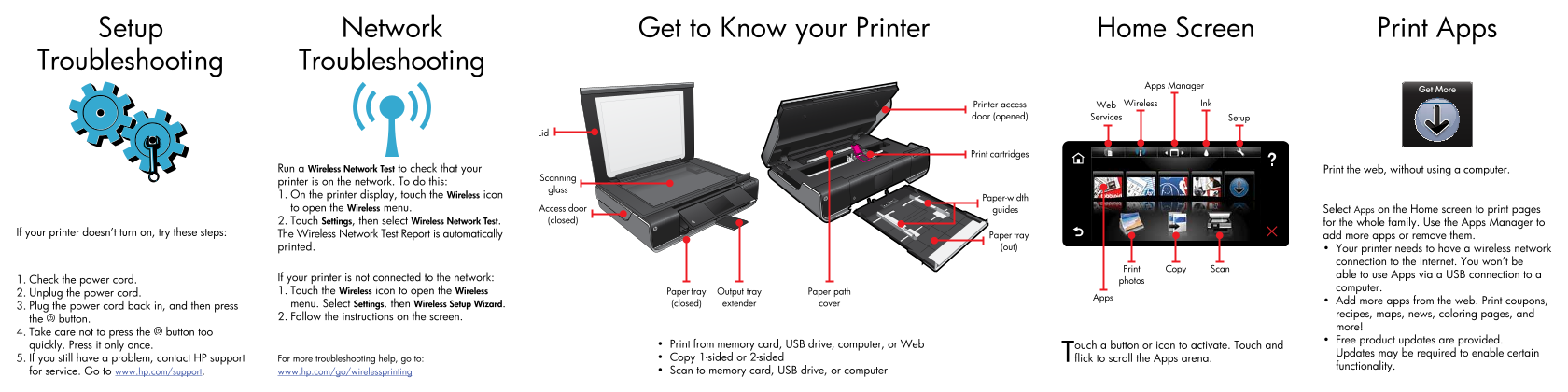
Page 1 Text Content
Setup Network Get to Know your Printer Home Screen Print Apps Troubleshooting Troubleshooting
Apps Manager Printer access Web Wireless Ink
door (opened) Services Setup
Print cartridges
Run a Wireless Network Test to check that your Print the web, without using a computer.
Scanning
printer is on the network. To do this:
glass
1. On the printer display, touch the Wireless icon
Paper-width
to open the Wireless menu. Access door guides Select Apps on the Home screen to print pages
2. Touch Settings, then select Wireless Network Test. (closed) for the whole family. Use the Apps Manager to
If your printer doesn’t turn on, try these steps: The Wireless Network Test Report is automatically
Paper tray add more apps or remove them. printed. (out) Your printer needs to have a wireless network
connection to the Internet. You won’t be
Print Copy Scan
able to use Apps via a USB connection to a
1. Check the power cord. If your printer is not connected to the network:
photos
computer.
2. Unplug the power cord. 1. Touch the Wireless icon to open the Wireless Paper tray Output tray Paper path
(closed) extender cover Add more apps from the web. Print coupons,
3. Plug the power cord back in, and then press menu. Select Settings, then Wireless Setup Wizard.
recipes, maps, news, coloring pages, and
the button. 2. Follow the instructions on the screen.
more!
4. Take care not to press the button too
Free product updates are provided.
quickly. Press it only once. Print from memory card, USB drive, computer, or Web
Touch a button or icon to activate. Touch and Updates may be required to enable certain
5. If you still have a problem, contact HP support For more troubleshooting help, go to: Copy 1-sided or 2-sided flick to scroll the Apps arena.
functionality.
for service. Go to www.hp.com/support. www.hp.com/go/wirelessprinting Scan to memory card, USB drive, or computer
Page Summary Contents For HP ENVY 100 e-All-in-One Printer Series - D410 Reference Guide
Manual Details
| Brand | HP |
|---|---|
| Pages | 2 |
| File Size | 1.79 MB |
| Published | June 02, 2026 |
Enter the captcha to get the download link:

Frequently Asked Questions
How do I set up a wireless connection on the printer?
Touch the Wireless icon, select Settings, and follow the instructions in the Wireless Setup Wizard.
Can I print photos without connecting to a computer?
Yes, you can use a memory card or USB drive plugged into the printer to start printing selected photos.
What should I do if my printer fails to power on?
Unplug the power cord completely and then plug it back in. If issues persist, contact HP support.
How does the ePrint service work to print from email?
Simply send an email containing recognized attachments to your specific printer’s email address.