Page 1
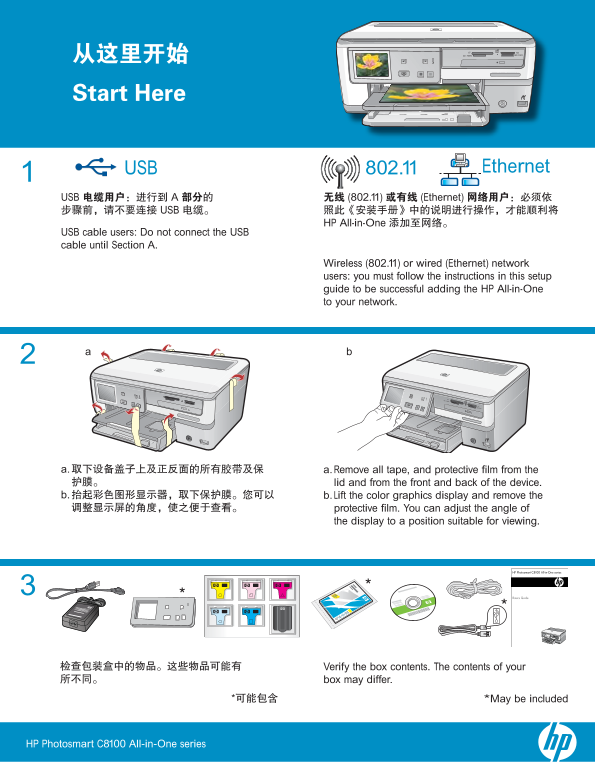
802.11 Ethernet USB USB A (802.11) (Ethernet) HP All-in-One USB cable users: Do not connect the USB cable until Section A Wireless (802.11) or wired (Ethernet) network users : you must follow the inst...
Page 2
a. If the control panel faceplate is not already attached, position it over the buttons on the device. b. Press down fi rmly on all edges of the faceplate until it snaps into place. Make sure all butt...
Page 3
Open the access door. a. a. Squeeze the bottom of each latch to release it, and then lift the latch. b. b. Lift all six latches. a. Match the color and pattern of the ink cartridge to the color and pa...
Page 4
a. a. Pull out the paper tray. b. b. Slide the paper-width guide to the left. c. c. Insert plain white paper into the main tray and adjust the paper guides. d. OK d. Push in the main tray and touch OK...
Page 5
A – USB B – 802.11 C – Ethernet A – USB B – 802.11/ Choose only ONE connection type (A – USB, C – Ethernet/ B – 802.11/Wireless, or C – Ethernet/Wired), and follow the instructions in this Setup Guide...
Page 6
A – USB Mac: Windows: HP CD-ROM a. USB setup.exe HP All-in-One a. Turn on your computer, login if necessary, and IMPORTANT: Purchase a USB cable then wait for the desktop to appear. Insert the separat...
Page 7
USB USB Troubleshooting www.hp.com/support Windows Microsoft HP All-in-One CD Windows USB HP All-in-One CD Windows USB USB USB Problem: (Windows) The Microsoft Add Hardware screen appears. Action: Can...
Page 8
WEP WPA HP Wireless Network Assistant Web [URL www.hp.com/go/networksetup Wireless Network Assistant a. Locate and write down your wireless router settings: Network Name (also called SSID):___________...
Page 9
Clear Done (SSID) f. WEP WPA WEP WPA e. Do one of the following: Touch the name of the network that you wrote down earlier. If the network name that you wrote down does not appear in the list, you can...
Page 10
C – Ethernet a. Ethernet b. c. Ethernet Ethernet d. Ethernet Internet e. HP All-in-One HP All-in-One Ethernet a. Locate the Ethernet cable. b. Remove the yellow plug from the back of the device. c. Co...
Page 11
D1 – Ethernet/802.11 Windows: Mac: b. CD b. CD HP CD-ROM c. HP Photosmart CD setup.exe d. HP All-in-One d. HP a. Turn on your computer, login if necessary, and a. Turn on your computer, login if neces...
Page 12
D2 – Ethernet/802.11 If you have additional computers on your network, HP All-in-One install the HP All-in-One software on each computer. Follow the onscreen instructions. Make sure that you HP All-in...
Page 13
www.hp.com/support HP All-in-On HP All-in-One HP All-in-One SSID HP All-in-One HP All-in-One HP All-in-One HP All-in-One 2.4GHZ HP All-in-One HP All-in-One Problem: After you run the Wireless Setup Wi...
Page 14
WEP WPA WEP WPA (SSID) HP All-in-One Problem: You see the error message Invalid WEP key or Invalid WPA passphrase when you run the Wireless Setup Wizard. Action: You may have typed the WEP key or WPA ...
Page 15
Photosmart Express View Photos 1/999 View Photos 1/999 Done Select All Print Options Print Create Share Save Print Preview Print Preview 1/999 Print Preview Edit Photo Print All Preview 4 x 6 Borderle...
Page 16
Explore more features HP All-in-One HP All-in-One Printable School Papers : Did you know you can print school papers from your HP All-in-One? Print notebook paper, graph paper, task checklists, or eve...