HP Photosmart C5200 All-in-One Printer Series Setup Guide
Summary
Set up your HP Photosmart C5200 All-in-One series printer effortlessly with this comprehensive guide. This manual provides step-by-step instructions for initial setup, including removing protective films, installing ink cartridges, and loading paper. Users will find detailed troubleshooting advice for hardware connection issues and software installation steps (Windows), ensuring a smooth and successful first printing experience right out of the box.
Page 1 Text Content
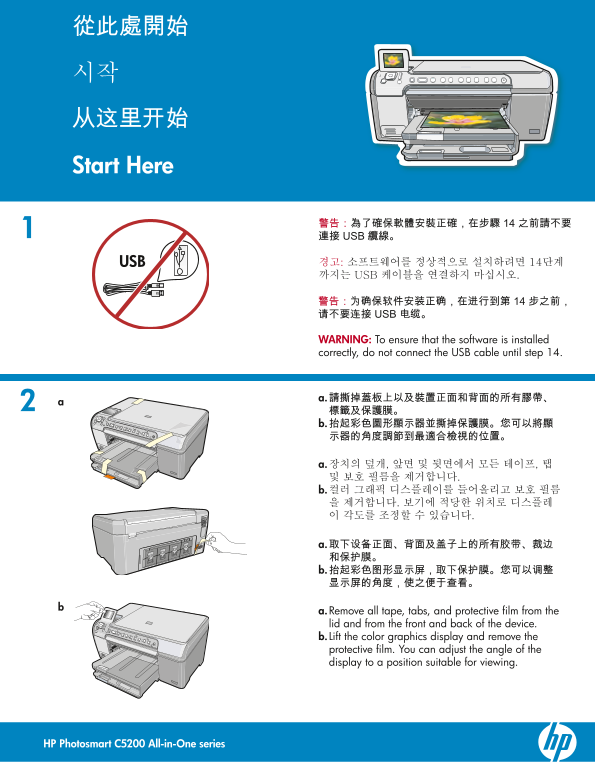
Start Here
경고: 소프트웨어를 정상적으로 설치하려면 14단계 까지는 USB 케이블을 연결하지 마십시오.
WARNING: To ensure that the software is installed correctly, do not connect the USB cable until step 14.
a. Remove all tape, tabs, and protective fi lm from the lid and from the front and back of the device. b. Lift the color graphics display and remove the protective fi lm. You can adjust the angle of the display to a position suitable for viewing.
HP Photosmart C5200 All-in-One series
Page Summary Contents For HP Photosmart C5200 All-in-One Printer Series Setup Guide
Manual Details
| Brand | HP |
|---|---|
| Pages | 12 |
| File Size | 4.61 MB |
| Published | June 01, 2026 |
Enter the captcha to get the download link:

Frequently Asked Questions
在设置过程中,如果遇到Windows的“Microsoft Add Hardware”屏幕该怎么办?
请取消所有屏幕。拔下USB电缆,然后插入绿色的HP All-in-One CD,并参阅第14步。
如何正确安装或更换墨水匣?
必须开机才能放入电芯/碳粉盒。将彩色电芯装入左侧插槽,黑色电芯装入右侧插槽,然后按OK确认安装。
初始设置时是否需要特别注意电池或安全防护措施的去除?
是的,首先要清除设备盖子、前部和后部的所有胶带、标签和保护膜。同时也要抬起彩色图形显示器并移除其保护膜。
如果在Windows系统下没有看到连接USB电缆的提示屏幕怎么办?
取消所有屏幕。取出,然后重新插入绿色的HP All-in-One CD,并参阅第14步指南。