HP Photosmart C4200 Series All-in-One Printer Setup Guide
Summary
Master the initial setup of your HP Photosmart All-in-One printer series with this essential guide. This manual provides comprehensive instructions for new owners, covering everything from hardware installation—including power connection and loading ink cartridges—to detailed software configuration on both Windows and Mac operating systems. It walks you through every necessary step, including driver installation and mandatory alignment procedures, ensuring your multifunction device is ready to print, scan, and copy with ease.
Page 1 Text Content
Start Here
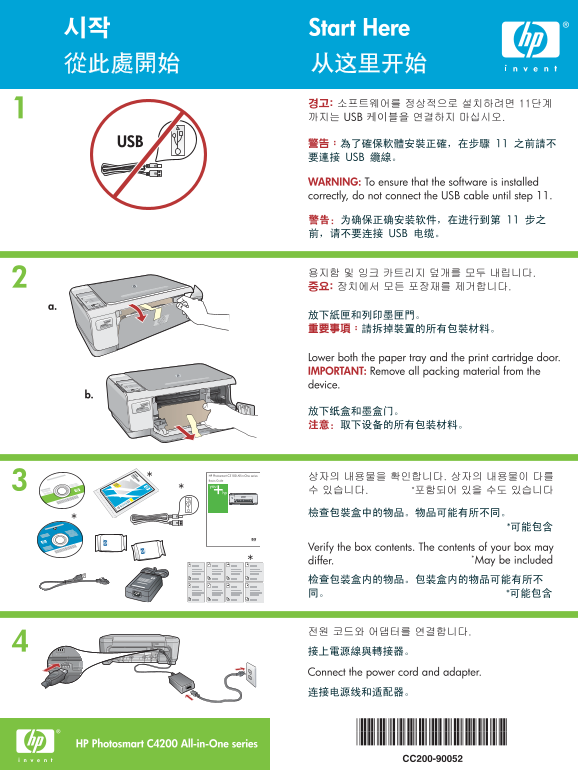
WARNING: To ensure that the software is installed correctly, do not connect the USB cable until step 11.
Lower both the paper tray and the print cartridge door. IMPORTANT: Remove all packing material from the device.
HP Photosmart C3100 All-in-One series
Basics Guide
Verify the box contents. The contents of your box may differ. *May be included
Connect the power cord and adapter.
*CC200-90052* *CC200-90052*
HP Photosmart C4200 All-in-One series
CC200-90052
Page Summary Contents For HP Photosmart C4200 Series All-in-One Printer Setup Guide
Manual Details
| Brand | HP |
|---|---|
| Pages | 8 |
| File Size | 1.87 MB |
| Published | May 31, 2026 |
Enter the captcha to get the download link:

Frequently Asked Questions
What must I do before connecting the USB cable?
Do not connect the USB cable until you have completed Step 11 of the setup process.
How should I load paper for printing?
Pull out the tray extender, and then load plain white paper. You must ensure the printer has been turned on first.
What steps are required to insert ink cartridges?
Open the print cartridge door, make sure the carriage moves right (if not, turn off/on), detach the tape from both cartridges, and repeat for color and black cartridges by pushing them firmly until they snap into place.