HP Photosmart 7600 Series Printers HP Photosmart 7660 Photo Printer Installation Guide (Simplified Chinese, Traditional Chinese)
Summary
The HP Photosmart 7600 Series is a powerful printer designed for quality photo and document printing. This complete setup manual guides new users through every step of installation, ensuring a smooth start on your PC or Macintosh computer. The guide covers essential physical tasks, including safely loading plain paper and correctly installing appropriate print cartridges (such as color and dedicated photo/black options). Crucially, it provides detailed instructions on powering the printer, setting up the in-tray, executing the software installation via CD/DVD, and connecting the unit to your computer only when prompted by the setup wizard.
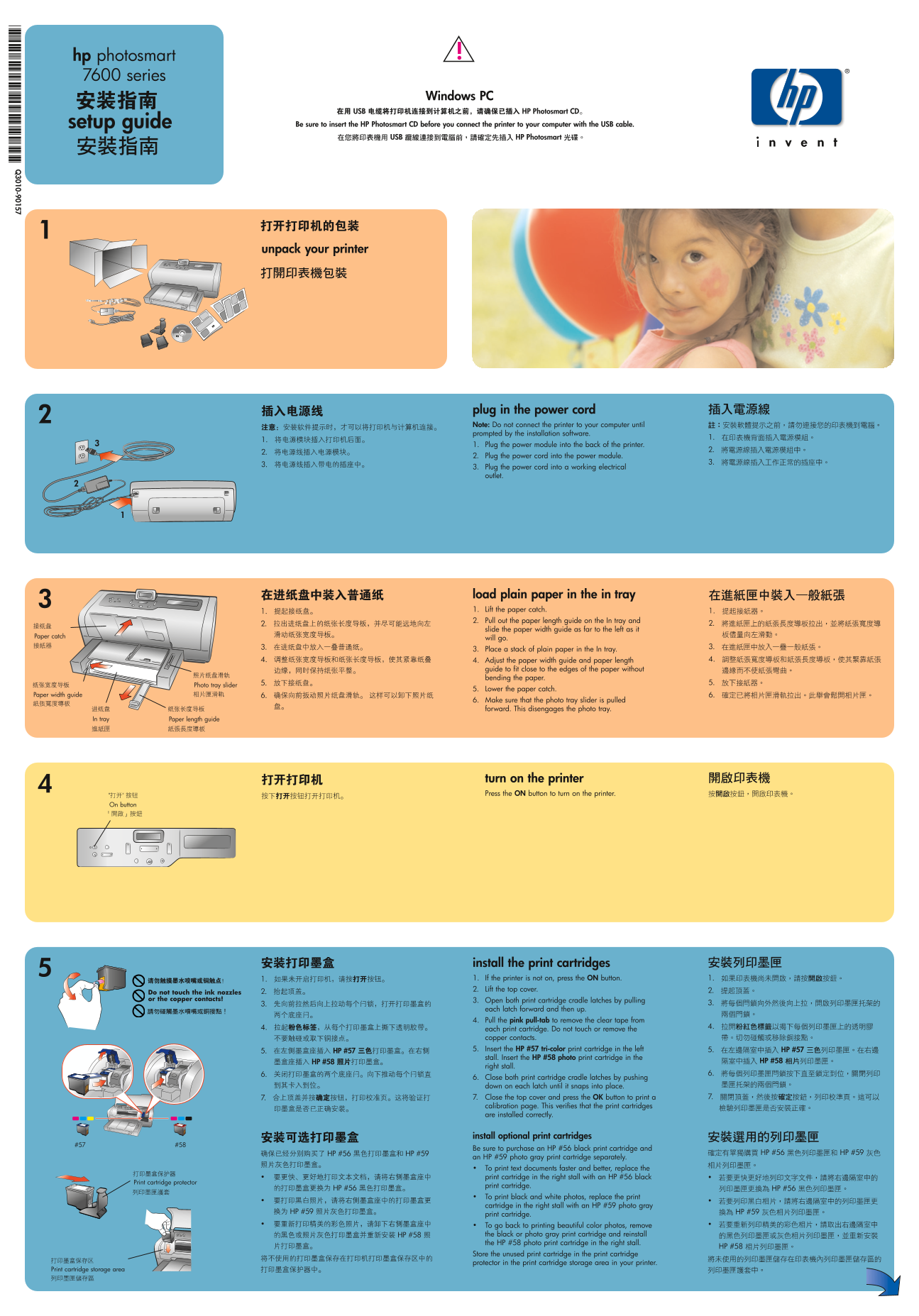
Page 1 Text Content
hp photosmart 7600 series
Windows PC
setup guide Be sure to insert the HP Photosmart CD before you connect the printer to your computer with the USB cable.
unpack your printer
plug in the power cord Note: Do not connect the printer to your computer until prompted by the installation software. 1. Plug the power module into the back of the printer. 2. Plug the power cord into the power module. 3. Plug the power cord into a working electrical outlet.
load plain paper in the in tray 1. Lift the paper catch. 2. Pull out the paper length guide on the In tray and slide the paper width guide as far to the left as it
Paper catch
will go. 3. Place a stack of plain paper in the In tray. 4. Adjust the paper width guide and paper length guide to fit close to the edges of the paper without bending the paper.
Photo tray slider
5. Lower the paper catch.
Paper width guide
6. Make sure that the photo tray slider is pulled forward. This disengages the photo tray.
In tray Paper length guide
turn on the printer Press the ON button to turn on the printer.
On button
install the print cartridges 1. If the printer is not on, press the ON button. 2. Lift the top cover.
Do not touch the ink nozzles or the copper contacts! 3. Open both print cartridge cradle latches by pulling
each latch forward and then up. 4. Pull the pink pull-tab to remove the clear tape from each print cartridge. Do not touch or remove the copper contacts. 5. Insert the HP #57 tri-color print cartridge in the left stall. Insert the HP #58 photo print cartridge in the right stall. 6. Close both print cartridge cradle latches by pushing down on each latch until it snaps into place. 7. Close the top cover and press the OK button to print a calibration page. This verifies that the print cartridges are installed correctly.
install optional print cartridges
Be sure to purchase an HP #56 black print cartridge and an HP #59 photo gray print cartridge separately. To print text documents faster and better, replace the print cartridge in the right stall with an HP #56 black
Print cartridge protector
print cartridge. To print black and white photos, replace the print cartridge in the right stall with an HP #59 photo gray print cartridge. To go back to printing beautiful color photos, remove the black or photo gray print cartridge and reinstall the HP #58 photo print cartridge in the right stall. Store the unused print cartridge in the print cartridge protector in the print cartridge storage area in your printer.
Print cartridge storage area
Page Summary Contents For HP Photosmart 7600 Series Printers HP Photosmart 7660 Photo Printer Installation Guide (Simplified Chinese, Traditional Chinese)
Manual Details
| Brand | HP |
|---|---|
| Pages | 2 |
| File Size | 3.72 MB |
| Published | June 16, 2026 |
Enter the captcha to get the download link:

Frequently Asked Questions
When is it safe to connect the printer to my computer?
Do not connect the printer until prompted by the installation software.
How do I optimize printing for black and white photos?
Replace the right cartridge with an HP #59 photo gray print cartridge.
What crucial precaution must I take when connecting my USB cable?
The connection must be direct to the computer, as using a USB hub can cause installation errors.
What do I avoid touching while installing ink cartridges?
You must not touch the ink nozzles or the copper contacts during cartridge installation.