# A B C D E F G H I J K L M N O P Q R S T U V W X Y Z

HP Photosmart D7400 Series Printer Setup Guide

Summary

A detailed guide for setting up your HP Photosmart D7400 series photo printer. This comprehensive manual walks users through every aspect of setup, including connectivity options like USB, Wi-Fi, and Ethernet linking your device to any network. It covers loading ink cartridges and paper (standard and photo), displaying photos from memory cards, and accessing advanced features such as printable academic documents, making it ideal for photo enthusiasts and students alike.
📄 Preview PAGE OF 16

Page 1 Text Content

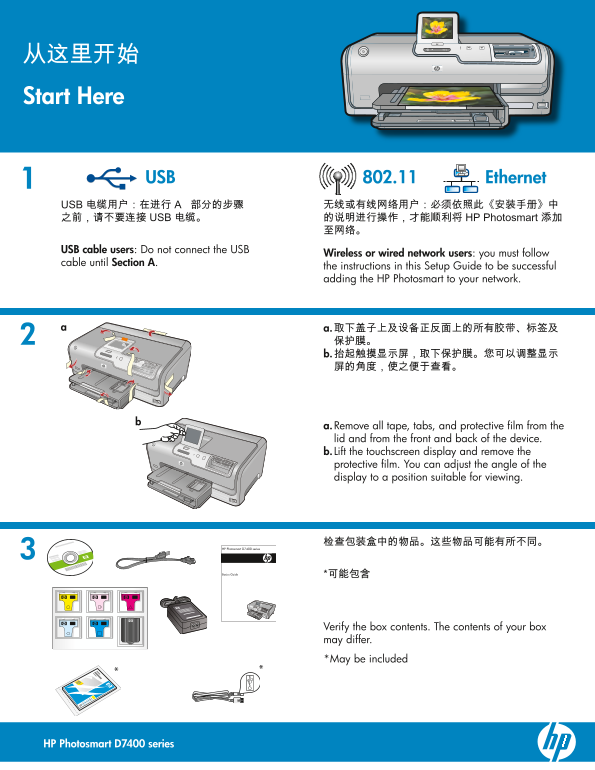
Start Here

USB 802.11 Ethernet

USB cable users : Do not connect the USB

Wireless or wired network users : you must follow

cable until Section A .

the instructions in this Setup Guide to be successful adding the HP Photosmart to your network.

a. Remove all tape, tabs, and protective fi lm from the lid and from the front and back of the device. b. Lift the touchscreen display and remove the protective fi lm. You can adjust the angle of the display to a position suitable for viewing.

HP Photosmart D7400 series

Basics Guide

Verify the box contents. The contents of your box may differ. *May be included

HP Photosmart D7400 series

Page Summary Contents For HP Photosmart D7400 Series Printer Setup Guide

Page 1 Start Here USB 802.11 Ethernet USB cable users : Do not connect the USB Wireless or wired network users : you must follow cable until Section A . the instructions in this Setup Guide to be successful ...
Page 2 a. Connect the power cord and adapter. b. Press to turn on the HP Photosmart. NOTE: Pay attention to the helpful messages and animations on the display during the setup process. Do one of the followin...
Page 3 a. Match the color and pattern of the ink cartridge to the color and pattern above the latches. b. Push the black ink cartridge in to the fi rst slot on the left. Close the latch. c. Repeat with each ...
Page 4 If you have photo paper, load it now. If you do not have photo paper, continue to step 11. a. a. Lift the photo tray lid. b. b. Load photo paper with the glossy side down in the photo tray. Slide the ...
Page 5 A - USB Use the instructions in Section A if you want to connect the HP Photosmart directly to one computer. (Do not connect the USB cable until Section A) . Equipment needed: USB cable. B - Ethernet ...
Page 6 A - USB Mac: Windows: IMPORTANT: Purchase a USB cable separately if it is not included. a. Turn on your computer, login if necessary, and a. Connect the USB cable to the port on the then wait for the ...
Page 7 USB Troubleshooting www.hp.com/support Problem: (Windows) The Microsoft Add Hardware screen appears. Action: Cancel all screens. Unplug the USB cable, and then insert the green HP Photosmart CD. Refer...
Page 8 B - Ethernet a. Locate your Ethernet cable. b. Remove the yellow plug from the back of the device. c. Connect one end of the Ethernet cable to the Ethernet port on the back of the device. d. Connect t...
Page 9 a. Locate and write down your wireless router settings Network Name (also called SSID):______________________________________________________ WEP key/WPA Passphrase (if needed):_______________________...
Page 10 Visual Keyboard tips: To Select: touch the desired letter or Clear Done character For mistakes: Touch Clear For lowercase: Touch abc For numbers: Touch 123 For symbols: Touch .@! When you are fi nishe...
Page 11 D1 - Ethernet/ 802.11 Windows: Mac: a. Turn on your computer, login if necessary, and then wait for the desktop to appear. b. Insert the green CD. c. Double-click the HP Photosmart CD icon on the desk...
Page 12 D2 - Ethernet/ 802.11 If you have additional computers on your network, install the HP Photosmart software on each computer. Follow the onscreen instructions. Make sure that you choose the connection ...
Page 13 www.hp.com/support Problem: After you run the Wireless Setup Wizard from the HP Photosmart control panel, the HP Photosmart cannot connect to the network. Action: You can print a diagnostic report tha...
Page 14 www.hp.com/support Problem: You see the error message Invalid WEP key or Invalid WPA passphrase when you run the Wireless Setup Wizard. Action: You may have typed the WEP key or WPA passphrase incorre...
Page 15 CHS ENcm Print a 4 x 6 inch photo a. a. If you have not already done so, load photo paper in the photo tray. b. b. Insert the memory card from your camera into the appropriate memory card slot. c. Pho...
Page 16 Explore more features Printable School Papers : Did you know you can print school papers from your HP Photosmart? Print notebook paper, graph paper, task checklists, or even music paper from the contr...

Manual Details

Brand HP
Pages 16
File Size 47.25 MB
Published June 18, 2026
6 views

Enter the captcha to get the download link:

captcha

Frequently Asked Questions

How do I connect this HP Photosmart to my network?

You must choose only one connection type: USB, Ethernet, or 802.11 Wireless.

What cartridges should I use for the initial setup?

Use only the ink cartridges that came with the printer, as they are specially formulated for first-time setup.

Can this printer print specialized types of paper?

Yes, you can print school papers like graph paper or task checklists through the touch screen setting.