# A B C D E F G H I J K L M N O P Q R S T U V W X Y Z

HP Photosmart C6200 Series Multifunction Printer Setup Guide

Summary

Getting started with your HP All-in-One printer series requires comprehensive guidance. This manual provides detailed, step-by-step instructions covering everything from physical setup and establishing network connectivity to installing cartridges and calibrating printing features. It is essential for new users who need reliable assistance in getting their powerful photo and copy device fully operational, troubleshoot common error messages, and perform routine maintenance.
📄 Preview PAGE OF 16

Page 1 Text Content

Start Here USB Ethernet USB A2

USB HP All-in-One

USB A2 USB HP All-in-On

USB A2

HP All-in-One

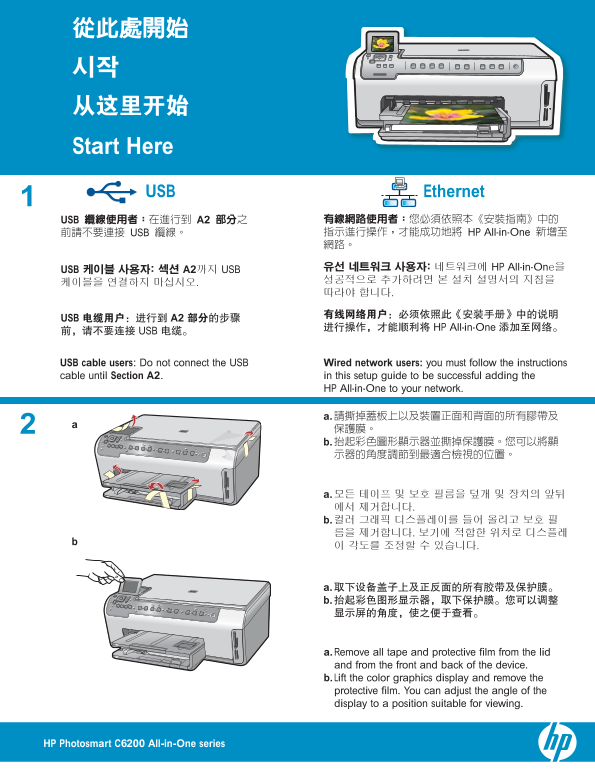
USB cable users : Do not connect the USB Wired network users : you must follow the instructions cable until Section A2 . in this setup guide to be successful adding the

HP All-in-One to your network.

a. Remove all tape and protective fi lm from the lid and from the front and back of the device. b. Lift the color graphics display and remove the protective fi lm. You can adjust the angle of the display to a position suitable for viewing.

HP Photosmart C6200 All-in-One series

Page Summary Contents For HP Photosmart C6200 Series Multifunction Printer Setup Guide

Page 1 Start Here USB Ethernet USB A2 USB HP All-in-One USB A2 USB HP All-in-On USB A2 HP All-in-One USB cable users : Do not connect the USB Wired network users : you must follow the instructions cable unti...
Page 2 Verify the box contents. The contents of your box may differ. *May be included a. If the control panel faceplate is not already a. attached, position it over the buttons on the device. b. b. Press dow...
Page 3 OK OK OK OK Do one of the following: If a prompt appears asking you to set the language and country/region, use the arrows to select your language from the list of up to OK 25 languages, press OK , an...
Page 4 a. Match the color and pattern of the ink cartridge to the color and pattern above the latches. b. Push the black ink cartridge in to the fi rst slot on the left. Close the latch. c. Repeat with each ...
Page 5 d. OK d. OK d. OK a. Pull out the main tray. b. Slide the paper-width guide to the left. c. Insert plain white paper into the main tray and adjust the paper guides. d. Push in the main tray and press ...
Page 6 a. OK b. OK a. OK b. OK a. OK b. OK a. Press the OK button after you have loaded paper in the main tray, then wait a few minutes while the alignment page is printed. The alignment process ensures high...
Page 7 A - USB B - Ethernet A - USB B - Ethernet Choose only ONE connection type A - USB, B - Ethernet (A - USB or B - Ethernet/Wired network) A - USB B - Ethernet HP All-in-One Ethernet HP All-in-One A2 Eth...
Page 8 A1 - USB Mac: Windows: a. USB a. HP All-in-One HP CD-ROM USB setup.exe b. A2 b. A2 a. USB CD a. HP All-in-One HP CD-ROM setup.exe b. A2 b. A2 a. USB a. HP All-in-One HP CD-ROM setup.exe USB b. A2 b. A...
Page 9 A2 - USB Mac: Windows: USB c. CD c. USB USB HP d. HP Photosmart CD All-in-One e. HP All-in-One Installer d. e. HP All-in-One f. g. HP All-in-One c. CD d. HP Photosmart CD c. USB USB HP All-in-One e. H...
Page 10 B1 - Ethernet a. Ethernet b. c. Ethernet Ethernet d. Ethernet Internet a. Ethernet b. c. Ethernet d. Ethernet a. Locate your Ethernet/network cable. a. Ethernet b. Remove the yellow plug from the back...
Page 11 B2 - Ethernet Windows: Mac: b. CD CD-ROM b. CD setup.exe c. HP Photosmart CD d. HP All-in-One Installer b. CD b. CD CD-ROM c. HP Photosmart CD setup.exe c. Connection Type through the d. HP All-in-One...
Page 12 B3 - Ethernet Windows: d. d. Your fi rewall software may provide prompts warning you that HP software is attempting to access your network. You should respond so that access is “always” allowed. Then ...
Page 13 Explore the features HP Photosmart HP Photosmart HP All-in-One HP All-in-One HP Photosmart Now that your HP Photosmart software program is HP All-in-One installed on your computer, you can try out one...
Page 14 d e Photosmart Express View Photos 8/59 View Photos 8/59 Print Create Share Save Press to browse, to zoom OK Press for options, to browse OK Photo Options Page 1/1 Print Preview Print Preview Print No...
Page 15 USB - Troubleshooting www.hp.com/support Windows Microsoft USB HP All-in-One Windows Microsoft HP All-in-One CD Windows Microsoft HP All-in-One CD Problem: (Windows) The Microsoft Add Hardware screen ...
Page 16 www.hp.com/support Windows USB HP All-in-One CD Windows USB HP All-in-One CD Windows USB HP All-in-One Problem: (Windows only) You did not see the screen prompting you to connect the USB cable. Action...

Manual Details

Brand HP
Pages 16
File Size 5.20 MB
Published May 29, 2026
64 views

Enter the captcha to get the download link:

captcha

Frequently Asked Questions

How do I properly set up the HP All-in-One for networking?

Follow the instructions to connect the wired network cable until Section A2 of the setup guide.

What steps should I take if I encounter a 'Printer Not Found' error during software installation?

Ensure all cables are connected (HP All-in-One, router, and PC), and temporarily disable any firewall, anti-spyware, or anti-virus software on your PC.

How do I safely remove the ink cartridges from the HP Photosmart C6200?

Open the access door, squeeze the bottom of each latch to release it, then lift all six latches. Match the color and pattern of the cartridge before pushing it in.