# A B C D E F G H I J K L M N O P Q R S T U V W X Y Z

HP Photosmart 8000 Series Printers Quick Installation Guide

Summary

Introducing the HP Photosmart 8000 series printer, your dedicated solution for high-quality photo printing and personalized keepsakes. This quick start guide provides comprehensive instructions for new users, detailing everything from unpacking and connecting power to initial setup steps like language selection and ink cartridge installation. Simply follow along to learn optimal practices for loading paper, aligning the printer, and utilizing the included HP Photosmart software on Windows PCs. Perfect for photographers or families looking to create printed crafts, albums, calendars, and share memories easily.
📄 Preview PAGE OF 16

Page 1 Text Content

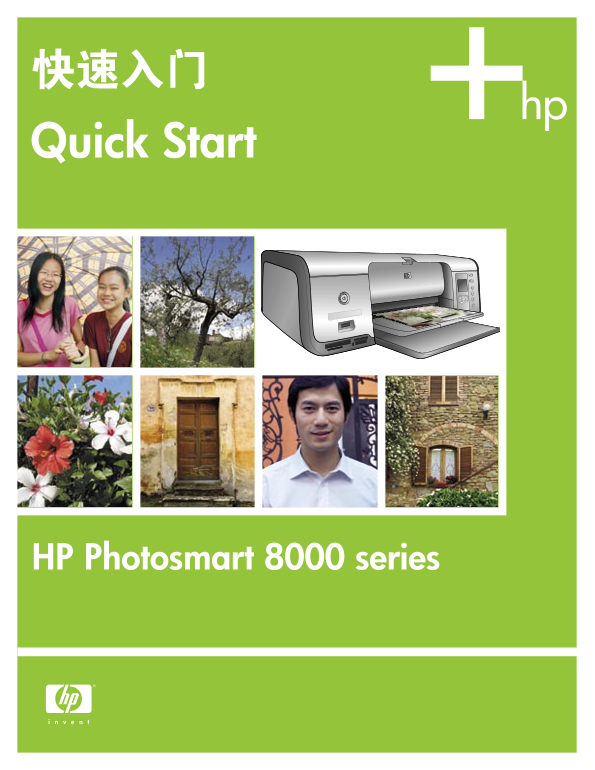
快速入门 Quick Start

HP Photosmart 8000 series

Page Summary Contents For HP Photosmart 8000 Series Printers Quick Installation Guide

Page 1 快速入门 Quick Start HP Photosmart 8000 series
Page 2 打开 HP Photosmart 打印机的包装 Unpack the HP Photosmart printer 简体中文 English 感谢您购买 HP Photosmart 打印机!请仔细阅读本册子和其他附随的文档 Thank you for purchasing an HP Photosmart printer! Read this booklet 来帮助您开始使用设备。 and othe...
Page 3 Connect the power and set the language Power button Back view of printer Select Photos arrows OK 按钮 OK button 简体中文 English 1. 将电源供应器连接至电源线。将电源线分别插入打印机背面和墙上 1. Connect the power supply to the power cor...
Page 4 Install the print cartridges Print cartridge storage area Important! When installing print cartridges, use the symbols on the cartridge and cartridge stall to match up cartridge types. Store an option...
Page 5 Load plain paper Paper-width guide Main tray Output tray 简体中文 English 装入普通纸,准备校准打印墨盒。 Load plain paper in preparation for print cartridge alignment. 1. 放下主纸盘和输出纸盘。 1. Lower the Main and Output trays. ...
Page 6 安装 HP Photosmart 软件 (Windows) Install the HP Photosmart software (Windows)5 USB 连接 USB connection Windows Windows 简体中文 English Windows® 98、Me、2000 Professional、XP Home、XP Professional Windows® 98, Me,...
Page 7 安装 HP Photosmart 软件 (Macintosh) Install the HP Photosmart software (Macintosh) USB 连接 USB connection Macintosh Macintosh 简体中文 English Macintosh OS X 10.2*、10.3* 及以上 Macintosh OS X 10.2*, 10.3*, and la...
Page 8 Installation troubleshooting 仅限于 Macintosh 问题:安装打印机软件后,“Print Center”(打印中心)内的所有打印机消失。 请检查打印机与计算机之间的所有电缆连接,并确保所用的打印机软件为最新版 本。您可以拜访 HP 支持网站 www.hp.com/support 以取得最新的软件更新。如果 解决方案:卸载然后重新安装打印机软件。要卸载,请打开 HP...
Page 9 Installation troubleshooting English Macintosh only If the printer software did not install successfully, or if the printer and computer are not communicating properly after software installation, che...
Page 10 打印第一张无边框照片 Print your first borderless photo 插入存储卡 Insert a memory card Compact Flash/Microdrive Compact Flash/Microdrive x D-Picture Card x D-Picture Card Secure Digital/Multi Media Card Memory Stick...
Page 11 Load 10 x 15 cm (4 x 6 inch) photo paper2 Photo cassette storage area Paper width and length guides Output tray 简体中文 English 1. 取出主纸盘中的所有纸张。 1. Remove any paper from the Main tray. 2. 取出存储区中的照片盒然后在照片盒...
Page 12 Select a photo to print3 Select Photos arrows OK 按钮 OK button 简体中文 English 1. 确保将含照片的存储卡插入正确的存储卡插槽。 1. Make sure a memory card that contains photos is inserted into the correct memory card slot. 2. Pr...
Page 13 Print a borderless photo4 布局 按钮 Layout button 打印 按钮 Print button Borderless photo 简体中文 English 您的 HP Photosmart 打印机可以打印至纸张的边缘,从而消除白色边框。 Your HP Photosmart printer can print to the edges of the paper, ...
Page 14 快速提示 Quick tips Print photos without a computer 简体中文 English HP Photosmart 8000 series 打印机可以让您在无需连接计算机的情形 The HP Photosmart 8000 series printer allows you to print beautiful 下,从数码相机打印精美的照片。只需将存储卡直接插入打...
Page 15 使用计算机和 HP Image Zone 打印 Print with a computer and HP Image Zone 简体中文 English 使用 HP Image Zone 软件创建照片项目,您将可以随心所欲发挥创意。 The possibilities are endless when you use HP Image Zone software to create your ph...
Page 16 Install the correct print cartridges for your project HP 三色 / HP 照片或 HP 灰色照片 HP 三色和 HP 黑色 HP 三色 / HP 照片或 HP 灰色照片 HP Tri-color / HP Photo or HP Gray Photo HP Tri-color and HP Black HP Tri-color / HP Ph...

Manual Details

Brand HP
Pages 16
File Size 2.27 MB
Published May 22, 2026
100 views

Enter the captcha to get the download link:

captcha

Frequently Asked Questions

What must I avoid touching when installing print cartridges?

Do not touch or remove the ink nozzles or copper-colored contacts on the cartridges.

Can I use this printer without connecting it to a computer?

Yes. Refer to the User's Guide for instructions on printing photos directly from a PictBridge-enabled camera or memory card.

What steps must be completed before running an alignment page?

You must first load plain paper in preparation for print cartridge alignment around the main tray/output tray.

What creative projects can I create using HP Image Zone software?

You can design calendars, brochures, flyers; create photo albums and keepsakes; or craft customization items like T-shirts, CD covers, and picture frames.