HP Photosmart 7350 and 7345 Printers - (English) Setup Guide
Summary
This comprehensive guide provides all necessary instructions for setting up and maximizing your HP Photosmart 7350 photo printer experience. Learn how to correctly load paper, install specialized print cartridges (including black, color, and photo), and easily connect the device to both Windows PC and Mac computers. The manual walks you through simple setup procedures, guided software installation, and advanced tips for printing high-quality photos directly from your digital cameras or computer.
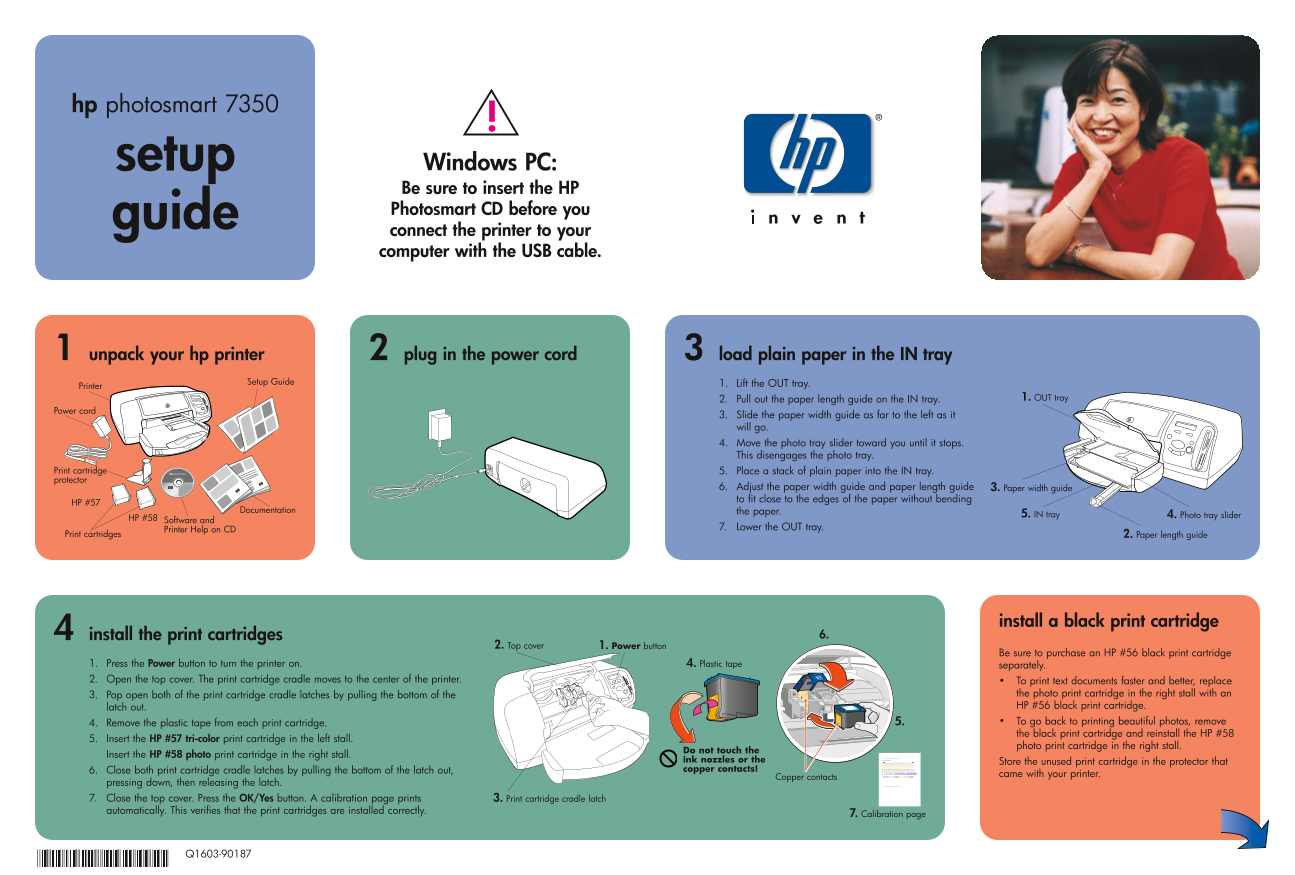
Page 1 Text Content
hp photosmart 7350
setup Windows PC: Be sure to insert the HP Photosmart CD before you
guide
connect the printer to your computer with the USB cable.
unpack your hp printer plug in the power cord load plain paper in the IN tray
Setup Guide 1. Lift the OUT tray.
Printer
2. Pull out the paper length guide on the IN tray. 1. OUT tray
Power cord
3. Slide the paper width guide as far to the left as it will go. 4. Move the photo tray slider toward you until it stops. This disengages the photo tray.
Print cartridge 5. Place a stack of plain paper into the IN tray. protector
6. Adjust the paper width guide and paper length guide 3. Paper width guide to fit close to the edges of the paper without bending
HP #57
Documentation the paper.
5. IN tray 4. Photo tray slider
HP #58
Software and
Printer Help on CD 7. Lower the OUT tray.
Print cartridges 2. Paper length guide
install a black print cartridge
install the print cartridges 6.
Top cover 1. Power button2.
Be sure to purchase an HP #56 black print cartridge
1. Press the Power button to turn the printer on. 4. Plastic tape separately. 2. Open the top cover. The print cartridge cradle moves to the center of the printer. To print text documents faster and better, replace
3. Pop open both of the print cartridge cradle latches by pulling the bottom of the the photo print cartridge in the right stall with an latch out. HP #56 black print cartridge. 4. Remove the plastic tape from each print cartridge. 5. To go back to printing beautiful photos, remove the black print cartridge and reinstall the HP #58
5. Insert the HP #57 tri-color print cartridge in the left stall.
photo print cartridge in the right stall.
Do not touch the
Insert the HP #58 photo print cartridge in the right stall.
ink nozzles or the Store the unused print cartridge in the protector that 6. Close both print cartridge cradle latches by pulling the bottom of the latch out, copper contacts!
came with your printer.
Copper contacts
pressing down, then releasing the latch. 7. Close the top cover. Press the OK/Yes button. A calibration page prints 3. Print cartridge cradle latch automatically. This verifies that the print cartridges are installed correctly.
7. Calibration page
Page Summary Contents For HP Photosmart 7350 and 7345 Printers - (English) Setup Guide
Manual Details
| Brand | HP |
|---|---|
| Pages | 2 |
| File Size | 1.07 MB |
| Published | June 18, 2026 |
Enter the captcha to get the download link:

Frequently Asked Questions
How should I connect the printer when installing the software?
Connect the USB cable directly to your computer's port and do not use a USB hub or the camera port.
What sizes of photo paper does the Photosmart 7350 support?
The printer supports printing on 4 x 6 inches or 10 x 15 cm photo paper, and also allows for photo album pages.
What precautions must I take when installing the print cartridges?
Be careful not to touch the copper contacts, and ensure you close both print cartridge cradle latches automatically.
Are there special instructions for installing the printer software?
You must use the HP Photosmart CD-ROM drive, connect the printer until prompted, and may need to disable virus-checking software.