HP Photosmart 7400 Series Printer Quick User Guide
Summary
Unbox, connect, and start printing with this essential guide for the HP Photosmart 7400 Series printer. This user manual provides step-by-step instructions covering everything from unpacking supplies and installing photo/tri-color cartridges to connecting the unit and completing software setup (Mac/Windows). It is designed for photographers and creative users who want reliable, beautiful print quality—either by printing directly from a memory card or enhancing digital photos using integrated software.
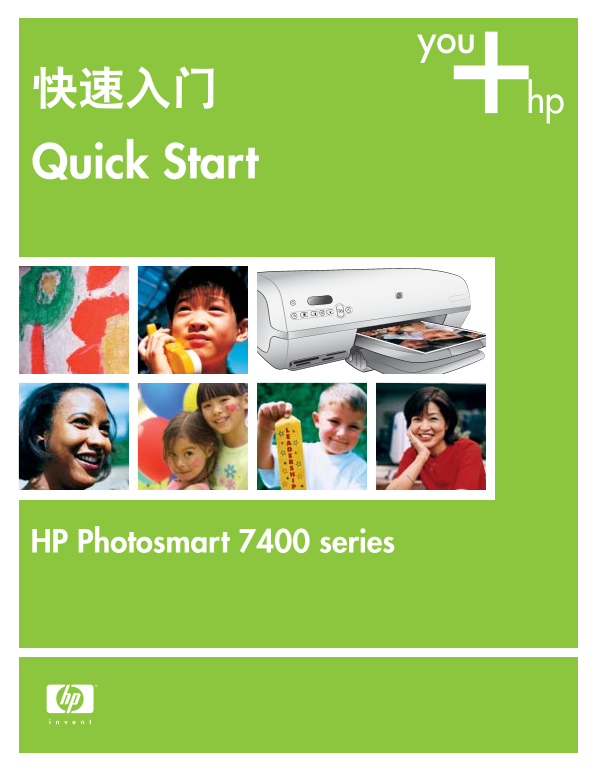
Page 1 Text Content
快速入门 Quick Start
HP Photosmart 7400 series
Page Summary Contents For HP Photosmart 7400 Series Printer Quick User Guide
Page 1
快速入门 Quick Start HP Photosmart 7400 series
Page 2
打开 HP Photosmart 打印机的包装 Unpack the HP Photosmart printer1 1. 除去打印机上的包装胶带及纸板。 1. Remove tape and cardboard packaging from inside and around the printer. 2. Check the contents of the box: a. HP Photosma...
Page 3
接通电源并展开纸盘 Connect the power and unfold the paper trays 2 1. 将电源线的一端连接到打印机,另一端连接到墙壁插座。 1. Connect one end of the power cord to the printer and the other end to a wall outlet. 2. Raise the top cover. 3....
Page 4
安装打印墨盒 Install the print cartridges3 存放可选打印墨盒和保护器。* Store the optional print cartridge and protector.* 开启按钮 On button HP #816 HP #817 1. 按开启按钮开启打印机。 1. Press On to turn on the printer. 2. 拉起粉色标签,撕掉两个打...
Page 5
装入普通纸 Load plain paper4 装入普通纸,以校准打印墨盒。 Load plain paper to align the print cartridges. 1. 抬起出纸盘。 1. Raise the Out tray. 2. 将一叠普通 letter 纸(不超过 100 张)装入进纸盘。 2. Place a stack of plain letter paper (no mo...
Page 6
安装 HP Photosmart 软件 in Install the HP Photosmart software5 Macintosh 安装请参见第 7 页。 See page 7 for Macintosh installation. 重要:请勿在没有提示的情况下连接 USB 电缆。 Important: Do not connect the USB cable until prompted....
Page 7
安装 HP Photosmart 软件 sh Install the HP Photosmart software5 Macin Windows 安装请参见第 6 页。 See page 6 for Windows installation. 重要:请勿在没有提示的情况下连接 USB 电缆。 Important: Do not connect the USB cable until prompte...
Page 8
in Installation troubleshooting 问题:如果“发现新硬件向导”打开后未能识别打印机,则可能是在软件安装尚未完成时连接了 USB 电缆。 解决方案:断开 USB 电缆,重新启动软件安装程序。在安装过程中显示相应提示时连接 USB 电缆。 问题:系统要求检查指出,计算机运行的 Internet Explorer 版本过旧。 解决方案:按键盘上的 Ctrl + Shift,...
Page 9
If the printer software did not install successfully or if the printer and computer are not communicating properly after software installation, check this page for possible solutions. If you still nee...
Page 10
打印第一张照片 Print your first photo 插入存储卡 Insert a memory card Microdrive 或 Compact Flash Smart Media 或 x D-Picture Card Microdrive or Compact Flash Smart Media or x D-Picture Card Multi Media Card 或 Secur...
Page 11
打印选择照片用的索引页 Print an index page to select a photo2 Select Photos button Print Index button Select Photos arrows 要获得最佳打印质量和速度,请在安装打印墨盒后,使用 HP For optimal print quality and speed, use the HP Photosmart ...
Page 12
装入 10 x 15 厘米(4 x 6 英寸)照片纸 Load 10 x 15 cm (4 x 6 inch) photo paper 1. 抬起出纸盘,取出进纸盘中的所有纸张。 1. Raise the Out tray, and remove any paper from the In tray. 2. 抬起顶盖,从照片盒保存区取出照片盒。 2. Raise the top cover and...
Page 13
打印无边框照片 Print a borderless photo4 Print button 可撕下的裁边 Removable tab 1. 确保要打印的照片旁边出现选中标记。 1. Make sure a check mark appears beside the index number of the photo you want to print. 2. Press Print. 3. Wh...
Page 14
快速提示 Quick tips 校准打印墨盒 Align the print cartridges Windows Macintosh 要确保最佳打印质量,每次安装或更换打印墨盒后必须校准墨盒。 To ensure optimal print quality, each time you install or replace a print cartridge you must align the...
Page 15
打印无极限! The possibilities are endless! 无需计算机,只用数码相机和存储卡即可打印出精美照片。 或者 使用计算机和 HP Image Zone 软件打印精美绝伦的照片和有创意 Print beautiful photos without a computer using your digital camera and a memory card. OR Print...
Page 16
安装适合您的打印项目的打印墨盒 Install the correct print cartridges for your project 三色和照片打印墨盒 三色和黑白打印墨盒 三色和照片打印墨盒 Tri-color and Photo print cartridges Tri-color and Black print cartridges Tri-color and Photo print ...
Manual Details
| Brand | HP |
|---|---|
| Pages | 16 |
| File Size | 1.21 MB |
| Published | May 29, 2026 |
63 views
Enter the captcha to get the download link:
