# A B C D E F G H I J K L M N O P Q R S T U V W X Y Z

HP LaserJet Pro 200 color MFP M276 - Installation Guide

Summary

The LaserJet Pro 200 Color MFP is a robust multifunction powerhouse designed for reliable color printing, copying, and faxing in professional settings. This comprehensive guide provides step-by-step instructions for first-time setup, ensuring correct configuration from power connection and phone line installation to software deployment via USB or CD. Users will learn how to run essential system tests—including the document feeder and copy function verification—to ensure optimal performance immediately upon unboxing. Ideal for businesses needing an effortlessly stable and fully functional office printing solution.
📄 Preview PAGE OF 20

Page 1 Text Content

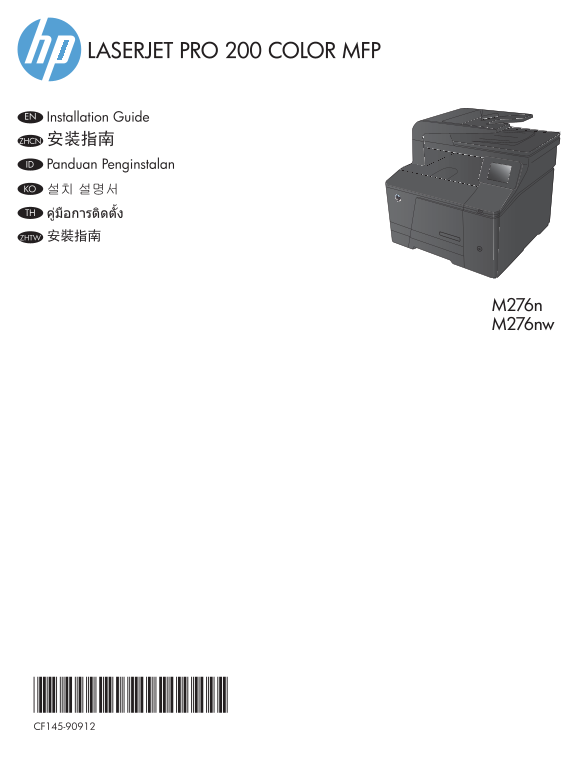
LASERJET PRO 200 COLOR MFP

EN Installation Guide

安装指南ZHCN Panduan Penginstalan ID 설치 설명서KO TH 安裝指南ZHTW

M276n M276nw

Page Summary Contents For HP LaserJet Pro 200 color MFP M276 - Installation Guide

Page 1 LASERJET PRO 200 COLOR MFP EN Installation Guide 安装指南ZHCN Panduan Penginstalan ID 설치 설명서KO TH 安裝指南ZHTW M276n M276nw
Page 2 EN Select a sturdy, well-ventilated, dust-free area, away from direct sunlight to position the product. 选择一个稳固、通风良好、无尘且远离直射日光的区域放置产品。ZHCN Untuk meletakkan produk, pilih tempat yang kokoh, berventilasi...
Page 4 EN Connect the phone cord for fax. A country/region specific adapter for the RJ11 telephone cord may be required to connect to the telephone jack. 连接传真电话线。可能需要国家/地区专用的 RJ11 电话线适配器才能连接到 电话插孔。ZHCN Hubun...
Page 5 1. Connect the power cord between the product and a grounded AC outlet. Make sure your power source is adequate for the product EN voltage rating. The voltage rating is on the product label. The produ...
Page 6 ZHTW 1. 使用電源線連接產品及接地的 AC 插座。 確定電源適合本產品的電壓額定。 電壓額定請見產品標籤。 本產品使用 100-127 Vac 或 220-240 Vac 和 50/60 Hz。 注意: 為了避免產品損壞,請僅使用產品隨附的電源線。 2. 開啟產品電源。 3. 請按照控制面板上的指示進行。 4. 若要確認產品能列印,請依序點選設定 按鈕、報告以及組態報告。 5. 若要測試文件...
Page 7 Choose a software install method EN 选择一种软件安装方法ZHCN Memilih metode penginstalan perangkat lunak ID 소프트웨어 설치 방법 선택KO 選擇軟體安裝方法ZHTW
Page 8 EN Windows installation when using a USB cable: 1. Insert the product CD into the computer and follow the onscreen instructions. If the installation program does not start automatically, browse to the...
Page 9 ZHTW 在 Windows 中,使用 USB 纜線進行安裝作業: 1. 將產品光碟放入電腦中,然後依照螢幕上的指示進行。 如果安裝程式未自動啟動,請瀏覽至光碟機。 按兩下 Setup.exe 檔案 以執行程式並安裝本產品。 2. 請僅在軟體提示時連接 USB 纜線,然後依照螢幕上的指示完成安裝。
Page 10 EN Windows installation for networked products (wired or wireless): 1. Wired networks only: Connect the network cable to the product and the network. 2. Wireless networks only: Make sure that the PC y...
Page 11 ID Penginstalan Windows pada produk jaringan (berkabel atau nirkabel): 1. Hanya jaringan berkabel: Sambungkan kabel jaringan ke produk dan jaringan. 2. Hanya jaringan nirkabel: Pastikan PC yang diguna...
Page 12 在 Windows 中,為連接網路(有線或無線)的產品進行安裝作業: ZHTW 1. 僅限有線網路: 將網路纜線連接至產品及網路。 2. 僅限無線網路: 確定您在進行安裝的 PC 可以存取無線網路。 提示:如需無線安裝的詳細資訊,請前往 www.hp.com/global/us/en/wireless/index.html。 3. 有線和無線網路: 將光碟放入電腦中,並依照軟體安裝指示進行。 選擇...
Page 13 Installation for Windows RT (wireless) EN 1. Go to www.hp.com/go/support. 2. Select Drivers and Software. 3. Type M276 into the Enter a product name/number search box. 4. Click the SEARCH button. 5. S...
Page 14 Windows RT 適用的安裝作業(無線) ZHTW 1. 前往 www.hp.com/go/support。 2. 選擇 Drivers and Software(驅動程式和軟體)。 3. 在 Enter a product name/number(輸入產品名稱/型號)搜尋方塊中輸入 M276。 4. 按一下 SEARCH(搜尋)按鈕。 5. 在下拉式清單中選擇 Microsoft Windo...
Page 15 Penginstalan untuk Mac OS X (USB atau jaringan): ID 1. Sambungan USB atau jaringan berkabel: Sambungkan USB atau kabel jaringan ke produk dan komputer atau jaringan. 2. Semua jenis sambungan: Masukkan...
Page 16 EN Setup is complete. If you did not register your product during software installation, go to www.register.hp.com to register now. The HP Help and Learn Center and other documentation are on the CD t...
Page 20 www.hp.com Copyright and License © 2014 Copyright Hewlett-Packard Development Company, L.P. © 2014 Copyright Hewlett-Packard Development Company, L.P. Reproduction, adaptation or translation without p...

Manual Details

Brand HP
Pages 20
File Size 4.49 MB
Published May 30, 2026
77 views

Enter the captcha to get the download link:

captcha

Frequently Asked Questions

Where should I place the product for optimal use?

Position it in a sturdy, well-ventilated, dust-free area, far away from direct sunlight.

What voltage requirements and power cords are needed?

The unit uses either 100-127 Vac or 220-240 Vac at 50/60 Hz. Only use the provided power cord and connect it to a grounded AC outlet.

How can I verify that the device is printing correctly?

Touch the Setup button, then touch Reports, followed by Configuration Report on the control panel.

What are the steps for software installation using Windows and USB?

Insert the CD, follow onscreen prompts, and only connect the USB cable when the software specifically prompts you to do so.