# A B C D E F G H I J K L M N O P Q R S T U V W X Y Z

HP LaserJet Enterprise 700 color MFP M775 Series Installation Guide

Summary

Set up your powerful HP LaserJet Enterprise 700 Color MFP series with confidence. This comprehensive installation guide provides detailed instructions covering the complete setup process—from selecting a proper placement and connecting power/network cables to performing the initial software configuration. The manual is essential for new users who need a clear, step-by-step walkthrough to ensure your device operates at peak efficiency right out of the box, guaranteeing a smooth start to multifunction printing.
📄 Preview PAGE OF 16

Page 1 Text Content

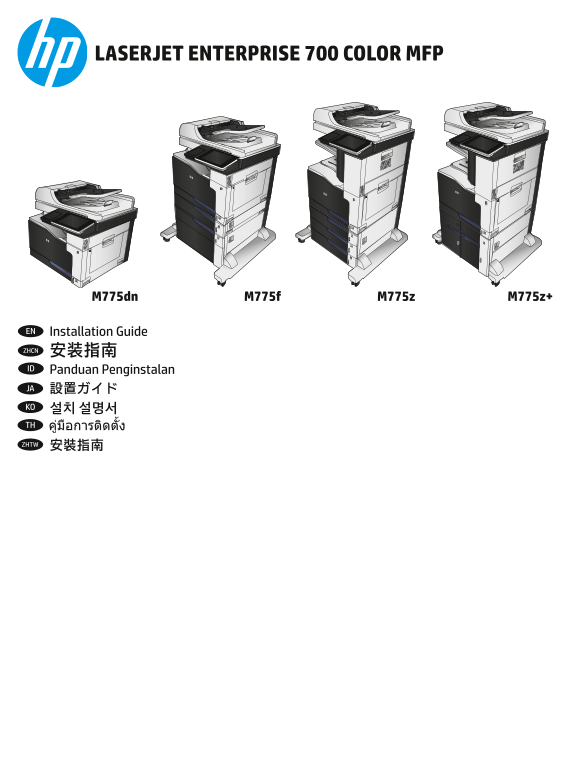
LASERJET ENTERPRISE 700 COLOR MFP

M775dn M775f M775z M775z+

EN Installation Guide ZHCN 安装指南 ID Panduan Penginstalan 設置ガイドJA 설치 설명서KO TH 安裝指南ZHTW

HP Laser Jet Content Design and Delivery

Page Summary Contents For HP LaserJet Enterprise 700 color MFP M775 Series Installation Guide

Page 1 LASERJET ENTERPRISE 700 COLOR MFP M775dn M775f M775z M775z+ EN Installation Guide ZHCN 安装指南 ID Panduan Penginstalan 設置ガイドJA 설치 설명서KO TH 安裝指南ZHTW HP Laser Jet Content Design and Delivery
Page 2 EN Select a sturdy, well-ventilated, dust-free area, away from direct sunlight to position the product. ZHCN 选择一个稳固、通风良好、无尘且远离直射日光的区域放置产品。 ID Untuk meletakkan produk, pilih tempat yang kokoh, berventi...
Page 3 941 m 1489 m 37 in 58.6 in M775dn 1129 mm 44.4 in 959 mm 37.8 in 1158 mm 45.6 in 1012 mm 39.8 in HP Laser Jet Content Design and Delivery
Page 4 1544 m 1544 m 60.8 in 60.8 in 1158 mm 45.6 in 1012 mm 39.8 in 1158 mm 45.6 in 1012 mm 39.8 in HP Laser Jet Content Design and Delivery
Page 5 M775dn HP Laser Jet Content Design and Delivery
Page 6 HP Laser Jet Content Design and Delivery
Page 7 HP Laser Jet Content Design and Delivery
Page 8 HP Laser Jet Content Design and Delivery
Page 9 EN If you are connecting to a network, connect the network cable now. Caution! Do not connect the USB cable now. 如果要连接到网络,则现在连接网络电缆。注意!现在请勿连接 USB 电缆。ZHCN ID Jika Anda tersambung ke jaringan, sambungka...
Page 10 EN Connect the power cable between the product and a grounded ac outlet. Turn on the product. On the control panel, set the language, the location, and the date/time. When the Home screen appears, tou...
Page 11 ZHTW 使用電源線連接產品及接地的 AC 插座。開啟本產品電源。在控制面板上設定語言、位置與日期/時間。當主畫面出現時,點選起始設 定,並啟用基本的產品功能。註:在您完成軟體安裝之後,透過在 Web 瀏覽器的位址列中輸入產品 IP 位址的方式,即可使用進階設 定。 注意:確定電源符合產品的額定電壓。額定電壓標示在產品標籤上。本產品使用的電壓為 100-127 伏特或 220-240 伏特的交流 ...
Page 12 HP Laser Jet Content Design and Delivery
Page 13 EN Mac: Connect the USB cable now. Windows: Do not connect the USB cable until prompted during the software installation in the next step. ZHCN Mac:现在连接 USB 电缆。 Windows:直到软件安装过程的下一步中出现提示后,再连接 USB 电缆。 ...
Page 14 ID Men-download atau mencari file instalan perangkat lunak driver Situs Web Dukungan Produk 1. Kunjungi www.hp.com/go/lj700color MFPM775. 2. Pilih perangkat lunak dan driver. 3. Download perangkat lun...
Page 15 EN 1) Model number: 2) Product number: 3) Serial number: ZHCN 1) 型号: 2) 产品号: 3) 序列号: 1) Nomor model: ID 2) Nomor produk: 3) Nomor seri: JA 1) モデル番号: 2) 製品番号: 3) シリアル番号: KO 1) 모델 번호: 2) 제품 번호: 3) 일련 번호...
Page 16 www.hp.com Copyright and License 版权与许可 © Copyright 2015 HP Development Company, L.P. © Copyright 2015 HP Development Company, L.P. Reproduction, adaptation or translation without prior written permiss...

Manual Details

Brand HP
Pages 16
File Size 7.68 MB
Published May 22, 2026
86 views

Enter the captcha to get the download link:

captcha

Frequently Asked Questions

What conditions should be selected when placing the printer?

Place it in a sturdy, well-ventilated, dust-free area, away from direct sunlight.

How do I ensure proper setup voltage?

Use only a power source adequate for the product's voltage rating (100-127 Vac OR 220-240 Vac).

What steps are needed immediately after powering on and setting basic info?

Touch 'Initial Setup' on the control panel to activate basic functions, and then install software for advanced configuration.

Can I connect the USB cable at setup time?

No; do not connect the USB cable until specifically prompted during the software installation process.