HP Color LaserJet Pro MFP M478- series HP Color LaserJet Pro MFP M479 - Quick Start Guide
Summary
This comprehensive guide provides step-by-step instructions for setting up your HP Color LaserJet Pro MFP M479 printer. It details essential functions, including initial control panel configuration, installing required software drivers (Windows/macOS), connecting securely via wireless networks, and configuring mobile printing using the HP Smart app. Perfect for users needing a reliable guide to seamlessly integrate printing, scanning, and faxing into their home or professional workflow.
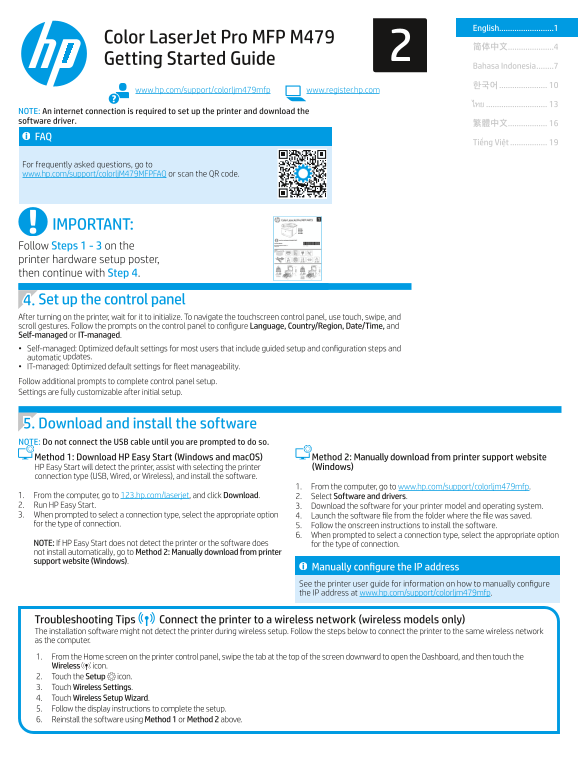
Page 1 Text Content
English.........................1
Color Laser Jet Pro MFP M479
Getting Started Guide
Bahasa Indonesia ........7
www.hp.com/support/colorljm479mfp www.register.hp.com
NOTE: An internet connection is required to set up the printer and download the software driver.
Tiếng Việt .................
For frequently asked questions, go to www.hp.com/support/colorlj M479MFPFAQ or scan the QR code.
IMPORTANT: Follow Steps 1 - 3 on the printer hardware setup poster, then continue with Step 4.
4. Set up the control panel After turning on the printer, wait for it to initialize. To navigate the touchscreen control panel, use touch, swipe, and scroll gestures. Follow the prompts on the control panel to configure Language, Country/Region, Date/Time, and Self-managed or IT-managed. • Self-managed: Optimized default settings for most users that include guided setup and configuration steps and automatic updates. • IT-managed: Optimized default settings for fleet manageability. Follow additional prompts to complete control panel setup. Settings are fully customizable after initial setup.
5. Download and install the software NOTE: Do not connect the USB cable until you are prompted to do so. Method 1: Download HP Easy Start (Windows and mac OS) Method 2: Manually download from printer support website HP Easy Start will detect the printer, assist with selecting the printer (Windows) connection type (USB, Wired, or Wireless), and install the software.
1. From the computer, go to www.hp.com/support/colorljm479mfp.
1. From the computer, go to 123.hp.com/laserjet, and click Download. 2. Select Software and drivers. 2. Run HP Easy Start. 3. Download the software for your printer model and operating system. 3. When prompted to select a connection type, select the appropriate option 4. Launch the software file from the folder where the file was saved. for the type of connection. 5. Follow the onscreen instructions to install the software.
6. When prompted to select a connection type, select the appropriate option
NOTE: If HP Easy Start does not detect the printer or the software does for the type of connection. not install automatically, go to Method 2: Manually download from printer support website (Windows).
Manually configure the IP address See the printer user guide for information on how to manually configure the IP address at www.hp.com/support/colorljm479mfp.
Troubleshooting Tips Connect the printer to a wireless network (wireless models only) The installation software might not detect the printer during wireless setup. Follow the steps below to connect the printer to the same wireless network as the computer. 1. From the Home screen on the printer control panel, swipe the tab at the top of the screen downward to open the Dashboard, and then touch the Wireless icon. 2. Touch the Setup icon. 3. Touch Wireless Settings. 4. Touch Wireless Setup Wizard. 5. Follow the display instructions to complete the setup. 6. Reinstall the software using Method 1 or Method 2 above.
Page Summary Contents For HP Color LaserJet Pro MFP M478- series HP Color LaserJet Pro MFP M479 - Quick Start Guide
Manual Details
| Brand | HP |
|---|---|
| Pages | 24 |
| File Size | 12.20 MB |
| Published | June 02, 2026 |
Enter the captcha to get the download link:

Frequently Asked Questions
Is an internet connection required for initial setup?
Yes, an internet connection is mandatory to set up the printer and download the corresponding software driver.
How do I connect the printer for wireless networking if automatic detection fails?
On the control panel: Dashboard > Wireless icon > Setup > Wireless Settings. Next, follow the display instructions via the Wireless Setup Wizard and reinstall the correct software method.
What mobile printing standards does this product support?
The product supports both AirPrint and Wi-Fi Direct. You can also use the HP Smart app to manage setup and printing.
What safety precautions should be taken when maintaining or cleaning the printer?
Always read the documentation, unplug the power cable before cleaning, ensure it is on a stable surface, and never place it near water when wet.