# A B C D E F G H I J K L M N O P Q R S T U V W X Y Z

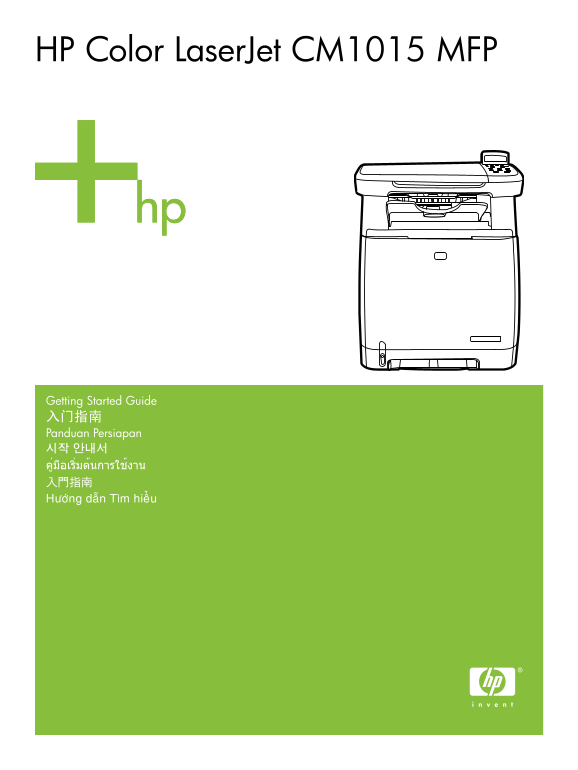
HP Color LaserJet CM1015 CM1017 Series - HP Color LaserJet CM1015 MFP - (Multiple Language) Getting Started Guide

Summary

The essential guide for setting up and operating your HP Color LaserJet CM1015 MFP printer. This manual provides step-by-step instructions covering initial unboxing, cartridge installation, and system configuration using the included CD. New users will find detailed guidance on navigating the control panel menus, understanding status messages, and mastering core functionalities to ensure simple, reliable operation right out of the box.
📄 Preview PAGE OF 16

Page 1 Text Content

HP Color Laser Jet CM1015 MFP

Getting Started Guide 入门指南 Panduan Persiapan 시작 안내서 คู่มือเริ่มต้นการใช้งาน 入門指南 Höôùng daãn Tìm hieâÛu

Page Summary Contents For HP Color LaserJet CM1015 CM1017 Series - HP Color LaserJet CM1015 MFP - (Multiple Language) Getting Started Guide

Page 1 HP Color Laser Jet CM1015 MFP Getting Started Guide 入门指南 Panduan Persiapan 시작 안내서 คู่มือเริ่มต้นการใช้งาน 入門指南 Höôùng daãn Tìm hieâÛu
Page 2 Copyright and License 版权和许可证 © 2006 Copyright Hewlett-Packard Development Company, L.P. ©2006 Copyright Hewlett-Packard Development Company, L.P. Reproduction, adaptation or translation without prior ...
Page 3 • Unpack the MFP. • 从包装中取出 MFP。 • Buka kemasan MFP. • MFP 포장을 벗깁니다. • แกะหีบห่อบรรจุ MFP • 拆開 MFP 的包裝。 • Môû MFP. • Select a sturdy, well-ventilated, dust-free area to position the MFP. • 选择稳固、无尘、通风良好...
Page 4 • Insert CD, follow instructions to complete setup. • 插入 CD,按照提示完成安装。 • Masukkan CD, ikuti petunjuk untuk menyelesaikan konfigurasi. • CD를 넣고 지침에 따라 설정을 완료합니다. • ใส่ซีดี ปฏิบัติตามคำแนะนำเพื่อดำเนินกา...
Page 5 • Remove print cartridge shipping locks and reinstall cartridges. • 取下打印碳粉硒鼓的装运锁定,然后重新安装碳粉硒鼓。 • Lepaskan pengaman paket kartrid cetak, kemudian pasang kembali kartrid. • 프린트 카트리지 고정 장치를 제거하고 카트리지를 다시 ...
Page 6 • Remove the tray 2 lock, adjust paper guides, and load paper. • 取下纸盒 2 的锁,调整纸张导板,然后装入纸张。 • Lepaskan 2 pengunci baki, atur pengarah kertas, kemudian masukkan kertas. • 용지함 2의 잠금 장치를 풀고 급지 조정대를 조정한 후, ...
Page 7 • Install bezel, rotate display, remove clear cover. • 安装面板盖,旋转显示屏,取下透明膜。 • Pasang pelapis panel, putar layar, lepaskan penutup transparan. • 베젤을 설치하고 디스플레이를 들어올린 후 투명 덮개를 벗깁니다. • ติดตั้งแผ่นปิดแผงควบ...
Page 8 • Set default language and location. • 设置默认语言和位置。 • Tetapkan lokasi dan bahasa standar. • 기본 언어와 위치를 설정합니다. • ตั้งภาษาและตำแหน่งที่ตั้ง • 設定預設的語言與位置。 • Ñaët ngoân ngöõ vaø vuøng in maëc ñònh. • Print ...
Page 9 • Copy configuration page to test copy functionality. Under Start Copy, press “Color”. • 复印配置页以测试复印功能。 在“开始复印”下,按“彩色”。 • Salin halaman konfigurasi untuk menguji fungsionalitas penyalinan. Dalam Start ...
Page 10 • Connect the USB to the computer and MFP when the software prompts you. • 当软件显示提示时,将 USB 连接到计算机和 MFP。 • Pasang USB ke komputer dan MFP bila perangkat lunak memintanya. • 소프트웨어에서 해당 메시지가 표시되면 USB를 컴퓨터...
Page 11 ไท Ba ha sa In do ne si En gl is Additional Information See the electronic user guide in your HP Program Group or www.hp.com/support/clj CM1015_CM1017 for more information about the following topics: ...
Page 12 Thoâng tin Theâm Ba ha sa In do ne si En gl is eâÙn Vi eät Xem höôùng daãn ñieïân töû cho ngöôøi duøng trong Nhoùm chöông trình HP cuœa baïn hoaËc xem www.hp.com/support/clj CM1015_CM1017 ñeâÛ bieâÙt ...
Page 13 Ti eâÙn Vi eät ไท ใช้ลูกศรบนแผงควบคุมเพื่อเลื่อนไปยังส่วนต่างๆ ของ HP Color Laser Jet CM1015 MFP • กดลูกศรซ้ายหรือลูกศรขวาเพื่อไปยังเมนูต่างๆ บนแผงควบคุม • กด ย้อนกลับ เพื่อกลับไปยังเมนูก่อนหน้า • กดป...
Page 16 © 2006 Hewlett-Packard Development Company, L.P. www.hp.com *CB394-90906* *CB394-90906* CB394-90906

Manual Details

Brand HP
Pages 16
File Size 1.44 MB
Published June 15, 2026
5 views

Enter the captcha to get the download link:

captcha

Frequently Asked Questions

What environment should I use when setting up the MFP?

Choose a sturdy, well-ventilated, dust-free area to place the device.

How do I begin the initial setup process?

Unpack the unit, then insert the CD and follow the instructions provided on the disk or in this manual.

How should I navigate using the control panel menu?

Press the left/right arrows to browse menus, use 'Back' to go to a previous screen, and press OK to make selections.

Are there any warnings regarding unauthorized changes?

Any alterations or modifications to the printer not expressly approved by HP could void the user’s operating authority.