Page 1
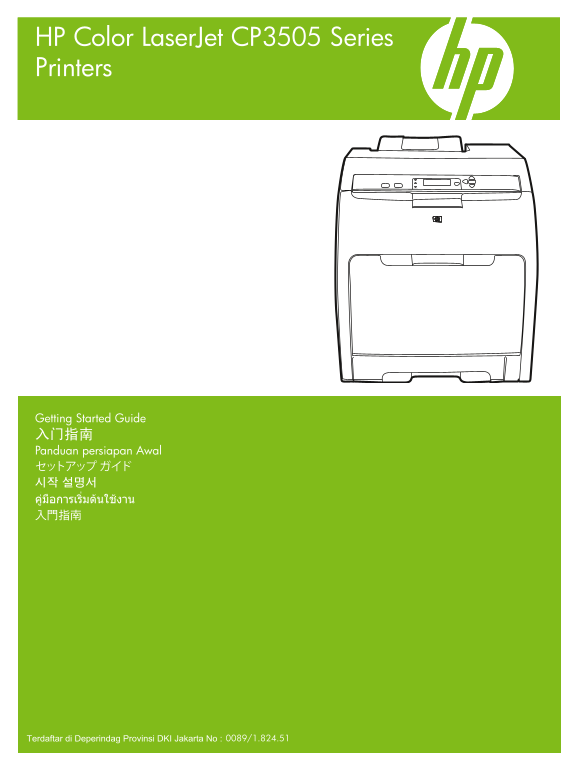
HP Color Laser Jet CP3505 Series Printers Getting Started Guide 入门指南 Panduan persiapan Awal セットアップ ガイド 시작 설명서 คู่มือการเริ่มต้นใช้งาน 入門指南 0089/1.824.51Terdaftar di Deperindag Provinsi DKI Jakarta No ...
Page 2
Copyright and License 版权与许可 © 2007 Copyright Hewlett-Packard Development Company, L.P. © 2007 版权所有 Hewlett-Packard Development Company, L.P. Reproduction, adaptation or translation without prior writt...
Page 3
• Unpack the printer. • 打开打印机的包装。 • Membongkar printer. • プリンタの梱包を開きます。 • 프린터 포장을 풉니다. • แกะกล่องเครื่องพิมพ์ • 拆開印表機包裝。 89 mm (3.5 in) 89 mm (3.5 in) 178 mm (7 in) 356 mm (14 in) (9 in • Select a stu...
Page 4
• Remove all shipping tape. • 取下所有装运胶带。 • Lepaskan semua pita rekat kemasan pengiriman. • 保護テープをすべて取り外します。 • 포장용 테이프를 모두 제거합니다. • แกะเทปทั้งหมดที่ติดมากับเครื่องพิมพ์ออก • 撕下所有的膠帶。
Page 5
• Remove print cartridge shipping locks and reinstall cartridges. • 取出打印碳粉盒的装运锁,重新安装碳粉盒。 • Lepaskan kunci kemasan pengiriman kartrid cetak kemudian pasang kembali kartridnya. • プリント カートリッジの保護キャップをすべて取...
Page 6
• Adjust paper guides, and load print media. • 调整纸张导板,并装入打印介质。 • Atur pemandu kertas lalu masukkan media cetak. • 用紙ガイドを調整して、印刷メディアをセットします。 • Install the output bin. • 安装出纸槽。 • Pasang nampan keluaran....
Page 7
• Attach control panel overlay (if neccessary). • 安装控制面板贴面(如有必要)。 • Pasang lapisan panel kontrol (jika perlu). • 必要に応じて、コントロール パネルにオーバーレイを貼 • Connect the power cord and turn on the printer. • 连接电源线,并打...
Page 8
• Control-panel features. 1) Use the and buttons to select the menu options. 2) Press to accept the selection. 3) Press Cancel to return to the Ready screen. • 控制面板功能。1)使用 和 按钮选择菜单选项。2)按 接受所作选择。3)按取消返...
Page 9
• Set the media size and type. At the control-panel, press Menu , use the and buttons to scroll to Paper Handling, and then press to select the tray to configure. Set the Type and Size for each tray b...
Page 10
• USB Installation. To install software for Windows by using a direct connection (USB), go to step 14. To install software for Macintosh by using a direct connection (USB), go to step 19. • USB 安装。要使用...
Page 11
• Network Installation. To install software for Windows by using a network connection, go to step 23. To install software for Macintosh by using a network connection, go to step 29. • 网络安装。要使用网络连接安装适用...
Page 12
• Windows USB installation. Insert the CD, and follow the onscreen instructions. Do not plug in the USB cable until prompted by the software. Note: If New Hardware Found appears, insert the CD and fol...
Page 13
• On the Welcome screen, click Install. If the welcome screen does not appear, click Start, click Run, type x:setup (where x represents the CD-ROM drive letter), and then click OK. • 在“欢迎使用”屏幕上,单击安装。如...
Page 14
• When prompted, connect a USB cable that is no longer than 2 meters (6.5 feet) to the printer and the computer. Note: HP does not recommend using USB hubs with this printer. • 出现提示时,用长度不超过 2 米(6.5 英尺...
Page 15
• Macintosh USB installation. A) Insert the CD and run the installer. B) Complete an Easy Install. C) Click Quit when the installation is finished. • Macintosh USB 安装。A) 插入 CD 并运行安装程序。B) 完成简易安装。C) 安装完...
Page 16
• Connect the USB cable. A) Connect a USB cable that is no longer than 2 meters (6.5 feet) to the printer and the computer. B) Restart the computer. Note: HP does not recommend using USB hubs with thi...
Page 17
• Go to the HD/Applications/Utilities/Printer Setup Utility or the Print Center. If the printer name appears in the Printer List, the installation is complete. If the printer name does not appear in t...
Page 18
• Add the printer. A) In the HD/Applications/Utilities/Printer Setup Utility or Print Center, click Add. Click the drop- down menu, and select USB. B) In the Printer Model drop-down list, select HP. C...
Page 19
• Windows network installation. Connect a network cable to the printer. Note: Ensure that all cables are HP-compliant. • Windows 网络安装。将网络电缆连接至打印机。注意:确保所有电缆均符合 HP 标准。 • Penginstalan jaringan Windows. H...
Page 20
• Find the IP address by printing a Configuration Page. A) At the control-panel, press Menu, use the the and buttons to scroll to Information, and then press to select. B) Use the and buttons to scrol...
Page 21
• Configure an IP address, if necessary. A) At the control panel, press Menu, use the the and buttons to scroll to Configure Device, and then press . B) Scroll to IO and press . C) Scroll to Embedded ...
Page 22
• Prepare for the software installation. Quit all programs (including terminate-and-stay resident [TSR], antivirus, and firewall programs) on the print server or on each computer that will use the pri...
Page 23
• Install the software. A) Insert the CD. B) On the welcome screen, click Install. If the welcome screen does not appear, click Start, click Run, type x:setup (where x represents the CD-ROM drive lett...
Page 24
• Go to step 35. • 转至步骤 35。 • Lanjutkan ke langkah 35. • 手順 35 に進みます。 • 35단계로 이동합니다. • ไปที่ขั้นตอนที่ 35 • 請前往步驟 35。
Page 25
• Macintosh network installation. Connect the network cable to the printer. Note: Ensure that all cables are HP-compliant • Macintosh 网络安装。将网络电缆连接至打印机。注意:确保所有电缆均符合 HP 标准 • Penginstalan jaringan Macint...
Page 26
• Find the IP address or the Bonjour printer name by printing a Configuration Page. A) At the control-panel, press Menu, use the the and buttons to scroll to Information, and then press to select. B) ...
Page 27
• Configure an IP address, if necessary. A) At the control-panel, press Menu, use the the and buttons to scroll to Configure Device, and then press . B) Scroll to IO and press . C) Scroll to Embedded ...
Page 28
• Prepare for the software installation. Quit all programs (including terminate-and-stay resident [TSR], antivirus, and firewall programs) on the print server or on each computer that will use the pri...
Page 29
• Install the software. Insert the CD, run the installer, and complete an Easy Install. Click Quit when the installation is finished. • 安装软件。插入 CD,运行安装程序,然后完成简易安装。安装完成后,单击退出。 • Menginstal perangkat lu...
Page 30
• Add the printer. A) Go to the HD/Applications/ Utilities/Printer Setup Utility or the Print Center, and then click Add. B) To add the printer by using the IP address, click IP Printer, type the IP a...
Page 31
• Print a test page. Print a page from any program to make sure that the software is correctly installed. • 打印测试页。从任意程序中打印页面以确保软件安装正确。 • Cetak halaman uji. Cetak halaman dari program apa pun untuk mem...
Page 32
• Blank display after start up. A) Turn the printer off. B) Pull the formatter partially out (callouts1,2), then push the formatter in until the black levers click into a secure position (callout 3). ...
Page 33
• Paper sizes • 纸张尺寸 • Ukuran kertas • 用紙サイズ • 용지 크기 • ขนาดกระดาษ • 紙張尺寸 216 x 356 mm 148 x 210 mm (8.5 x 14 inches) (5.83 x 8.27 inches) 216 x 356 mm 148 x 210 mm (8.5 x 14 inches) (5.83 x 8.27 inche...
Page 34
HP Color Laser Jet CP3505 Series printers • Clearing Jams • 清除卡纸 • Menghilangkan kemacetan • 紙詰まりの解除 • 용지 걸림 해결 • การแก้ปัญหากระดาษติด • 清除卡紙 • Questions? • 是否有问题? • Pertanyaan? • ご質問はありますか? • 의문 사항 •...
Page 35
铅 (Pb) 汞 六价铬 多溴联苯 多溴二苯醚 部件名称 (Hg) (Cd) (Cr(VI)) (PBB) (PBDE) 打印引擎 X 0 X X 0 0 控制面板 0 0 0 0 0 0 塑料外壳 0 0 0 0 0 0 格式化板组件 X 0 0 0 0 0 碳粉盒 X 0 0 0 0 0 0:表示在此部件所用的所有同类材料中,所含的此有毒或有害物质均低于 SJ/T11363-2006 的限制要...
Page 36
© 2007 Hewlett-Packard Development Company, L.P. www.hp.com *CB441-90905* *CB441-90905* CB441-90905