HP Color LaserJet 2605 Series Printer HP Color LaserJet 2605 - (Multiple Language) Getting Started Guide
Summary
This comprehensive guide provides new users with step-by-step instructions for setting up the Color LaserJet 2605 printer. It covers everything from initial hardware setup—including powering on, loading paper, and installing accessories—to seamless software integration via USB on both Windows and Mac systems. Users will gain access to essential information regarding configuration settings, detailed operational procedures, troubleshooting tips, and safety guidelines for reliable performance in any office environment.
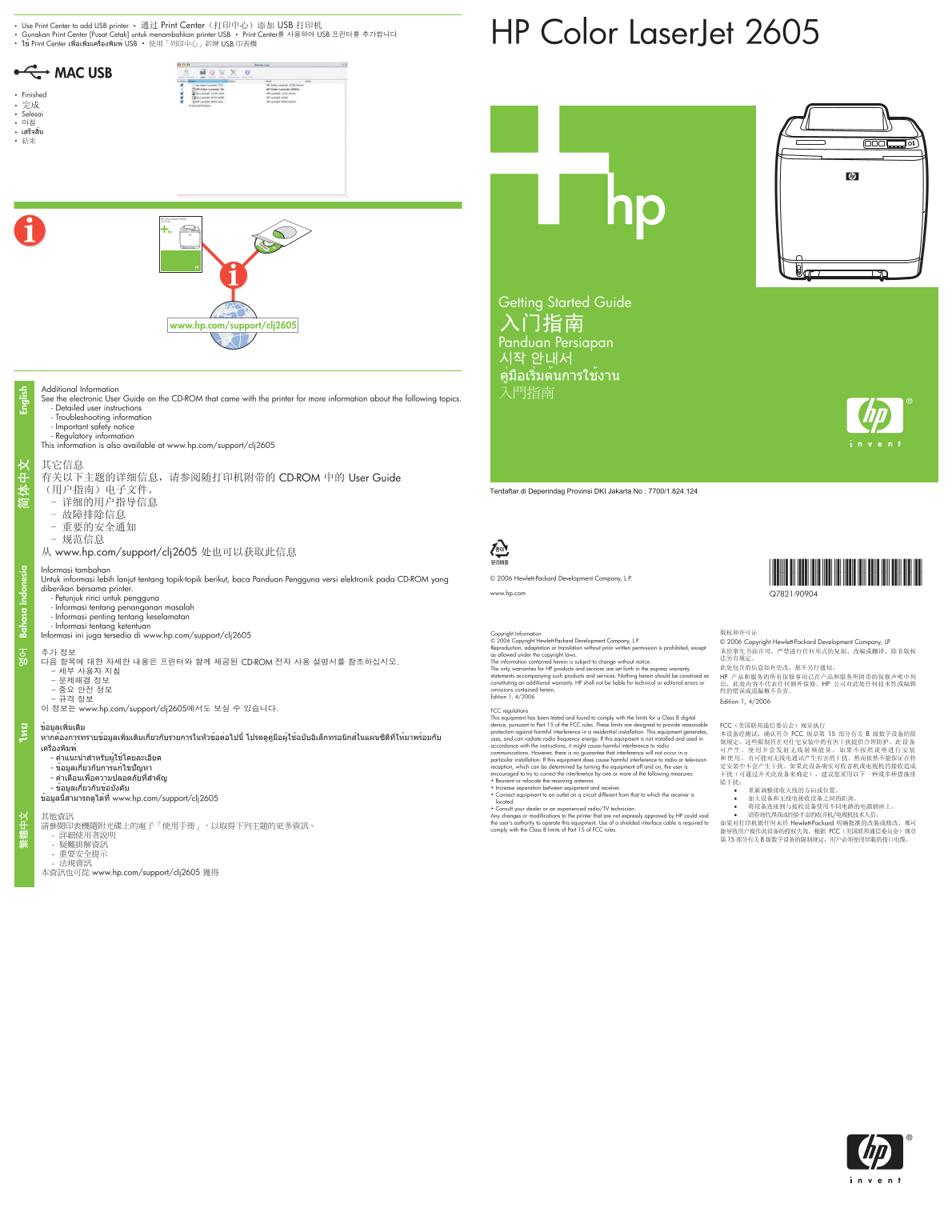
Page 1 Text Content
Print Center USB ha sa In do ne si En gl is
• Use Print Center to add USB printer • • Gunakan Print Center [Pusat Cetak] untuk menambahkan printer USB • Print Center USB
HP Color Laser Jet 2605
MAC USB • Finished
• Selesai
Getting Started Guide
www.hp.com/support/clj2605
Panduan Persiapan
Additional Information See the electronic User Guide on the CD-ROM that came with the printer for more information about the following topics. - Detailed user instructions - Troubleshooting information - Important safety notice - Regulatory information This information is also available at www.hp.com/support/clj2605
CD-ROM User Guide
Terdaftar di Deperindag Provinsi DKI Jakarta No : 7700/1.824.124
www.hp.com/support/clj2605
Informasi tambahan
Untuk informasi lebih lanjut tentang topik-topik berikut, baca Panduan Pengguna versi elektronik pada CD-ROM yang © 2006 Hewlett-Packard Development Company, L.P. *Q7821-90904*
diberikan bersama printer.
www.hp.com Q7821-90904
- Petunjuk rinci untuk pengguna - Informasi tentang penanganan masalah - Informasi penting tentang keselamatan - Informasi tentang ketentuan
Copyright Information
Informasi ini juga tersedia di www.hp.com/support/clj2605Ba
© 2006 Copyright Hewlett-Packard Development Company, L.P. Reproduction, adaptation or translation without prior written permission is prohibited, except as allowed under the copyright laws. CD-ROM The information contained herein is subject to change without notice. The only warranties for HP products and services are set forth in the express warranty statements accompanying such products and services. Nothing herein should be construed as constituting an additional warranty. HP shall not be liable for technical or editorial errors or omissions contained herein. Edition 1, 4/2006
www.hp.com/support/clj2605 FCC regulations
This equipment has been tested and found to comply with the limits for a Class B digital device, pursuant to Part 15 of the FCC rules. These limits are designed to provide reasonable protection against harmful interference in a residential installation. This equipment generates, uses, and can radiate radio frequency energy. If this equipment is not installed and used in accordance with the instructions, it might cause harmful interference to radio communications. However, there is no guarantee that interference will not occur in a particular installation. If this equipment does cause harmful interference to radio or television reception, which can be determined by turning the equipment off and on, the user is encouraged to try to correct the interference by one or more of the following measures: • Reorient or relocate the receiving antenna. • Increase separation between equipment and receiver. • Connect equipment to an outlet on a circuit different from that to which the receiver is
clj2605
located. • Consult your dealer or an experienced radio/TV technician. Any changes or modifications to the printer that are not expressly approved by HP could void the user’s authority to operate this equipment. Use of a shielded interface cable is required to comply with the Class B limits of Part 15 of FCC rules.
www.hp.com/support/clj2605
Page Summary Contents For HP Color LaserJet 2605 Series Printer HP Color LaserJet 2605 - (Multiple Language) Getting Started Guide
Manual Details
| Brand | HP |
|---|---|
| Pages | 2 |
| File Size | 2.01 MB |
| Published | June 03, 2026 |
Enter the captcha to get the download link:

Frequently Asked Questions
When should I connect the USB cable to the printer?
Do NOT connect the USB until you follow the instructions given by the software prompt during installation.
Where is detailed technical or troubleshooting information available?
The electronic User Guide on the CD-ROM, or www.hp.com/support/clj2605 contains this information.
What precautions must I take regarding the physical environment for the printer?
You must install and operate the device in a well-ventilated, dust-free area.
How can I ensure compliance with FCC radio frequency rules?
Use of a shielded interface cable is required to comply with the Class B limits of Part 15 of FCC rules.