# A B C D E F G H I J K L M N O P Q R S T U V W X Y Z

HP Color LaserJet CP1210 Printer Series - Getting Started Guide

Summary

The comprehensive setup guide for the HP Color LaserJet CP1210 Series printer provides new users with everything needed to operate their professional color laser device. This essential resource walks through unboxing, initial setup procedures, and hardware familiarization. It details vital information including product placement guidance, a thorough overview of the control panel status lights (such as paper jams or cartridge issues), safety warnings, effective troubleshooting steps, and connecting via CD-ROM installation for optimal printing performance.
📄 Preview PAGE OF 12

Page 1 Text Content

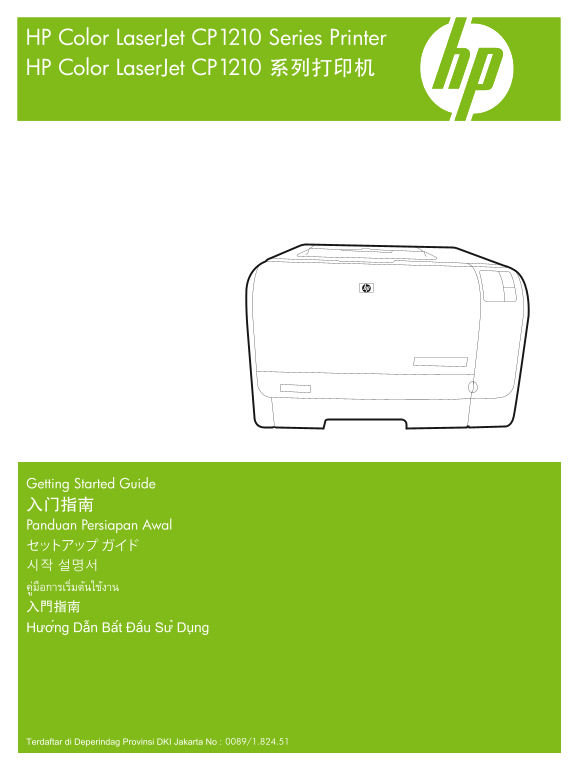
HP Color Laser Jet CP1210 Series Printer HP Color Laser Jet CP1210 系列打印机

Getting Started Guide 入门指南 Panduan Persiapan Awal セットアップ ガイド 시작 설명서 คู่มือการเริ่มต้นใช้งาน 入門指南 Hướng Dẫn Bắt Đầu Sử Dụng

0089/1.824.51Terdaftar di Deperindag Provinsi DKI Jakarta No :

Page Summary Contents For HP Color LaserJet CP1210 Printer Series - Getting Started Guide

Page 1 HP Color Laser Jet CP1210 Series Printer HP Color Laser Jet CP1210 系列打印机 Getting Started Guide 入门指南 Panduan Persiapan Awal セットアップ ガイド 시작 설명서 คู่มือการเริ่มต้นใช้งาน 入門指南 Hướng Dẫn Bắt Đầu Sử Dụn...
Page 2 Copyright and License 版权与许可 © 2007 Copyright Hewlett-Packard Development Company, L.P. © 2007 Copyright Hewlett-Packard Development Reproduction, adaptation or translation without prior written Compan...
Page 3 Unpack the product. 打开产品包装。 Buka kemasan produk. 製品を箱から取り出します。 제품의 포장을 풉니다. HP Color Laser Jet CP1210 Series นำเครื่องออกจากกล่องบรรจุ 拆開產品的包裝。 Mở sản phẩm. Select a sturdy, well-ventilated, dust-free...
Page 4 Place the CD in the CD-ROM drive, and click Begin Setup. 将 CD 放入 CD-ROM 驱动器,然后单击开始安装。 Masukkan CD ke dalam drive CD-ROM dan klik Mulai Pengaturan. CD を CD-ROM ドライブに挿入し、[セットアップの開始] をクリックします。 CD-ROM 드라이...
Page 5 Remove the tape from all four print cartridges. 从所有四个打印碳粉盒上撕下胶带。 Lepas pita dari keempat kartrid cetak. 4 個のプリント カートリッジからテープを取り除きます。 카트리지 4개의 테이프를 제거하십시오. ลอกเทปออกจากตลับหมึกทั้ง 4 ตลับ 去除四個碳粉匣上的膠帶。 ...
Page 6 Load paper. 装入纸张。 Muat kertas. 用紙をセットします。 용지를 넣으십시오. ใส่กระดาษ 裝入紙張。 Nạp giấy.
Page 7 Adjust the three guides against the paper, and reinsert the tray. 调整三个导板使其紧贴纸张,然后重新插入纸盘。 Sesuaikan ketiga pemandu terhadap kertas, dan masukkan lagi bakinya. 3 箇所のガイドを用紙に合わせて調整し、トレイを再度挿入します。 3개의 용지 조정...
Page 8 Connect the power, and then turn on the product.7 连接电源,然后打开本产品电源。 Hubungkan daya kemudian hidupkan produk. 電源を入れて、製品のスイッチをオンにします。 전원을 연결하고 제품의 전원을 켜십시오. ต่อสายไฟ และเปิดเครื่อง 連接電源,然後開啟本產品電源。 Cắm dây...
Page 9 Install the software. Follow the onscreen instructions. 安装软件。 按照屏幕说明进行操作。 Instal perangkat lunak. Ikuti petunjuk pada layar. ソフトウェアをインストールします。 画面に表示される手順に従います。 소프트웨어를 설치하십시오. 화면에 나타난 지침을 따릅니다. ติดตั้ง...
Page 10 Control-panel overview 控制面板概览 Ringkasan panel kontrol コントロール パネルの概要 제어판 개요 ภาพรวมของแผงควบคุม 控制面板概述 Tổng quan về Panen điều khiển Print cartridge status• 카트리지 상태• 打印碳粉盒状态• สถานะตลับหมึกพิมพ์• Status ...
Page 12 © 2007 Hewlett-Packard Development Company, L.P. www.hp.com *CC376-90943* *CC376-90943* CC376-90943

Manual Details

Brand HP
Pages 12
File Size 1.70 MB
Published June 06, 2026
37 views

Enter the captcha to get the download link:

captcha

Frequently Asked Questions

Where should I place the CP1210 printer during setup?

Select a sturdy, well-ventilated, and dust-free area to position the product.

How do I begin the initial setup process for this device?

Insert the CD into the CD-ROM drive and click on 'Begin Setup'.

What regulatory compliance is required when connecting this printer?

A shielded interface cable is mandatory to comply with FCC Part 15 Class B limits.

Where can I find advanced troubleshooting or detailed safety notices?

Consult www.hp.com/support/ljcp1210series or the electronic user guide on the CD-ROM.