Page 1
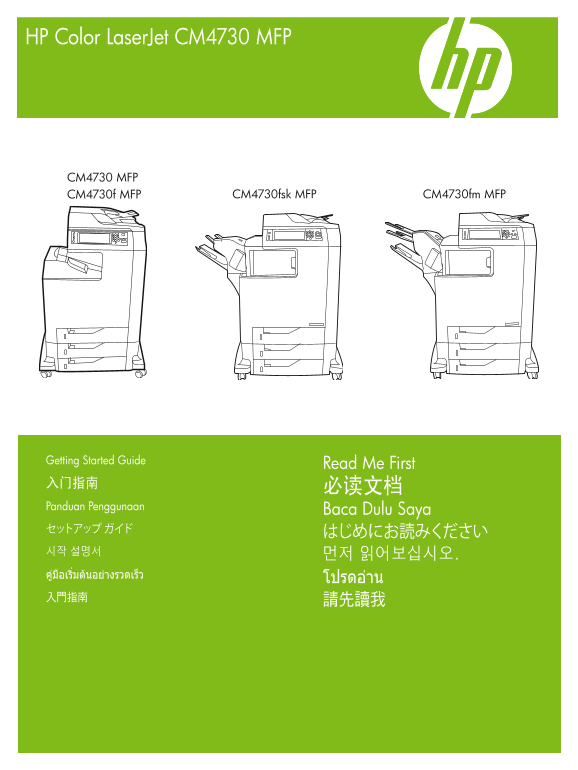
HP Color Laser Jet CM4730 MFP CM4730 MFP CM4730f MFP CM4730fsk MFP CM4730fm MFP Getting Started Guide Read Me First Panduan Penggunaan Baca Dulu Saya
Page 2
Copyright and License 版权与许可 © 2007 Copyright Hewlett-Packard Development Company, L.P. © 2007 版权所有 Hewlett-Packard Development Company, L.P. Reproduction, adaptation or translation without prior writt...
Page 3
Overview 概述 Tinjauan Umum In-box documentation 包装箱附带的说明文档 Dokumentasi dalam kotak MFP location MFP 位置 Lokasi MFP MFP の設置場所 MFP 위치 ตำาแหน่งของ MFP MFP 位置 Unpack the MFP 拆开 MFP 包装 Membongkar MFP MFP の開梱...
Page 4
In-box documentation 包装箱附带的说明文档 Dokumentasi dalam kotak CM4730 Customer Documentation: CM4730 客户说明文档: Dokumentasi Pelanggan CM4730: Getting Started Guide 入门指南 Panduan Penggunaan Wall Poster Poster Din...
Page 5
MFP location MFP 位置 Lokasi MFP MFP の設置場所 MFP 위치 ตำาแหน่งของ MFP MFP 位置 Select a well-ventilated, dust-free area to position the MFP. 请选择一个通风良好、无尘的区域来放置 MFP。 Pilih tempat yang berventilasi cukup, bebas...
Page 6
124 kg. 136 kg. 273 lbs. 298 lbs. Power/Current specifications. 电源/电流规格。 Spesifikasi Daya/Arus listrik. 電源/電流仕様 전원/현재 사양 ข้อกำาหนดรายละเอียดเกี่ยวกับกำาลังไฟ/กระแสไฟฟ้า 電源/電流規格。 110-volt models 220-vo...
Page 7
Unpack the MFP 拆开 MFP 包装 Membongkar MFP MFP の開梱 MFP 포장 풀기 แกะกล่อง MFP 拆開 MFP Remove the outer box and the packing foam. 拆除外包装箱和包装泡沫材料。 Keluarkan kotak luar dan gabus kemasan. 箱と梱包材を取り外します。 상자와 스티로폼을 ...
Page 8
Install the ramps, remove cardboard, bag and foam supports. 安装坡道,拆除纸板、包装袋和泡沫架。 Pasang rel luncuran, lepaskan lapisan karton, kantung dan gabus penyangga. 傾斜台を取り付け、ボール紙、袋、および梱包材を取り外します。 승강대를 부착하고 보드지와 ...
Page 9
Remove the shipping tape. 拆除运输胶带。 Lepaskan pita pengiriman. 搬送用テープを取り外します。 포장용 테이프를 제거합니다. แกะเทปทั้งหมดที่ติดมากับผลิตภัณฑ์ออก 撕下膠帶。 Open scanner lid and remove foam. 打开扫描仪盖并拆除泡沫。 Buka sungkup pemind...
Page 10
CM4730fsk MFP, CM4730fm MFP Install the optional stapler/stacker or multi-bin mailbox. 安装可选的订书机/堆栈器或多槽邮箱。 Pasang penjilid/penumpuk atau kotak surat multi nampan. オプションのステイプラ/スタッカまたはマルチビン メールボックスを取り付けま...
Page 11
Plug accessory cable into the MFP. 将附件电缆插入 MFP。 Colokkan kabel aksesori ke dalam MFP. アクセサリのケーブルを MFP に接続します。 부속품 케이블을 MFP에 꽂습니다. เสียบปลั๊กสายเคเบิลของอุปกรณ์เสริมเข้ากับ MFP 將附件電纜線插入 MFP。
Page 12
Set up the MFP 安装 MFP Mengatur MFP MFP の設定 MFP 설정 ตั้งค่า MFP 設定 MFP Change the control panel language overlay (if necessary). 更改控制面板的语言贴面(如有必要)。 Ganti pelat muka panel kontrol (jika perlu). NOTE: Fou...
Page 13
Connect a Network cable (optional). 连接网络电缆(可选)。 Menghubungkan kabel Jaringan (opsional). ネットワーク ケーブルを接続します (オプション)。 네트워크 케이블 연결(선택 사항) ต่อสายเคเบิลเครือข่าย (เลือกทำา) 連接網路電纜 (選用)。 • Connect a network...
Page 14
Connect the fax (optional). 连接传真(可选)。 Menghubungkan faks (opsional) ファックスを接続します (オプション)。 팩스 연결(선택 사항) ต่อโทรสาร (เลือกทำา) 連接傳真 (選用)。 CM4730f MFP, CM4730fsk MFP, CM4730fm MFP Connect the phone cord to...
Page 15
Plug in the power cord, turn on the MFP and wait for green ready light. 插入电源线,打开 MFP 并等待绿色的就绪指示灯亮起。 Colokkan kabel listrik, nyalakan MFP dan tunggu sampai muncul lampu ready [siap] warna hijau. 電源コードを...
Page 16
Set language, date, time, and fax settings (if necessary). If prompted, select your language, the date, and the time. Follow the instructions on the control panel touch screen. 如有必要,设定您的语言、日期、时间和传真设置。...
Page 17
Adjust the paper guide(s). 调整纸张导板。 Menyesuaikan pemandu kertas. 用紙ガイドを調節します。 용지 조정대를 조정합니다. ปรับตัวกั้นกระดาษ 調整紙張導板。 NOTE: For tray media auto sensing information, refer to the User Guide. 注:有关纸盘中介质自...
Page 18
Verify functionality by printing a configuration page. From the control panel, A) scroll to and touch Administration. B) Touch Information. C) Touch Configuration Status Pages. D) Touch Configuration ...
Page 19
Configure the IP address (if the IP address shows 192.0.0.192 or 169.254.x.x). A) On the control panel, scroll to and touch Administration. B) Scroll to and touch Initial Setup, and then touch Network...
Page 20
Verify copy. Place configuration page, print side-up, in the ADF (Automatic Document Feeder), and press the Start button. The ADF will automatically feed the paper through the scanner and the copied p...
Page 21
Install Windows software 安装 Windows 软件 Menginstal perangkat lunak Windows Windows ソフトウェアのインストール Windows 소프트웨어 설치 ติดตั้งซอฟต์แวร์ของ Windows 安裝 Windows 軟體 Note: Do not connect a USB or parallel cable ...
Page 22
Install software. A) Insert the Software/Customer CD that came with the printer. B) At the welcome screen, click Install. The Setup Wizard appears.C) If installing a fax driver (send fax from the comp...
Page 23
Test the software installation. Print a page from any program to make sure that the software is correctly installed. Note: If the installation failed, reinstall the software or see the troubleshooting...
Page 24
Install Mac software 安装 Mac 软件 Menginstal perangkat lunak Mac Mac ソフトウェアのインストール Mac 소프트웨어 설치 ติดตั้งซอฟต์แวร์สำาหรับเครื่อง Mac 安裝 Mac 軟體 Connect MFP to a Macintosh computer. Connect a USB cable betwe...
Page 25
Place the CD in the CD-ROM drive and run the installer. Complete an “easy” install. 将 CD 放入 CD-ROM 驱动器,然后运行安装程序。完成“简易”安装。 Masukkan CD ke drive CD-ROM dan jalankan installer-nya. Selesaikan "easy&...
Page 26
From the Printer Browser window, select the HP printer from the Printer Name section. For Mac OS X v10.4: If HP software is installed, the printer software should be automatically configured. Make sur...
Page 27
Under Model Name, select your device and click Add. 在型号名称下,选择设备并单击添加。 Di bawah Model Name [Nama Model], pilih perangkat Anda lalu klik Add [Tambah]. [機種名] から使用するプリンタを選択して、[追加] をクリックします。 ใต้ Model Name...
Page 28
CM4730f, CM4730fsk, CM4730fm Install the send fax driver (optional) 安装发送传真驱动程序(可选) Menginstal driver send fax [kirim faks] (opsional) ファックス送信ドライバのインストール (オプション) 팩스 전송 드라이버 설치(선택 사항) ติดตั้งไดรเวอร์ส่ง...
Page 29
Install send fax driver. A) Insert the software/customer CD that came with the device. B) On the welcome screen, if the printer driver is already installed click Modify Installation, otherwise click I...
Page 30
Set up the embedded digital send features for network connection 为网络连接设置内嵌式数字发送功能 Mengatur fitur pengiriman digital terpadu untuk koneksi jaringan ネットワーク接続用の内蔵デジタル送信のセットアップ 네트워크 연결을 위한 내장 디지털 전송 기능 설정...
Page 31
Configure the General Settings. A) Open a web browser. B) Input device IP address or hostname (found on the embedded Jetdirect configuration page) in the the URL window. C) Select the Digital Sending ...
Page 32
Configure E-mail Settings. A) On the left navigation menu, select E-mail Settings. B) Input the SMTP server address, use the default From and Subject fields. Note: If you are using an ISP (Internet Se...
Page 33
Configure E-mail Address Book. A) On the left navigation menu, select E-mail Address Book, to enter frequently-used e-mail addresses and e-mail distribution lists. Note: The Fax Address Book and Fax S...
Page 34
Configure Send to Folder. A) To scan a document to your PC or network share folder, use the Send To Folder option (on the left navigation bar) to set up one or more folder destinations. For more infor...
Page 35
http://www.hp.com/support http://www.hp.com/mfpfaxaccessory300
Page 36
© 2007 Hewlett-Packard Development Company, L.P. www.hp.com *CB480-90904* *CB480-90904* CB480-90904