# A B C D E F G H I J K L M N O P Q R S T U V W X Y Z

HP LaserJet 1200 Series Printer - LaserJet 1200n Printer - Getting Started Guide

Summary

The comprehensive guide for your HP LaserJet 1200 series printer provides everything needed for seamless operation from unboxing to connection. This manual details step-by-step instructions on proper setup, including hardware assembly, environmental requirements, and detailed software installation processes for various operating systems like Windows 98 and Windows 2000 (USB). Designed for new users and IT personnel, it ensures you can quickly connect your printer—including print servers and media trays—and begin reliable printing immediately.
📄 Preview PAGE OF 12

Page 1 Text Content

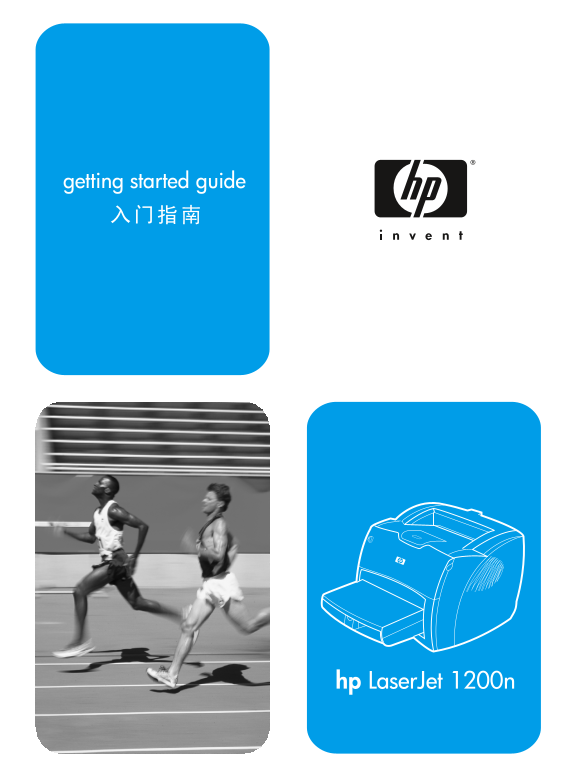
getting started guide

hp Laser Jet 1200n

Page Summary Contents For HP LaserJet 1200 Series Printer - LaserJet 1200n Printer - Getting Started Guide

Page 1 getting started guide hp Laser Jet 1200n
Page 2 Copyright Information 版权信息 © Copyright Hewlett-Packard Company 2002 版权所有 © 2002, Hewlett-Packard Company All Rights Reserved. Reproduction, adaptation, or translation without prior written permission ...
Page 3 Preparation/ Review package contentsMake sure all parts are included. 6) Print server attachment clip. 7) USB cable for print server. 8) Print 1) HP Laser Jet 1200 series printer. 2) Toner cartridge...
Page 4 Assembly/ Open the toner door. Pull the sides of the door forward until the door Remove the left side panel. 1) Grasp the left side panel using the finger locks in its open position. Leave the door op...
Page 5 3) Plug the DC power cord from the power module into the power 4) The 10 or 100 LED should light, indicating network connection, and connector on the rear panel and into a power outlet. the power/stat...
Page 6 Install the toner cartridge. Insert the cartridge into the printer, making Close the toner door. The toner cartridge engages when the door is sure that the toner cartridge is in position. closed. Inst...
Page 7 Attach the power cord. Connect the power cord to the printer and an AC Test the printer. Wait until the ready light is illuminated and press the Go outlet. Turn on the switch if there is one (switches...
Page 8 Install the printer software. Insert the CD for your software installation or Installing on Windows. 1) Select Software Installation from the autorun go to the Plug and Play section. screen. If autoru...
Page 9 No lights are on. Congratulations! Your HP Laser Jet 1200n product is ready to use. If you Troubleshooting the printer. 1) If no lights are on, check the power cord, had any problems, refer to the ele...
Page 10 Plug & Play/ Installing on Windows 98 and Millennium (USB). 1) Connect the I/O 5) Select Specify a location, then type (where x is the cable to the computer. 2) Reboot the computer. 3) In the Add ...
Page 12 copyright© Hewlett-Packard Co. www.hp.com/support/lj1200

Manual Details

Brand HP
Pages 12
File Size 693.65 KB
Published June 05, 2026
34 views

Enter the captcha to get the download link:

captcha

Frequently Asked Questions

How do I set up the printer with a computer?

Connect the I/O cable to your computer and reboot. Follow the on-screen instructions using the specified operating system's hardware wizard or driver setup.

What should I do if I encounter printing errors?

Unplug the printer, wait for five minutes, plug it back in, and retry. If errors continue, contact HP Customer Support.

What are the recommended environmental conditions for this device?

The ideal temperature range is 10° to 32.5° C (50° to 91° F), and the relative humidity should be between 20% and 80%.

What safety measure must I take regarding power outlets?

To prevent interference, connect the equipment to an electrical outlet on a circuit different from that used by other receiving radio or TV devices.