Dell Precision T5600 Setup Guide and Feature Information Tech Sheet
Summary
This document is the Setup and Features Information guide for Dell Precision Workstation T3600, T5600, and T7600 desktop tower computers. It provides detailed front and back panel views with labeled component diagrams, including USB 3.0/2.0 connectors, optical drives, expansion card slots, power connectors, diagnostic lights, and audio ports. The guide covers safety warnings, quick setup steps such as connecting peripherals and turning on the computer, and locating the Service Tag. It is intended for users setting up these professional workstations for the first time.
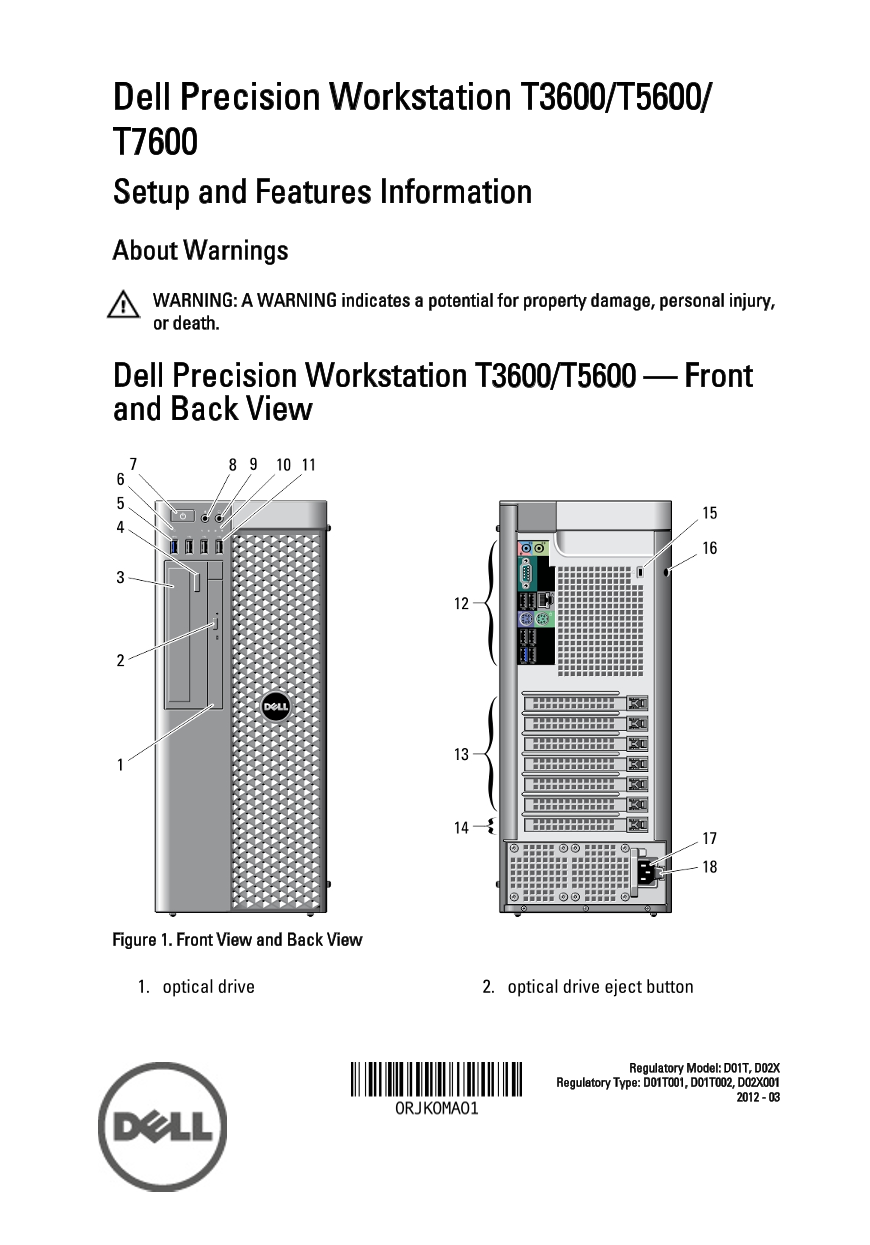
Page 1 Text Content
Dell Precision Workstation T3600/T5600/ T7600 Setup and Features Information About Warnings WARNING: A WARNING indicates a potential for property damage, personal injury, or death. Dell Precision Workstation T3600/T5600 — Front and Back View
Figure 1. Front View and Back View
1. optical drive 2. optical drive eject button
Regulatory Model: D01T, D02X
Regulatory Type: D01T001, D01T002, D02X001
Page Summary Contents For Dell Precision T5600 Setup Guide and Feature Information Tech Sheet
Manual Details
| Brand | Dell |
|---|---|
| Pages | 8 |
| File Size | 1.05 MB |
| Published | June 27, 2026 |
Enter the captcha to get the download link:

Frequently Asked Questions
What is the first step when setting up the workstation?
Connect the monitor cable(s), then connect keyboard/mouse options, followed by powering on all connections.
Where can I find environmental specifications (weight, height)?
The T7600 weighs a minimum of 16.90 kg and has a height of 430.50 mm with feet.
Is the PCIe expansion slot active without two CPUs installed?
No, the PCIe expansion slots are only active when a second CPU is installed.
How do I connect network peripherals for T7600?
Use the dedicated network adapter connectors (2) on the back panel and optionally connect the network cable(s).
What is the required operating temperature range?
The environmental operating temperature is specified as 10 °C to 35 °C (50 °F to 95 °F).