Dell Setup and Features Information Tech Sheet
Summary
Detailed guides for the Dell Precision M4800 and M6800 workstations, this manual provides comprehensive component identification and setup instructions for professional users. It covers all aspects of connectivity, featuring robust diagrams of the front, back, and base units to pinpoint every port (HDMI, VGA, USB 3.0, etc.) and functional area. The guide emphasizes safe operation, system maintenance best practices, and initial hardware installation, ensuring you can maximize your productivity with this powerful workstation.
Page 1 Text Content
Dell Precision M4800/M6800 Setup And Features Information About Warnings WARNING: A WARNING indicates a potential for property damage, personal injury, or death.
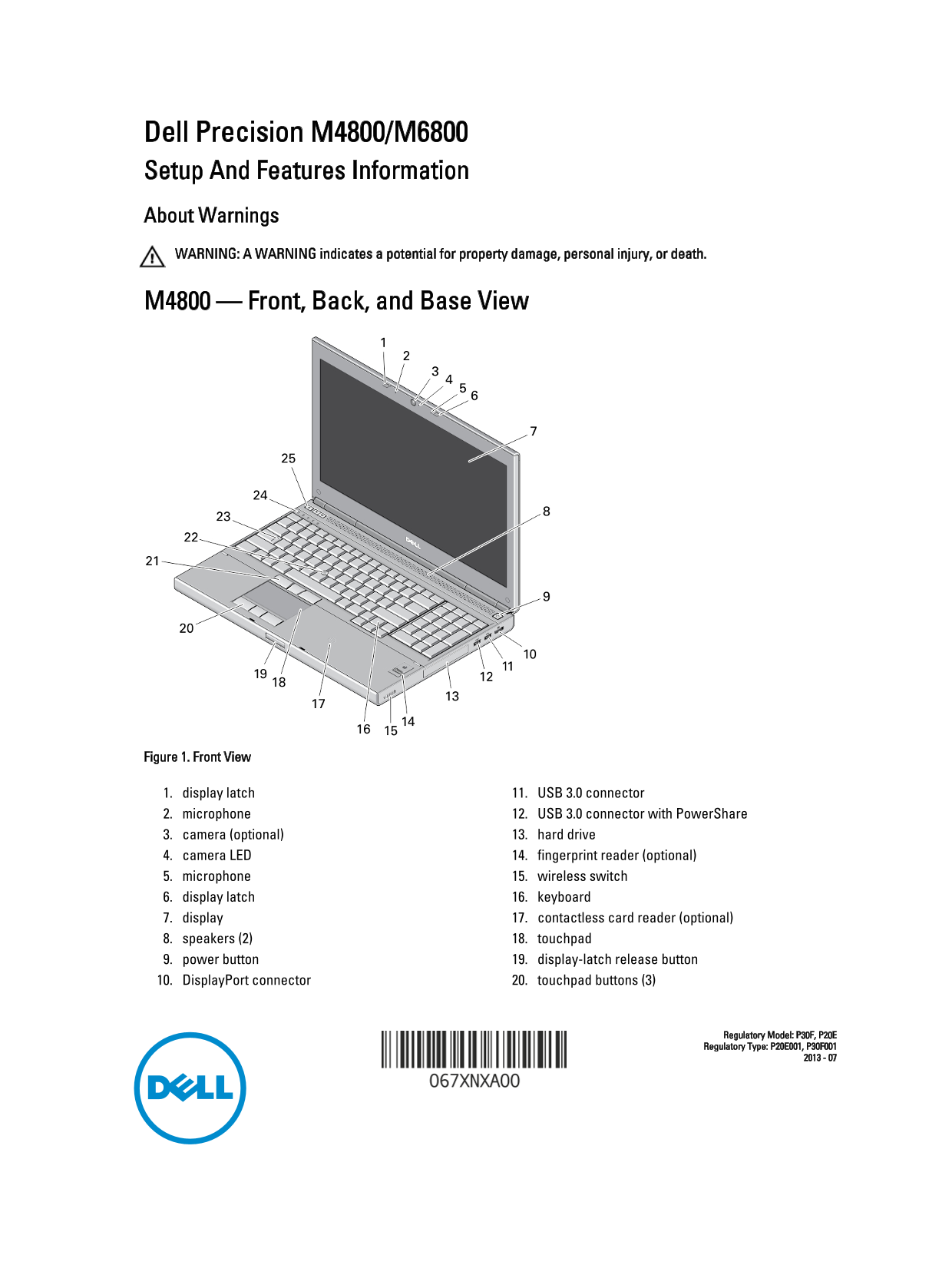
M4800 — Front, Back, and Base View
Figure 1. Front View
1. display latch 11. USB 3.0 connector 2. microphone 12. USB 3.0 connector with Power Share 3. camera (optional) 13. hard drive 4. camera LED 14. fingerprint reader (optional) 5. microphone 15. wireless switch 6. display latch 16. keyboard 7. display 17. contactless card reader (optional) 8. speakers (2) 18. touchpad 9. power button 19. display-latch release button 10. Display Port connector 20. touchpad buttons (3)
Regulatory Model: P30F, P20E Regulatory Type: P20E001, P30F001
Page Summary Contents For Dell Setup and Features Information Tech Sheet
Manual Details
| Brand | Dell |
|---|---|
| Pages | 8 |
| File Size | 1.11 MB |
| Published | June 23, 2026 |
Enter the captcha to get the download link:

Frequently Asked Questions
What safety warnings should I follow when operating the device?
Do not block or allow dust to accumulate in the air vents, and never store it in a low-airflow environment while running.
What external ports are available on the M4800/M6800 models?
It includes multiple USB 3.0 connectors (some with PowerShare), VGA, HDMI, eSATA/USB 2.0, a network connector, and optional ExpressCard slots.
How should I set up the computer for initial use?
Connect the AC adapter to both the machine and the electrical outlet, then connect necessary peripherals like a monitor or network cable.