# A B C D E F G H I J K L M N O P Q R S T U V W X Y Z

Dell Vostro 1540 Setup and Features Information Tech Sheet

Summary

The Dell Vostro 1440/1540/1450/1550 Setup document provides an overview of features and physical layout. It includes front and back view diagrams with labeled components such as camera, USB ports, optical drive, VGA, HDMI, network, and audio connectors. Safety warnings about ventilation are included. Target users are small business owners setting up Dell Vostro laptops.
📄 Preview 📖 Table of Contents Contents PAGE OF 9

Page 1 Text Content

Dell Vostro 1440/1540/1450/1550 Setup And Features Information About Warnings WARNING: A WARNING indicates a potential for property damage, personal injury, or death. Front And Back — Vostro 1440/1450

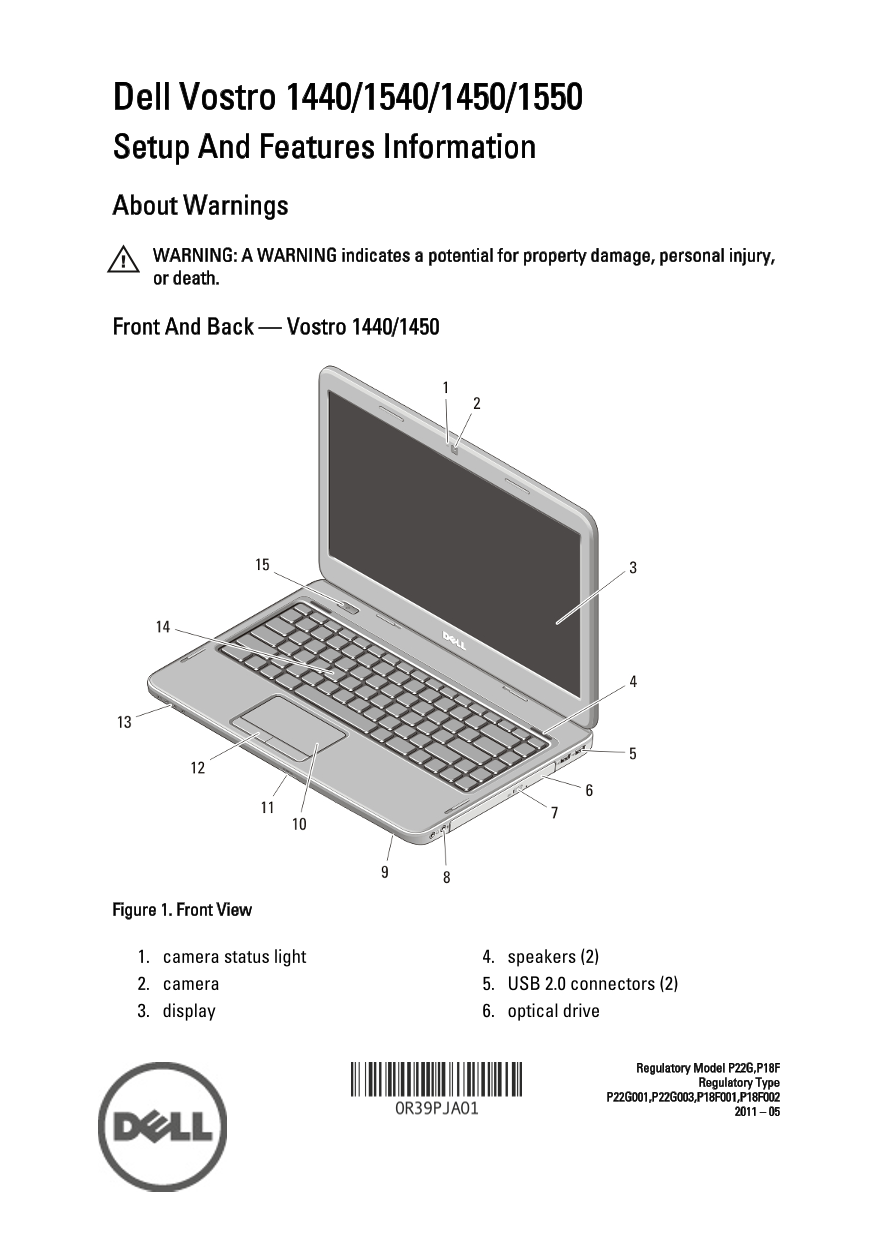
Figure 1. Front View

1. camera status light 4. speakers (2) 2. camera 5. USB 2.0 connectors (2) 3. display 6. optical drive

Regulatory Model P22G,P18F

Regulatory Type

Page Summary Contents For Dell Vostro 1540 Setup and Features Information Tech Sheet

Page 1 Dell Vostro 1440/1540/1450/1550 Setup And Features Information About Warnings WARNING: A WARNING indicates a potential for property damage, personal injury, or death. Front And Back — Vostro 1440/1450...
Page 2 7. optical drive eject button 12. touchpad buttons (2) 8. audio connectors 13. device status lights 9. microphone 14. keyboard 10. touchpad 15. power button 11. memory card reader Figure 2. Back View ...
Page 3 Front And Back – Vostro 1540/1550 Figure 3. Front View 1. camera status light 8. touchpad 2. camera 9. touchpad buttons (2) 3. display 10. microphone 4. speakers (2) 11. memory card reader 5. optical ...
Page 4 Figure 4. Back View 1. security cable slot 6. VGA connector 2. battery 7. HDMI connector 3. power connector 8. USB 2.0 connector 4. cooling vents 9. audio connectors 5. network connector WARNING: Do n...
Page 5 CAUTION: When you disconnect the AC adapter cable from the computer, grasp the connector, not the cable itself, and pull firmly but gently to avoid damaging the cable. When you wrap the AC adapter cab...
Page 6 NOTE: It is recommended that you turn on and shut down your computer at least once before you install any cards or connect the computer to a docking device or other external device, such as a printer....
Page 7 Memory Memory capacity 1 GB / 2 GB / 4 GB Memory type DDR3, 1333 MHz Minimum memory 1 GB Maximum memory 8 GB Battery Type 6-cell lithium ion (2.20 Whr) Dimensions: Depth 53.39 mm (2.10 inches) Height ...
Page 8 AC Adapter 90 W 4.62 A Rated output voltage 19.50 VDC (+/ 1.0 VDC) Dimensions: Height 28.20 mm (1.11 inches) Width 57.90 mm (2.28 inches) Depth 137.16 mm (5.40 inches) Temperature range: Operating 0 °...
Page 9 Environmental Storage 5 % to 95 % (noncondensing) Airborne contaminant level G1 as defined by ISA–71.04–1985 Finding More Information and Resources See the safety and regulatory documents that shipped...

Manual Details

Brand Dell
Pages 9
File Size 848.72 KB
Published June 27, 2026
12 views

Enter the captcha to get the download link:

captcha

Frequently Asked Questions

What should I do if my laptop overheats?

The computer automatically turns on the fan when it gets hot; this normal noise does not indicate a problem.

Can I block the air vents when using the laptop?

No, never block or push objects into the air vents. Restricting airflow can damage the computer or cause a fire.

What is the recommended maximum memory capacity?

The system supports a minimum of 1 GB and a maximum of 8 GB DDR3 RAM.

How should I connect the AC adapter safely?

When disconnecting, grasp the connector end, not the cable itself. Always pull firmly but gently to avoid damage.