Dell Vostro 230s Setup and Features Information Tech Sheet
Summary
The Dell Vostro 230 Setup and Features Information guide provides quick reference for Vostro 230 desktops in Mini Tower and Slim Tower form factors. The manual covers front and back panel layouts, connector identification, expansion slots, and quick setup procedures. It includes diagrams showing USB 2.0, audio, media card readers, and back panel ports. Designed for small business owners and IT support staff setting up or maintaining Dell Vostro 230 systems.
Page 1 Text Content
JWD6Dam1.fm Page 1 Monday, March 29, 2010 1:17 PM
About Warnings
Dell™ Vostro™ 230
WARNING: A WARNING indicates a potential for property damage, personal injury, or death.
Setup and Features Information WARNING: Do not attempt to service the computer yourself. Doing so may create potential hazards.
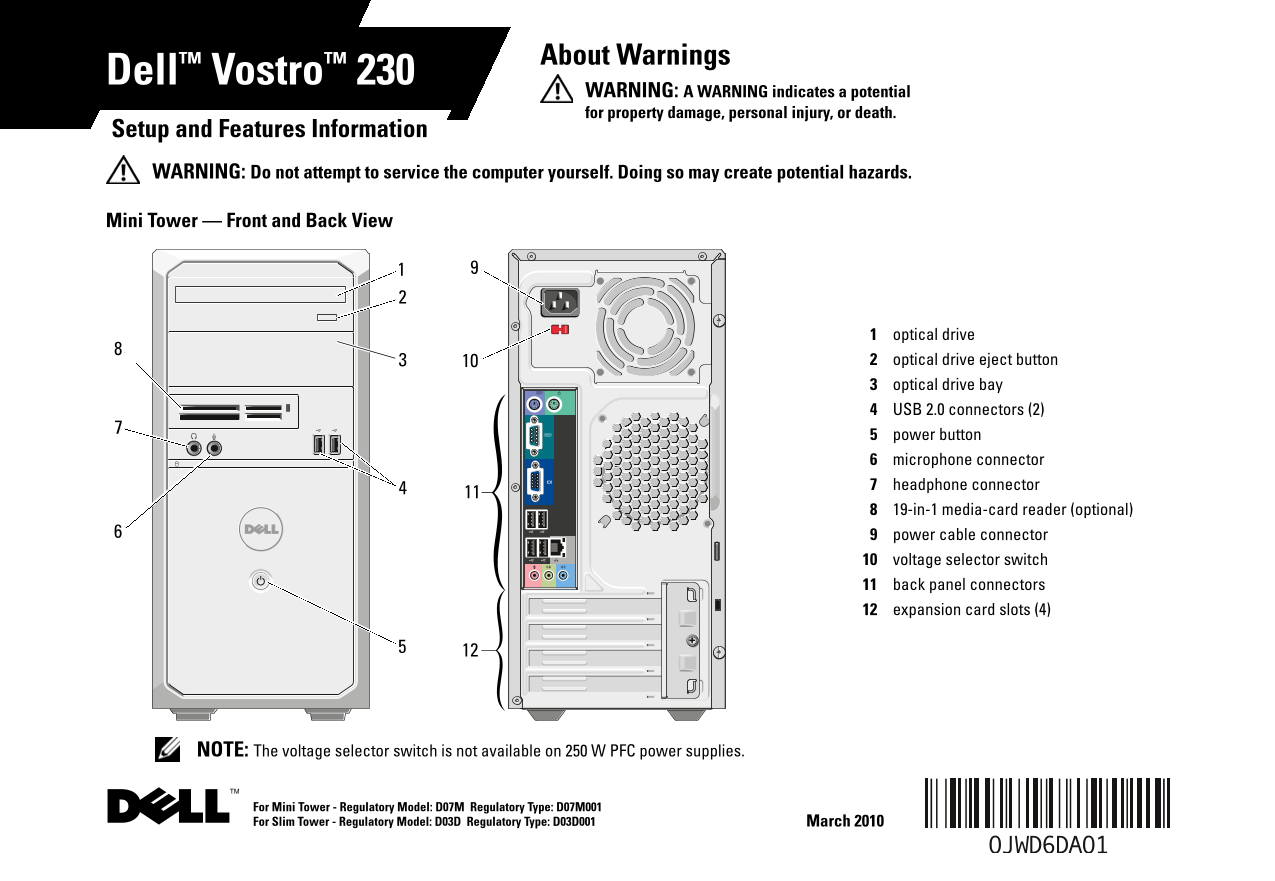
Mini Tower — Front and Back View
optical drive optical drive eject button optical drive bay USB 2.0 connectors (2) power button microphone connector headphone connector 19-in-1 media-card reader (optional) power cable connector voltage selector switch back panel connectors expansion card slots (4)
NOTE: The voltage selector switch is not available on 250 W PFC power supplies.
For Mini Tower - Regulatory Model: D07M Regulatory Type: D07M001 For Slim Tower - Regulatory Model: D03D Regulatory Type: D03D001 March 2010
Page Summary Contents For Dell Vostro 230s Setup and Features Information Tech Sheet
Manual Details
| Brand | Dell |
|---|---|
| Pages | 8 |
| File Size | 473.31 KB |
| Published | June 27, 2026 |
Enter the captcha to get the download link:

Frequently Asked Questions
What are the minimum required system specifications for memory?
Minimum memory is 1 GB (1066 MHz DDR3).
How do I troubleshoot a power-on failure on the Mini Tower?
A solid amber light indicates a problem with the system board or power supply when the Mini Tower does not start.
What connecting ports are available on the Mini Tower back panel?
It includes PS/2 mouse, network adapter, line-in/line-out, microphone, four USB 2.0 connectors, VGA, serial connector, and PS/2 keyboard.