Dell Vostro 1550 Setup Tech Sheet, Features Information
Summary
The Dell Vostro 1440/1540/1450/1550 Setup and Features Information provides setup guidance for Dell's small business laptop series. It details front and rear views with labeled components including camera, display, speakers, USB ports, optical drive, touchpad, keyboard, power button, memory card reader, VGA connector, HDMI port, network connector, and cooling vents. The guide includes safety warnings about airflow restriction, battery handling, and regulatory compliance information. Target users are small business owners, entrepreneurs, and professionals who need reliable, affordable laptops with clear setup documentation for office and mobile productivity.
Page 1 Text Content
Dell Vostro 1440/1540/1450/1550 Setup And Features Information About Warnings WARNING: A WARNING indicates a potential for property damage, personal injury, or death. Front And Back — Vostro 1440/1450
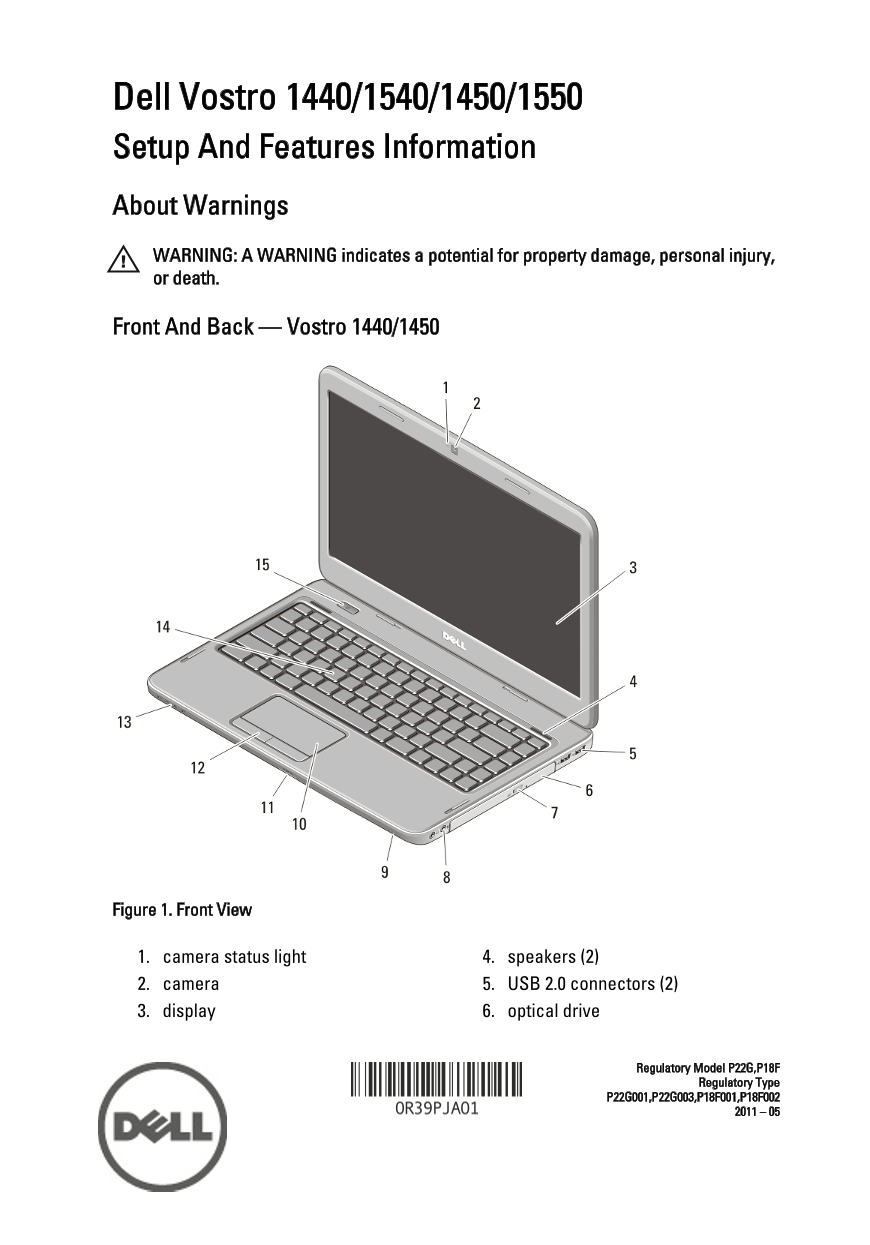
Figure 1. Front View
1. camera status light 4. speakers (2) 2. camera 5. USB 2.0 connectors (2) 3. display 6. optical drive
Regulatory Model P22G,P18F
Regulatory Type
Page Summary Contents For Dell Vostro 1550 Setup Tech Sheet, Features Information
Manual Details
| Brand | Dell |
|---|---|
| Pages | 9 |
| File Size | 848.72 KB |
| Published | June 27, 2026 |
Enter the captcha to get the download link:

Frequently Asked Questions
What should I do if the computer overheats?
The fan will turn on automatically when the computer gets hot; fan noise is normal.
How can I prevent damage from restricted airflow?
Do not block, push objects into, or allow dust to accumulate in the air vents. Avoid storing it in a low-airflow environment when running.
What ports are available for connections on the unit?
Connections include USB 2.0, VGA connector, HDMI connector, audio connectors, and network connector.
Is there maximum memory capacity?
The minimum required memory is 1 GB, but it can be upgraded up to a maximum of 8 GB.
How should I disconnect the AC adapter safely?
Grasp the connector, not the cable itself, and pull firmly but gently to avoid damaging the cable.