Dell Vostro 260 Setup and Features Information Tech Sheet
Summary
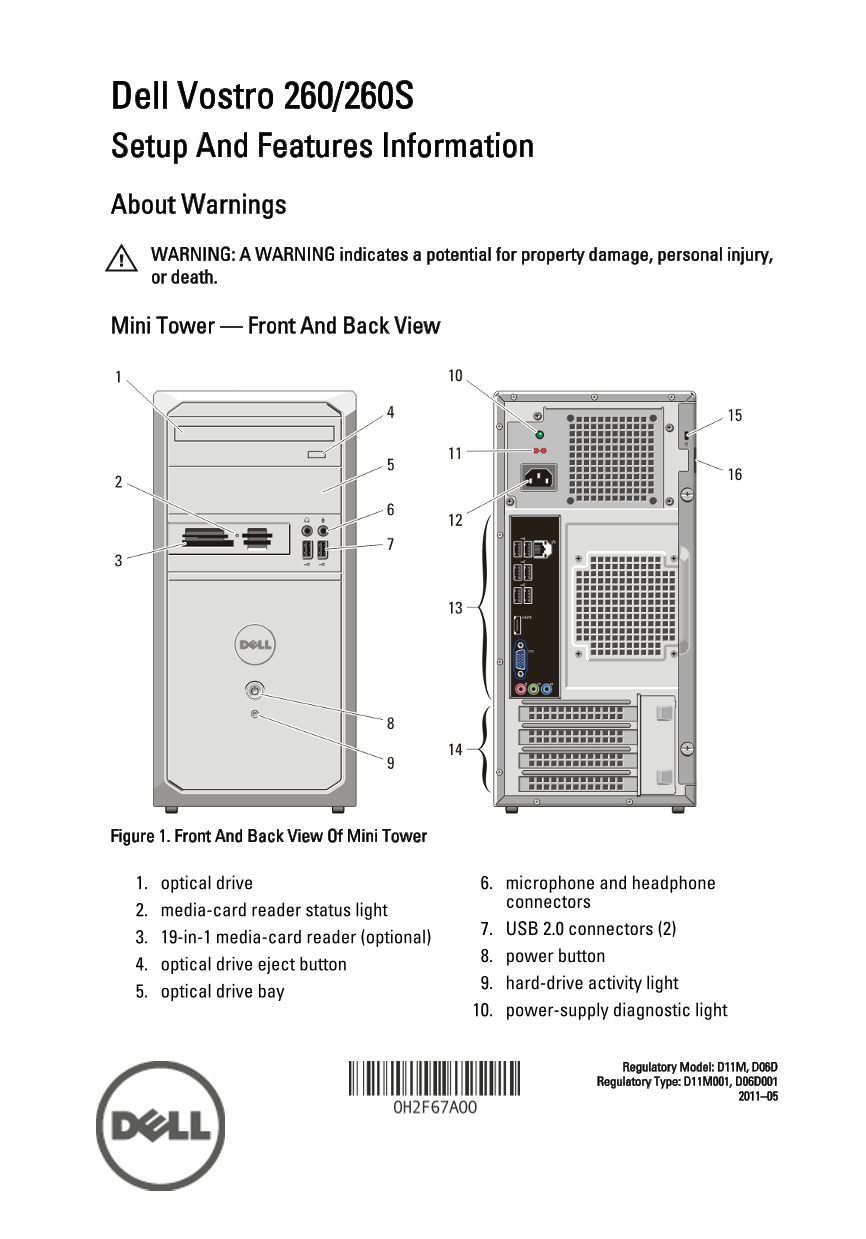
A setup and features information sheet for the Dell Vostro 260 and 260S desktop computers. It illustrates the front and back panel views of both mini tower and slim tower form factors, identifying component locations such as optical drive, media card reader, USB ports, audio connectors, and expansion card slots. The guide includes quick setup instructions for connecting monitor, keyboard, mouse, and network. Targeted at small business users setting up their Vostro desktop systems.
Page 1 Text Content
Dell Vostro 260/260S Setup And Features Information About Warnings WARNING: A WARNING indicates a potential for property damage, personal injury, or death. Mini Tower — Front And Back View
Figure 1. Front And Back View Of Mini Tower
1. optical drive 6. microphone and headphone
connectors
2. media-card reader status light
7. USB 2.0 connectors (2)
3. 19-in-1 media-card reader (optional)
8. power button
4. optical drive eject button
9. hard-drive activity light
5. optical drive bay
10. power-supply diagnostic light
Regulatory Model: D11M, D06D Regulatory Type: D11M001, D06D001
Page Summary Contents For Dell Vostro 260 Setup and Features Information Tech Sheet
Manual Details
| Brand | Dell |
|---|---|
| Pages | 8 |
| File Size | 756.85 KB |
| Published | June 27, 2026 |
Enter the captcha to get the download link:

Frequently Asked Questions
How is the Vostro 260 setup done?
Connect the monitor (HDMI/VGA), optional USB peripherals, network cable, then connect power and press the power buttons on both devices.
What limits the total power output?
Total power output of +5.50 V and +3.30 V cannot exceed 160 W.
How do I check for a system board or power supply issue?
If the power button light is solid amber, it indicates a problem with the system board or power supply; a blinking amber light points to a system board issue.
What type of memory and how much can be installed?
It requires 1333 MHz DDR3 (Non-ECC) in DIMM slots, supporting a capacity up to 8 GB.