Dell Vostro 420 Setup and Features Tech Sheet
Summary
Setup and features guide for Dell Vostro 420, 220, and 220s desktop computers. Identifies front and back panel components including optical drive bays, media card reader, USB 2.0, IEEE 1394, expansion slots, audio connectors, and power supply. Includes voltage selector, security cable slots, and connector diagrams for each model. For small business users setting up Vostro desktop systems.
Page 1 Text Content
J531Ham02.fm Page 1 Friday, February 13, 2009 4:06 PM
About Warnings WARNING: A WARNING indicates a potential for property damage, personal injury, or death.
Dell™ Vostro™ 420/220/220s Setup and Features Information Vostro 420 Front and Back View
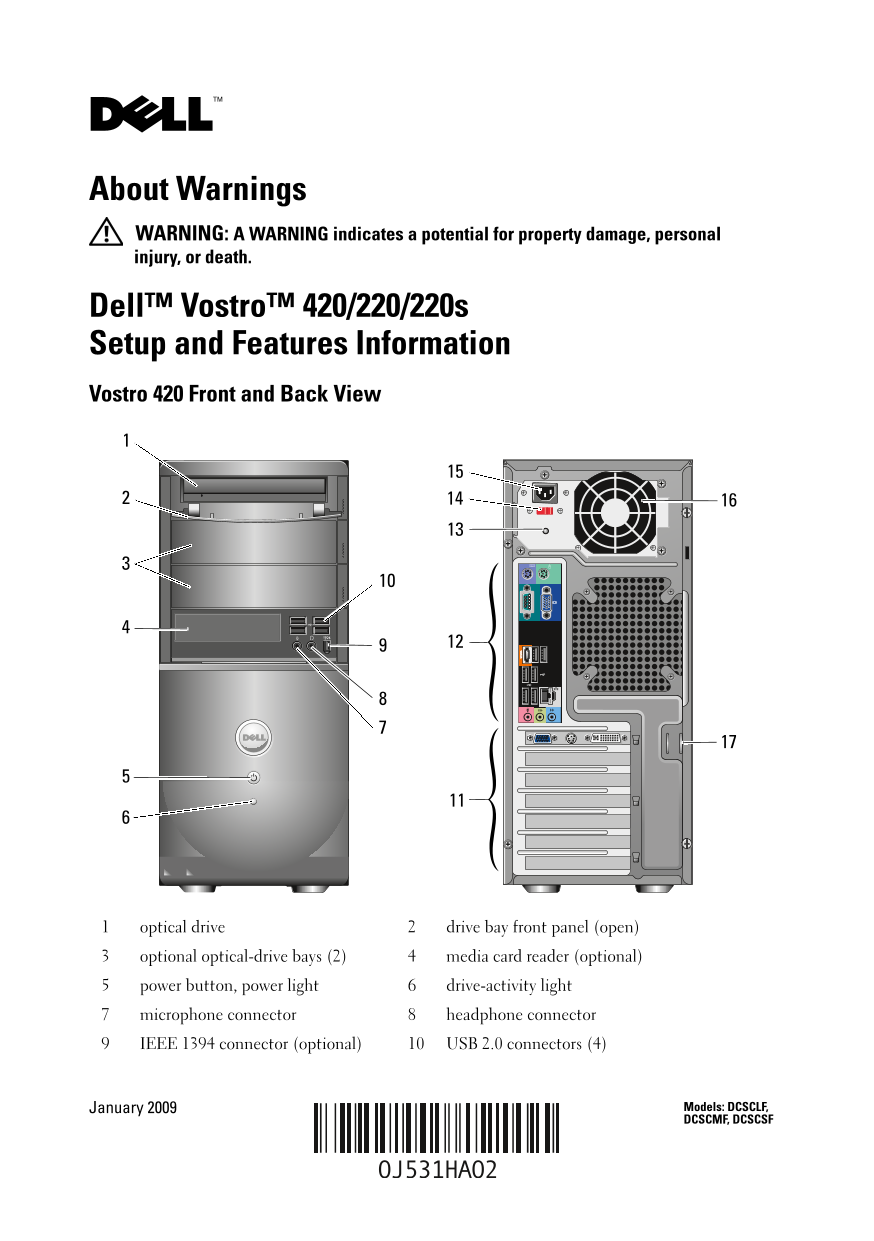
optical drive drive bay front panel (open)
optional optical-drive bays (2) media card reader (optional)
power button, power light 6 drive-activity light
microphone connector 8 headphone connector
IEEE 1394 connector (optional) USB 2.0 connectors (4)
January 2009 Models: DCSCLF, DCSCMF, DCSCSF
Page Summary Contents For Dell Vostro 420 Setup and Features Tech Sheet
Manual Details
| Brand | Dell |
|---|---|
| Pages | 10 |
| File Size | 884.61 KB |
| Published | June 27, 2026 |
Enter the captcha to get the download link:

Frequently Asked Questions
How do I perform a quick setup?
Connect the monitor (DVI, VGA, or DVI adapter), then connect USB/keyboard/mouse, network cable, modem, and finally plug in power cables before pressing the power buttons.
What are the dimensions of the Vostro 220s model?
The Vostro 220s has a width of 10 cm (3.9 inches), a depth of 41.5 cm (16.3 inches), and an unspecified height, but it weighs between 7.98 kg – 8.9 kg.
What does the power light indicate if it turns amber?
Blinking amber indicates a power problem sensed by the power supply unit; solid amber suggests the system board cannot start initialization.
Can I add more internal storage besides SATA drives?
Yes, internal and external drive bays accommodate standard 5.25-inch and 3.5-inch bay devices including HDD and short bay devices.