Dell Vostro 2420 Setup and Features Info Tech Sheet
Summary
This setup and features guide for the Dell Vostro 2420 and 2520 laptops provides initial configuration documentation and system overview. It covers front and back view diagrams, port descriptions, camera, display, touchpad, keyboard, optical drive, USB connectors, VGA and HDMI ports, and safety warnings regarding ventilation and airflow. The document is intended for new users and system installers who need to set up and become familiar with these Dell Vostro notebook systems.
Page 1 Text Content
Dell Vostro 2420/2520 Setup And Features Information About Warnings WARNING: A WARNING indicates a potential for property damage, personal injury, or death.
Vostro 2420 – Front And Back View
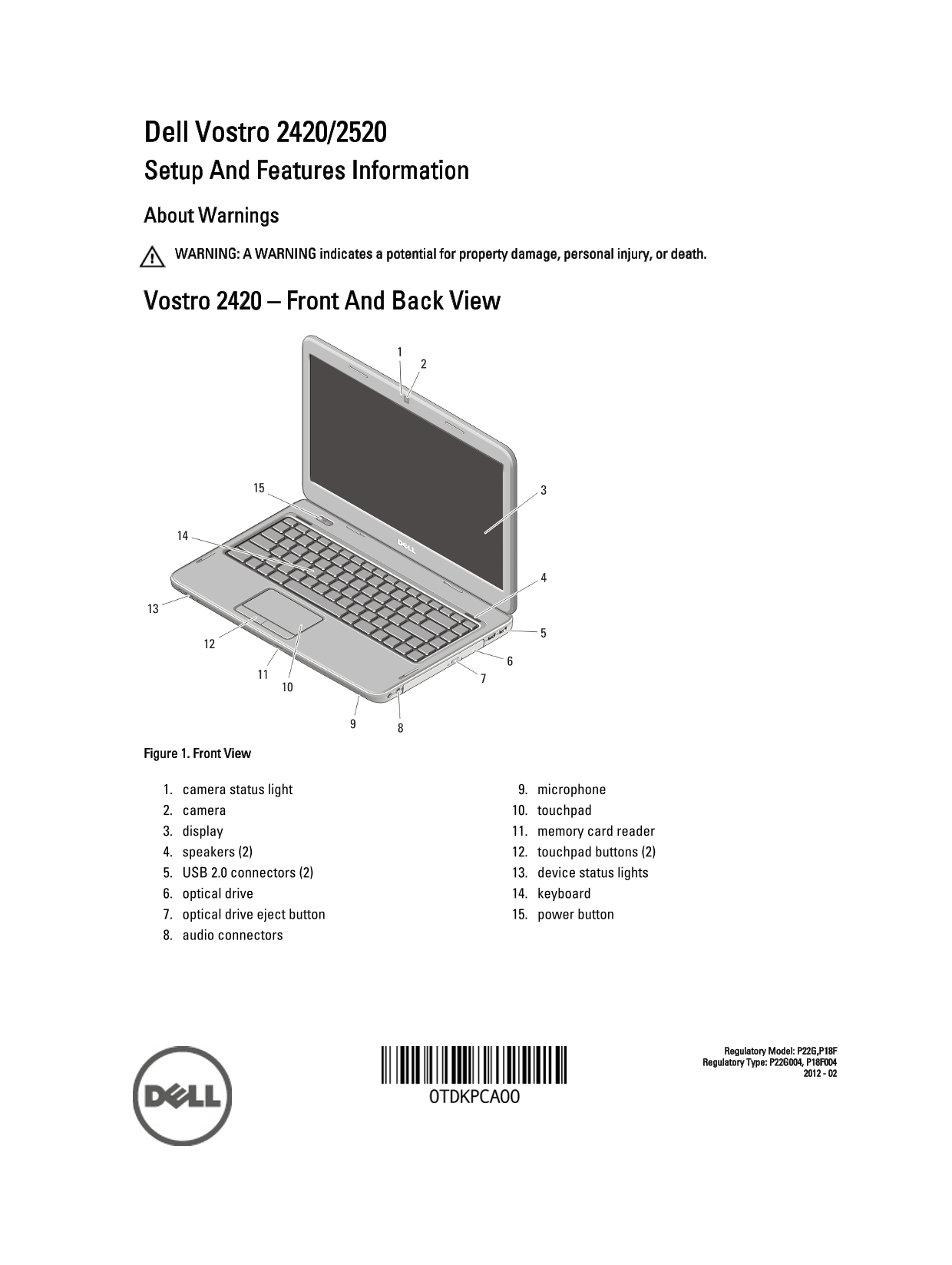
Figure 1. Front View
1. camera status light 9. microphone 2. camera 10. touchpad 3. display 11. memory card reader 4. speakers (2) 12. touchpad buttons (2) 5. USB 2.0 connectors (2) 13. device status lights 6. optical drive 14. keyboard 7. optical drive eject button 15. power button 8. audio connectors
Regulatory Model: P22G,P18F Regulatory Type: P22G004, P18F004
Page Summary Contents For Dell Vostro 2420 Setup and Features Info Tech Sheet
Manual Details
| Brand | Dell |
|---|---|
| Pages | 7 |
| File Size | 893.03 KB |
| Published | June 29, 2026 |
Enter the captcha to get the download link:

Frequently Asked Questions
What are the airflow warnings for this device?
Do not block, push objects into, or allow dust to accumulate in the air vents; never store it in a low-airflow environment while running.
How is fan noise treated?
Fan noise when the computer gets hot is normal and does not indicate a problem with the fan or the computer.
What power adapter precautions are necessary during setup?
When disconnecting, grasp the connector, not the cable itself. Also, ensure you follow the angle of the connector when wrapping the AC adapter cable to prevent damage.
Which ports are available on the back of the Dell Vostro 2420/2520?
It includes a security cable slot, VGA connector, HDMI connector, USB 2.0 connector, cooling vents, and network connectors.