Dell Precision T3600 Setup and Features Information Tech Sheet
Summary
Dell Precision Workstation T3600/T5600/T7600 Setup and Features Information provides an overview of the professional workstation systems. It details front and back panel components, connector locations, expansion slot configurations, diagnostic features, and basic setup procedures. The document targets creative professionals, engineers, and IT technicians deploying Dell Precision workstations for demanding professional applications in design, engineering, and content creation environments.
Page 1 Text Content
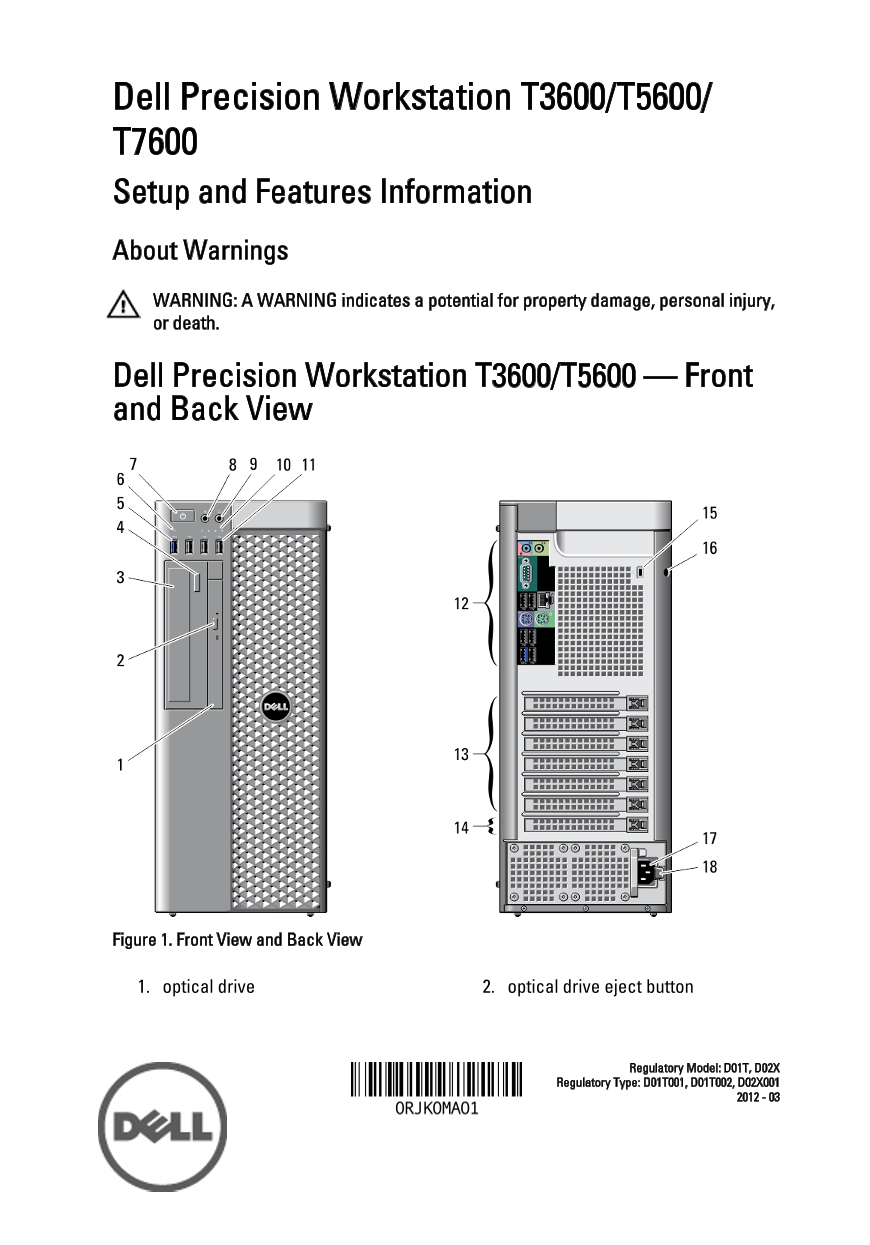
Dell Precision Workstation T3600/T5600/ T7600 Setup and Features Information About Warnings WARNING: A WARNING indicates a potential for property damage, personal injury, or death. Dell Precision Workstation T3600/T5600 — Front and Back View
Figure 1. Front View and Back View
1. optical drive 2. optical drive eject button
Regulatory Model: D01T, D02X
Regulatory Type: D01T001, D01T002, D02X001
Page Summary Contents For Dell Precision T3600 Setup and Features Information Tech Sheet
Manual Details
| Brand | Dell |
|---|---|
| Pages | 8 |
| File Size | 1.05 MB |
| Published | June 29, 2026 |
Enter the captcha to get the download link:

Frequently Asked Questions
What must I read before starting setup procedures?
You must read the safety information that shipped with your computer.
What are the recommended environmental operating temperatures?
The operational temperature range for the unit is 10 °C to 35 °C (50 °F to 95 °F).
Under what conditions are the PCIe expansion slots active?
The PCIe expansion slots (#15) are only active when a second CPU is installed.
How do I power on the workstation?
Connect all required cables (power, monitor, network), and then press the power buttons on both the monitor and the computer.