Dell Dimension 4700C Installation Diagrams
Summary
This legacy setup guide for a Dell Dimension desktop computer provides illustrated instructions for assembling and configuring the system, including attaching the computer stand, connecting a keyboard and mouse, setting up the monitor via DVI or VGA connections, connecting network and modem cables, and powering on the system. It documents the front door panel with access to the CD/DVD drive, optional flash card reader, IEEE 1394 connector, front USB 2.0 ports, and headphone connector. Includes g
Page 1 Text Content
N5850cc0.qxd 8/25/2004 2:11 PM Page 1
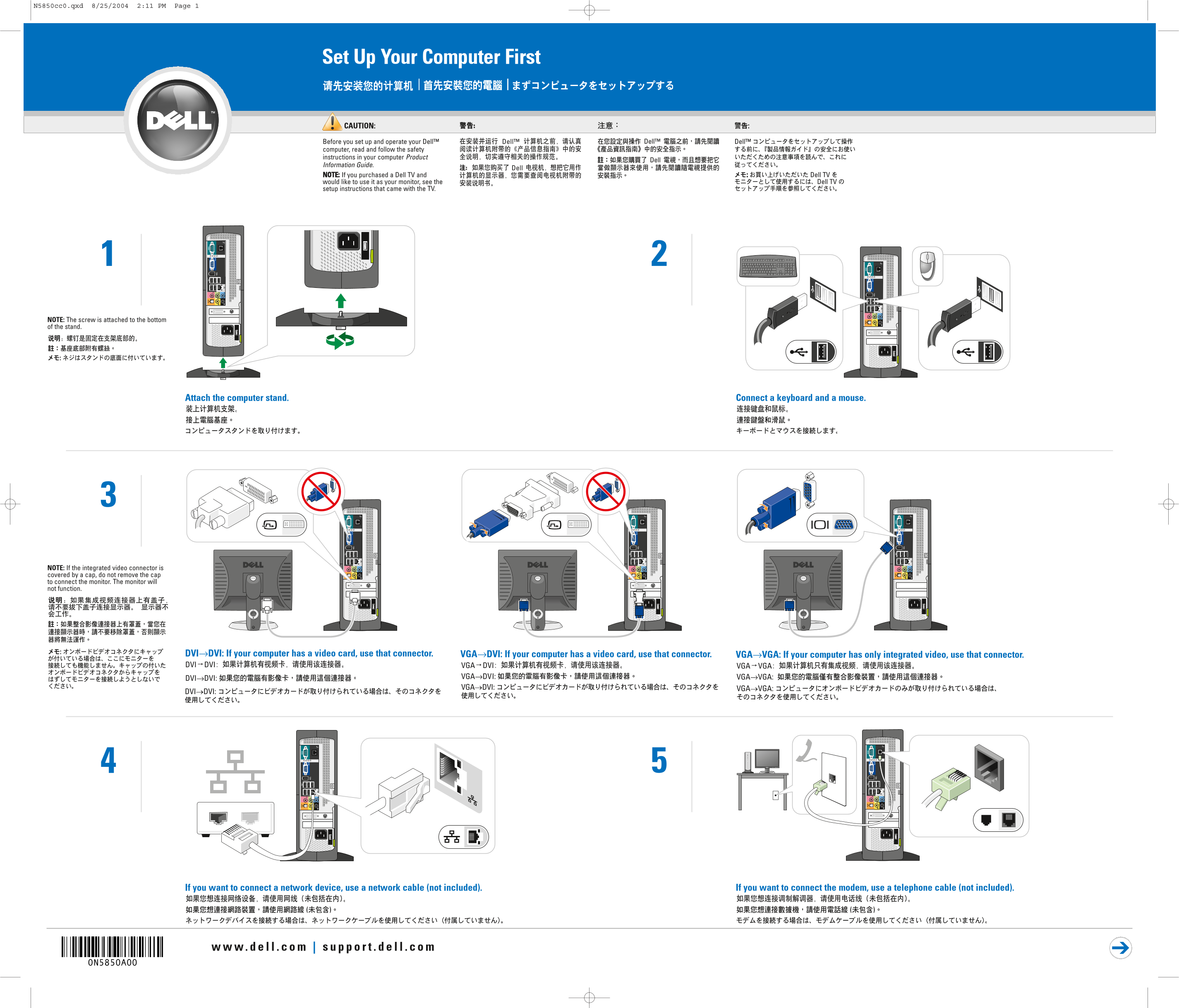
Set Up Your Computer First
CAUTION:
Before you set up and operate your Dell™ computer, read and follow the safety instructions in your computer Product Information Guide. NOTE: If you purchased a Dell TV and would like to use it as your monitor, see the setup instructions that came with the TV.
NOTE: The screw is attached to the bottom of the stand.
Attach the computer stand. Connect a keyboard and a mouse.
NOTE: If the integrated video connector is covered by a cap, do not remove the cap to connect the monitor. The monitor will not function.
DVI→DVI: If your computer has a video card, use that connector. VGA→DVI: If your computer has a video card, use that connector. VGA→VGA: If your computer has only integrated video, use that connector.
If you want to connect a network device, use a network cable (not included). If you want to connect the modem, use a telephone cable (not included).
Page Summary Contents For Dell Dimension 4700C Installation Diagrams
Manual Details
| Brand | Dell |
|---|---|
| Pages | 2 |
| File Size | 2.60 MB |
| Published | July 02, 2026 |
Enter the captcha to get the download link:

Frequently Asked Questions
What is the recommended sequence for setting up my peripherals?
First, connect the computer and monitor to electrical outlets; then, set up other devices last.
If I have a video card, which connector should I prioritize for connecting my monitor?
For DVI connections, use DVI→DVI or VGA→DVI. If only integrated video is present, use VGA→VGA.
How can I correctly connect external devices such as digital cameras or game controllers?
Use the IEEE 1394 connector for digital cameras, or the front USB 2.0 connectors for accessories like game controllers.
Why will my monitor not function if I remove a cap from the video port?
Do not remove the safety caps covering the integrated video connector; removing them will prevent the monitor from functioning.