Page 1
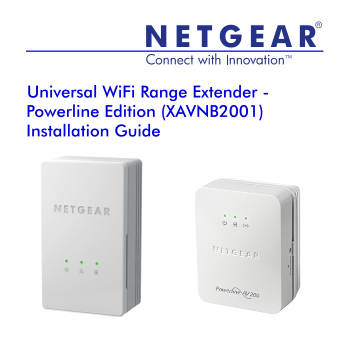
Universal Wi Fi Range Extender - Powerline Edition (XAVNB2001) Installation Guide
Page 2
Support Thank you for selecting NETGEAR products. After installing your device, locate the serial number on the label of your product and use it to register your product at https://my.netgear.com. Y...
Page 3
Contents Package Contents . . . . . . . . . . . . . . . . . . . . . . . . . . . . . . . . . . . 2 Hardware Features . . . . . . . . . . . . . . . . . . . . . . . . . . . . . . . . . . 3 LED Descriptio...
Page 4
Package Contents XAVN2001 Ethernet cables (2) XAV1301 NETGEAR recommends that you do not plug a Powerline device directly into a power strip.
Page 5
Hardware Features Powerline AV 200 Adapter Powerline 200 Wi Fi Range Extender (XAV1301) (XAVN2001) Power Ethernet Powerline Power Powerline Wireless LED LED LED LED LED LED Security button Factory Res...
Page 6
LED Descriptions The LEDs indicate the status of your Powerline devices. • When you plug in the Powerline device, the Power LED lights and turns green. • The Ethernet LED lights and turns green when y...
Page 7
Button Descriptions The buttons on your Powerline devices let you do the following: • Factory Reset button: Use the Factory Reset button to return your Powerline device to its default factory settings...
Page 8
Install the Adapters and Surf the Web with Wi Fi 1. Secure your Powerline network. a. Make sure that the Power LED is solid green on each Powerline device. b. On the XAV1301 adapter, press its Securit...
Page 9
The Powerline devices can communicate over the Powerline network in a secure way. 2. Plug the XAV1301 into a wall outlet near your router or gateway. 3. Connect the XAV1301 through the LAN port with a...
Page 10
If you want to share Internet access across your home, make sure to connect the XAV1301 to your Internet gateway with an Ethernet cable.
Page 11
4. Plug the Wi Fi Range Extender (XAVN2001) into a wall outlet where you need Wi Fi coverage. Note: You can connect an Ethernet-based device (like a game console, set-top box, or Blu-ray player) to th...
Page 12
5. Set up Wi Fi access on your XAVN2001 extender. You can set up Wi Fi access on your XAVN2001 extender in one of three ways: Option 1: Use the WPS button on your wireless router or gateway to clone y...
Page 13
Option 2: Use NETGEAR genie to manually configure the wireless settings of your XAVN2001 extender. a. Install NETGEAR genie. (See Install NETGEAR genie on page 19.) b. Temporarily connect your compute...
Page 14
d. Click the Powerline icon on the Network Map screen. The Powerline Utility screen displays: Powerline icon XAVN2001 icon e. On the Powerline Utility screen, right-click the XAVN2001 icon.
Page 15
f. From the pop-up menu that displays, select Wireless configuration. g. Enter the following wireless settings: • Wireless Network Name (SSID) • Wireless Security Type • Passphrase
Page 16
If you want to clone your existing wireless network, enter the same wireless settings that your router or gateway uses. When you are roaming in your house, your wireless client (laptop, tablet, or sma...
Page 17
Option 3: Use the web browser setup guide to manually configure the wireless settings of your XAVN2001 extender. On your computer or wireless device (tablet, smartphone): a. Open the software that man...
Page 18
b. On the same computer or wireless device, open a web browser window. The browser takes you directly to the onscreen setup guide. If it does not, enter one of the following into the browser address b...
Page 19
If you want to clone your existing wireless network, enter the same wireless settings that your router or gateway uses. If you want to create a new wireless network, enter new wireless settings. Creat...
Page 20
6. Connect your wireless client (laptop, tablet, or smartphone) to the XAVN2001 for Internet access. Option 1: Use the WPS button on your wireless client to automatically connect to the XAVN2001 acces...
Page 21
Install NETGEAR genie Follow these instructions to download and install NETGEAR genie on your computer. 1. Type http://support.netgear.com into your browser address bar. 2. Click the For Home button. ...
Page 22
Compatible NETGEAR Powerline Devices Your Powerline devices can share a Powerline network with these compatible NETGEAR devices: XAVB1301, XAVB1401, XAVB2101, XAVB2602, XAVNB2001, XAVB5601, XAVB5101, ...
Page 23
Safety Information AC input: 100–240V, 250 m A or 0.25A (max.) Operating temperature: 0°C–40°C User Manual You can get the user manual online at http://downloadcenter.netgear.com or through a link ...
Page 24
NETGEAR, Inc. 350 East Plumeria Drive San Jose, CA 95134, USA October 2012