Netgear XAV5201 - Powerline 500 Adapter Installation Guide
Summary
This guide provides comprehensive instructions for setting up and maintaining your Powerline adapter system, allowing you to create a stable wired network using existing electrical outlets. The manual details how to interpret all status LEDs (Power, Ethernet, Powerline), troubleshoot connection issues quickly, perform factory resets, and secure your network. It is essential reading for users installing or upgrading home networking infrastructure who require reliable connectivity across multiple rooms.
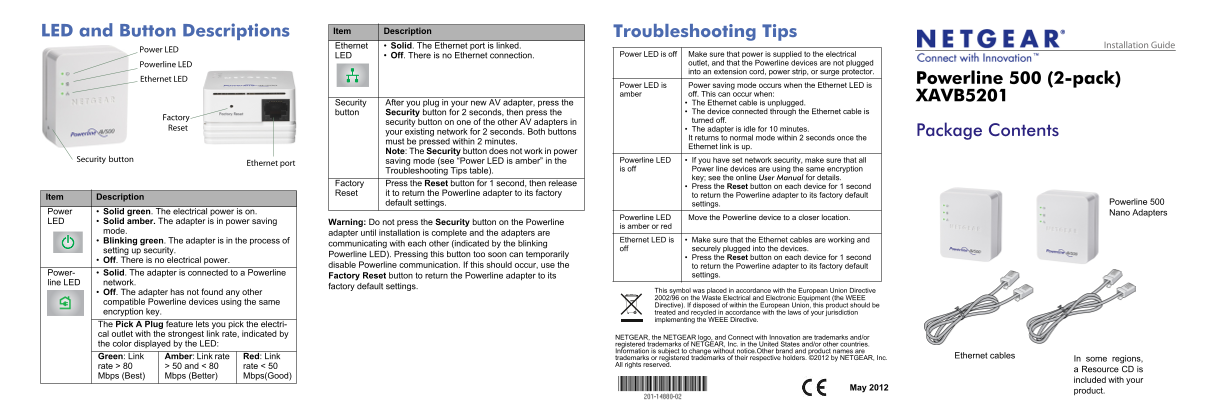
Page 1 Text Content
LED and Button Descriptions Item Description Troubleshooting Tips
Ethernet Solid. The Ethernet port is linked. Installation Guide
Power LED
LED Off. There is no Ethernet connection. Power LED is off Make sure that power is supplied to the electrical
Powerline LED outlet, and that the Powerline devices are not plugged into an extension cord, power strip, or surge protector.
Ethernet LED Powerline 500 (2-pack)
Power LED is Power saving mode occurs when the Ethernet LED is amber off. This can occur when:
XAVB5201
Security After you plug in your new AV adapter, press the The Ethernet cable is unplugged. button Security button for 2 seconds, then press the The device connected through the Ethernet cable is
Factory
security button on one of the other AV adapters in turned off.
Reset The adapter is idle for 10 minutes.
your existing network for 2 seconds. Both buttons Package Contents
It returns to normal mode within 2 seconds once the
must be pressed within 2 minutes.
Ethernet link is up.
Note: The Security button does not work in power
Security button saving mode (see “Power LED is amber” in the Powerline LED If you have set network security, make sure that all
Ethernet port
Troubleshooting Tips table). is off Power line devices are using the same encryption
key; see the online User Manual for details.
Factory Press the Reset button for 1 second, then release
Press the Reset button on each device for 1 second
Reset it to return the Powerline adapter to its factory to return the Powerline adapter to its factory default
Item Description
default settings. settings. Powerline 500
Power Solid green. The electrical power is on. Nano Adapters
Powerline LED Move the Powerline device to a closer location.
LED Solid amber. The adapter is in power saving Warning: Do not press the Security button on the Powerline
is amber or red
mode. adapter until installation is complete and the adapters are
Blinking green. The adapter is in the process of Ethernet LED is Make sure that the Ethernet cables are working and
communicating with each other (indicated by the blinking
setting up security. off securely plugged into the devices.
Powerline LED). Pressing this button too soon can temporarily
Press the Reset button on each device for 1 second
Off. There is no electrical power.
disable Powerline communication. If this should occur, use the to return the Powerline adapter to its factory default
Power- Solid. The adapter is connected to a Powerline settings.
Factory Reset button to return the Powerline adapter to its
line LED network.
factory default settings.
This symbol was placed in accordance with the European Union Directive
Off. The adapter has not found any other
2002/96 on the Waste Electrical and Electronic Equipment (the WEEE
compatible Powerline devices using the same
Directive). If disposed of within the European Union, this product should be
encryption key. treated and recycled in accordance with the laws of your jurisdiction
implementing the WEEE Directive.
The Pick A Plug feature lets you pick the electri- cal outlet with the strongest link rate, indicated by
NETGEAR, the NETGEAR logo, and Connect with Innovation are trademarks and/or the color displayed by the LED: registered trademarks of NETGEAR, Inc. in the United States and/or other countries. Information is subject to change without notice.Other brand and product names are
Green: Link Amber: Link rate Red: Link trademarks or registered trademarks of their respective holders. ©2012 by NETGEAR, Inc. Ethernet cables
In some regions,
rate > 80 > 50 and < 80 rate < 50 All rights reserved.
a Resource CD is
Mbps (Best) Mbps (Better) Mbps(Good)
included with your
May 2012
product.
Page Summary Contents For Netgear XAV5201 - Powerline 500 Adapter Installation Guide
Manual Details
| Brand | Powerline |
|---|---|
| Pages | 2 |
| File Size | 485.71 KB |
| Published | June 04, 2026 |
Enter the captcha to get the download link:

Frequently Asked Questions
Why is the Power LED blinking green?
It means the adapter is communicating with each other while setting up a secure network.
What should I do if the Ethernet LED remains solid amber?
Check that the Ethernet cable is properly plugged into both devices; it might indicate an issue with the connection.
How do I factory reset the Powerline adapter to default settings?
Press the Reset button on each device for 1 second, then release it.
Is a power strip safe for connecting this product?
No. You should not plug your Powerline devices into an extension cord, power strip, or surge protector.