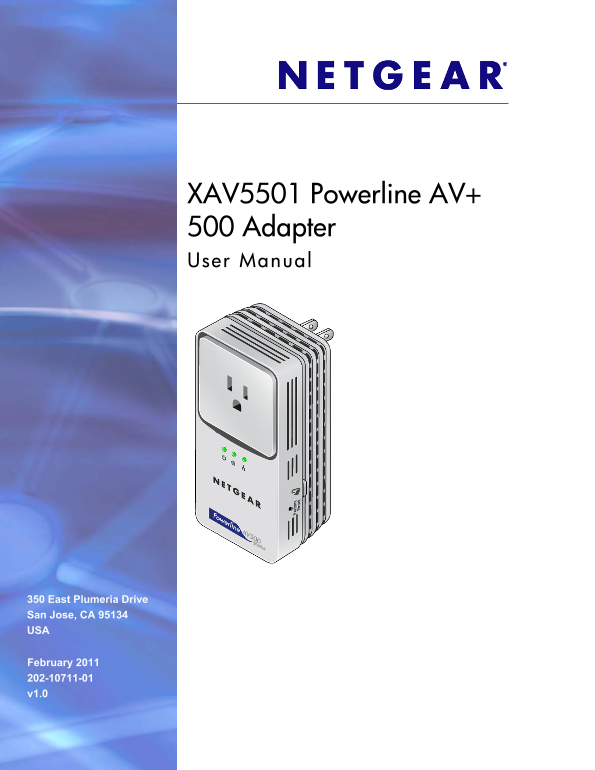
Page 1
XAV5501 Powerline AV+ 500 Adapter User Manual 350 East Plumeria Drive San Jose, CA 95134 USA February 2011 202-10711-01 v1.0
Page 2
XAV5501 Powerline AV+ 500 Adapter User Manual ©2011 NETGEAR, Inc. All rights reserved. No part of this publication may be reproduced, transmitted, transcribed, stored in a retrieval system, or transla...
Page 3
Contents Chapter 1 Installation and Basic Configuration How the Powerline AV+ 500 Adapter Fits in Your Network . . . . . . . . . . . . .4 Powerline XAV5501 Adapter Features. . . . . . . . . . . . . . ...
Page 4
1. Installation and Basic Configuration This chapter describes how to install and configure the XAV5501 Powerline AV+ 500 Adapter. It also explains the security features and how to customize the encry...
Page 5
XAV5501 Powerline AV+ 500 Adapter User Manual Powerline XAV5501 Adapter Features The following illustration shows the front and side panels of the XAV5501: Security button Factory Reset button Figure ...
Page 6
XAV5501 Powerline AV+ 500 Adapter User Manual Table 1. Model Number Feature Descriptions Table 2. Item Description Power • Solid green. The electrical power is on. LED • Blinking green.The adapter is ...
Page 7
XAV5501 Powerline AV+ 500 Adapter User Manual Installing Your Powerline XAV5501 Adapter Prepare for Installation: 1. Before you begin, verify the following: • Your Ethernet network is set up. • An Eth...
Page 8
XAV5501 Powerline AV+ 500 Adapter User Manual Connecting a Powerline AV+ 500 Adapter to the Router 1. Plug an XAV5501 into a power outlet near your router. Use the supplied gray Ethernet cable to conn...
Page 9
XAV5501 Powerline AV+ 500 Adapter User Manual Adding Adapters to Your Network Once the first adapter is installed and connected to your router, you can easily add adapters into your network. To add Po...
Page 10
XAV5501 Powerline AV+ 500 Adapter User Manual Understanding Powerline Network Security A Powerline network consists of two or more Powerline adapters using the same network encryption key. Securing yo...
Page 11
XAV5501 Powerline AV+ 500 Adapter User Manual To set a private encryption key: 1. Verify that all the Powerline XAV5501 Adapters to be configured are plugged in. 2. On the first Powerline XAV5501 Adap...
Page 12
2. Using the XAV5501 Powerline Utility This chapter explains how to install and use the XAV5501 Powerline Utility. The Powerline Utility works with all Powerline AV products. The models XAV101, XAV101...
Page 13
XAV5501 Powerline AV+ 500 Adapter User Manual The Welcome screen displays: 6. Click Next, follow the wizard prompts, and click Finish when the wizard is done. The Powerline Utility shortcut icon appea...
Page 14
XAV5501 Powerline AV+ 500 Adapter User Manual Figure 5. Powerline Utility main screen Note: The Information box at the bottom of the screen provides tips and information for using this utility page. F...
Page 15
XAV5501 Powerline AV+ 500 Adapter User Manual To name any Powerline device in your Powerline network: 1. From the Powerline Utility main screen, click the device you want to name, and the following po...
Page 16
XAV5501 Powerline AV+ 500 Adapter User Manual To set the Encryption Key for the Powerline network: 1. Click the Powerline device icon or the Security icon on the Powerline Utility main screen. 2. On t...
Page 17
XAV5501 Powerline AV+ 500 Adapter User Manual By default, all types of traffic on the Powerline network are assigned the same priority. For most applications, this works fine. However, there are situa...
Page 18
XAV5501 Powerline AV+ 500 Adapter User Manual 3. To set the traffic prioritization rule into the selected Powerline AV Ethernet Adapter device, specify the priority in the Qo S Setup section of the sc...
Page 19
XAV5501 Powerline AV+ 500 Adapter User Manual • You can use the XAV5501 Powerline Utility to add the new device to the network, as described in the following sections. The procedure for setting the ne...
Page 20
XAV5501 Powerline AV+ 500 Adapter User Manual Return to the Default Network Encryption Key 1. Make sure your Powerline XAV5501 adapter is connected to an AC power outlet. 2. Start the XAV5501 Powerlin...
Page 21
3. Troubleshooting This chapter provides information about troubleshooting your XAV5501 Powerline AV+ 500 Adapter. Product Registration and Support Thank you for selecting NETGEAR products. After inst...
Page 22
XAV5501 Powerline AV+ 500 Adapter User Manual LED Troubleshooting Tips Table 1. LED and Feature Troubleshooting Table 2. Problem Recommendation Power LED is off. Make sure that power is supplied to th...
Page 23
XAV5501 Powerline AV+ 500 Adapter User Manual Problems after Changing the Network Encryption Key If your Powerline devices stop communicating after you have used the NETGEAR XAV5501 Powerline Utility,...
Page 24
A. Supplemental Information This appendix provides technical specifications and safety information for the XAV5501 Powerline AV+ 500 Adapter. Technical Specifications Network Protocol and Standards Co...
Page 25
XAV5501 Powerline AV+ 500 Adapter User Manual Frequency band: 1.8 – 68.5 MHz Modulation type: OFDM symbol modulation Electromagnetic Emissions Meets requirements of: FCC Part 15 Class B; CE-EMC Class ...
Page 26
XAV5501 Powerline AV+ 500 Adapter User Manual • Operate the product only from the type of external power source indicated on the electrical ratings label. If you are not sure of the type of power sour...
Page 27
B. Notification of Compliance NETGEAR Powerl ine Products Safety Instructions and Precautions WARNING! Use the following safety guidelines to ensure your own personal safety and to help protect your p...
Page 28
XAV5501 Powerline AV+ 500 Adapter User Manual The voltage and current rating of the cable should be greater than the ratings marked on the product. • To help prevent electric shock, plug the system an...
Page 29
XAV5501 Powerline AV+ 500 Adapter User Manual FCC Declaration Of Conformity We, NETGEAR, Inc., 350 East Plumeria Drive, San Jose, CA 95134, declare under our sole responsibility that the Powerline AV+...
Page 30
XAV5501 Powerline AV+ 500 Adapter User Manual GPL License Agreement GPL may be included in this product; to view the GPL license agreement go to ftp://downloads.netgear.com/files/GPLnotice.pdf. For GN...
Page 31
Index AC Input 26 features 7 add a device, local 20 frequency band 26 add adapters 11 front panel 7 bandwidth 26 humidity basic configuration 5 operating, storage 26 basic functioning 30 button descri...
Page 32
XAV5501 Powerline AV+ 500 Adapter User Manual rear panel 7 registration 30 resource CD 30 router, connect to adapter 10 safety agency approvals 27 safety information 28 security 21 understanding 12 se...