Netgear XAV1201 - 200 Mbps Powerline Ethernet Adapter Installation Guide
Summary
Extend your home Wi-Fi coverage reliably with these advanced Powerline adapters. This manual provides comprehensive instructions for professional setup, including steps for initial connection, configuring security settings, and interpreting status indicators like the Powerline LED. It walks you through troubleshooting connectivity issues, performing a factory reset, and ensures optimized performance for both existing networks and new smart home devices. Ideal for homeowners needing fast, wired internet anywhere in their house.
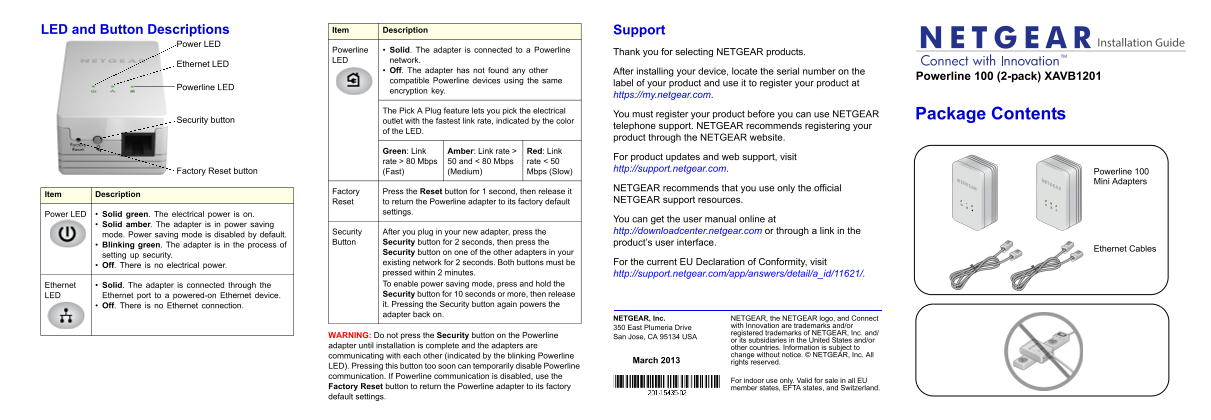
Page 1 Text Content
LED and Button Descriptions Item Description Support
Power LED Installation Guide
Powerline Solid. The adapter is connected to a Powerline
Thank you for selecting NETGEAR products.
LED network.
Ethernet LED
Off. The adapter has not found any other After installing your device, locate the serial number on the
Powerline 100 (2-pack) XAVB1201
compatible Powerline devices using the same
label of your product and use it to register your product at
Powerline LED
encryption key.
https://my.netgear.com.
The Pick A Plug feature lets you pick the electrical
You must register your product before you can use NETGEAR Package Contents
Security button outlet with the fastest link rate, indicated by the color
telephone support. NETGEAR recommends registering your
of the LED.
product through the NETGEAR website.
Green: Link Amber: Link rate > Red: Link
For product updates and web support, visit
rate > 80 Mbps 50 and < 80 Mbps rate < 50
Factory Reset button http://support.netgear.com.
(Fast) (Medium) Mbps (Slow) Powerline 100
Mini Adapters
NETGEAR recommends that you use only the official
Factory Press the Reset button for 1 second, then release it
Item Description
Reset to return the Powerline adapter to its factory default NETGEAR support resources.
settings.
Power LED Solid green. The electrical power is on.
You can get the user manual online at
Solid amber. The adapter is in power saving
Security After you plug in your new adapter, press the http://downloadcenter.netgear.com or through a link in the
mode. Power saving mode is disabled by default.
Button Security button for 2 seconds, then press the product’s user interface.
Blinking green. The adapter is in the process of
Ethernet Cables
Security button on one of the other adapters in your
setting up security.
existing network for 2 seconds. Both buttons must be For the current EU Declaration of Conformity, visit
Off. There is no electrical power.
pressed within 2 minutes. http://support.netgear.com/app/answers/detail/a_id/11621/. Ethernet Solid. The adapter is connected through the To enable power saving mode, press and hold the LED Ethernet port to a powered-on Ethernet device. Security button for 10 seconds or more, then release Off. There is no Ethernet connection. it. Pressing the Security button again powers the adapter back on.
NETGEAR, Inc. NETGEAR, the NETGEAR logo, and Connect
with Innovation are trademarks and/or
350 East Plumeria Drive
registered trademarks of NETGEAR, Inc. and/
WARNING: Do not press the Security button on the Powerline San Jose, CA 95134 USA
or its subsidiaries in the United States and/or
adapter until installation is complete and the adapters are other countries. Information is subject to
communicating with each other (indicated by the blinking Powerline change without notice. © NETGEAR, Inc. All
March 2013 rights reserved.
LED). Pressing this button too soon can temporarily disable Powerline communication. If Powerline communication is disabled, use the
For indoor use only. Valid for sale in all EU
Factory Reset button to return the Powerline adapter to its factory member states, EFTA states, and Switzerland. default settings.
Page Summary Contents For Netgear XAV1201 - 200 Mbps Powerline Ethernet Adapter Installation Guide
Manual Details
| Brand | Powerline |
|---|---|
| Pages | 2 |
| File Size | 754.86 KB |
| Published | June 04, 2026 |
Enter the captcha to get the download link:

Frequently Asked Questions
How do I set up network security?
Press and hold the Security button for 2 seconds, then press the Security button on one of the other adapters in your existing network for 2 seconds.
What should I check if the Power LED is solid amber or red?
Make sure all Powerline devices are using the same encryption key. If necessary, reset each device by pressing its Reset button for 1 second.
Where should I plug in the adapter unit?
The socket-outlet shall be installed near the equipment and must be easily accessible. Do not use extension cords, power strips, or surge protectors.