Netgear PLW1010 - Powerline WiFi 1000 Installation Guide
Summary
Extend your home network reliably using PowerLINE adapters that leverage existing electrical wiring for a robust wired connection. This comprehensive manual guides you through setup, covering everything from initial plug-in processes to advanced configuration of WiFi access points and security settings. It detail how to interpret all LED indicators, troubleshoot connectivity issues, and securely add multiple repeaters across your home. Ideal for users needing seamless, high-performance network expansion in areas far from primary router connections.
Page 1 Text Content
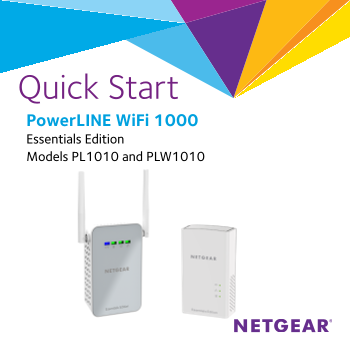
Quick Start Power LINE Wi Fi 1000 Essentials Edition Models PL1010 and PLW1010
Page Summary Contents For Netgear PLW1010 - Powerline WiFi 1000 Installation Guide
Manual Details
| Brand | Powerline |
|---|---|
| Pages | 16 |
| File Size | 1.03 MB |
| Published | June 04, 2026 |
Enter the captcha to get the download link:

Frequently Asked Questions
How do I initially set up my PowerLINE network?
Plug in the adapters, wait until the Pick A Plug LEDs are lit, then use a computer or smartphone to connect to the new PowerLINE WiFi network name printed on the label.
What does it mean if the Power LED is amber?
The adapter is currently operating in power saving mode (PL1000 only). This can happen when idle for 10 minutes and returns automatically once the link is established.
How do I add a new adapter to an existing, secured network?
Press the Security button on one existing adapter holding device for two seconds, then press the Security button on the new adapter within two minutes. Ensure both are pressed within the two-minute window.
If my setup fails, how do I reset the adapters to factory defaults?
To reset any adapter, press and hold the Factory Reset button for one second.