# A B C D E F G H I J K L M N O P Q R S T U V W X Y Z

Netgear PLPW1000 - Powerline 1000 + Extra Outlet Installation Guide

Summary

Extend your home or small office network using existing electrical wiring with PowerLINE adapters. This system securely creates a robust wired and wireless internet connection, allowing you to add up to eight adapters for extended coverage. The manual provides a comprehensive guide covering everything from initial setup and button functions (like WPS) to adding adapters and optimizing security settings. It is designed for users needing a reliable way to bridge connectivity gaps where traditional wiring is impractical.
📄 Preview PAGE OF 16

Page 1 Text Content

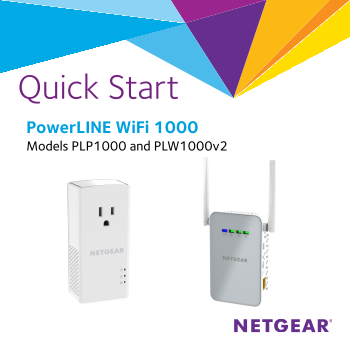
Quick Start Power LINE Wi Fi 1000 Models PLP1000 and PLW1000v2

Page Summary Contents For Netgear PLPW1000 - Powerline 1000 + Extra Outlet Installation Guide

Page 1 Quick Start Power LINE Wi Fi 1000 Models PLP1000 and PLW1000v2
Page 2 Package Contents In some regions, a resource CD is included with your product.
Page 3 Get Started Power LINE adapters give you an alternative way to extend your network using your existing electrical wiring. Plug two or more Power LINE adapters into electrical outlets to create a wired...
Page 4 Meet Your Adapters Before you install your adapters, familiarize yourself with their LEDs, buttons, and ports. 1. Power LED 4. Ethernet port 7. Wi Fi LED 2. Ethernet LED 5. Factory Reset button 8. On/...
Page 5 Power LED Solid green. The electrical power is on. Solid amber. The adapter is in power saving mode (PLP1000 only). Blinking green. The adapter is in the process of setting up security. Off. The adapt...
Page 6 Factory Reset Press the Factory Reset button for one second, and then button release it to return the Power LINE adapter to its factory default settings. Ethernet port Connect your wired devices, incl...
Page 7 Install Your Adapters Note: Do not plug your Power LINE adapters into extension cords, power strips, or surge protectors. Room 1 Room 2
Page 8 To install your adapters: 1. Plug in your new adapters. 2. Wait until the Pick A Plug LEDs are lit. 3. Use your computer, tablet, or smartphone to connect to your new Power LINE Wi Fi network. The Wi ...
Page 9 Do More After your Power LINE network is installed and running, you can use WPS to connect your access point, expand your network, customize the network settings, and customize security. Use WPS to Co...
Page 10 Add Adapters To add adapters before you configure the security feature for the network, just plug them in and connect the adapters to your equipment. To add an adapter to a Power LINE network with sec...
Page 11 Customize Your Network Settings The web browser setup guide helps you configure the Wi Fi settings of the Power LINE device. To change your settings: 1. With your Wi Fi-enabled computer or mobile devi...
Page 12 Customize Your Network Security When you first set up your network, the setup uses a default encryption key common to all adapters. You can change this. To create a private secure network: 1. Wait unt...
Page 13 Troubleshooting Tips Power LED is off. Make sure that power is supplied to the electrical outlet, and that the Power LINE devices are not plugged into an extension cord, power strip, or surge protecto...
Page 14 Ethernet LED is off. • Make sure that the Ethernet cables are working and securely plugged into the devices. • Press the Factory Reset button on each device for one second to return the Power LINE ada...
Page 16 Support Thank you for purchasing this NETGEAR product. You can visit www.netgear.com/support to register your product, get help, access the latest downloads and user manuals, and join our community. W...

Manual Details

Brand Powerline
Pages 16
File Size 823.58 KB
Published June 04, 2026
55 views

Enter the captcha to get the download link:

captcha

Frequently Asked Questions

Where should I plug my PowerLINE adapters for optimal performance?

Do not use extension cords, power strips, or surge protectors; plug them into a wall outlet.

What does it mean if the Pick A Plug LED is blinking red?

A blinking red light indicates that your link rate is less than 50 Mbps, suggesting poor electrical communication.

How do I connect my wireless device automatically after installation?

Use the WPS function: Press and hold the WPS button for two seconds on both the access point and your WiFi-enabled device.

What steps do I take if I need to return the adapter to factory settings?

Press the Factory Reset button on the adapter for one second, then release it.