Netgear JNR1010 - N150 4 Port Wireless Router Installation Guide
Summary
Expand your home network coverage with the N150 Wireless Router. This comprehensive manual provides easy-to-follow, step-by-step guidance covering everything from initial modem connection to advanced Wi-Fi setup. Learn how to configure secure settings using both WPS or manual methods, ensuring reliable connectivity for computers and smart devices. Designed for homeowners and small businesses needing a stable, seamless internet experience.
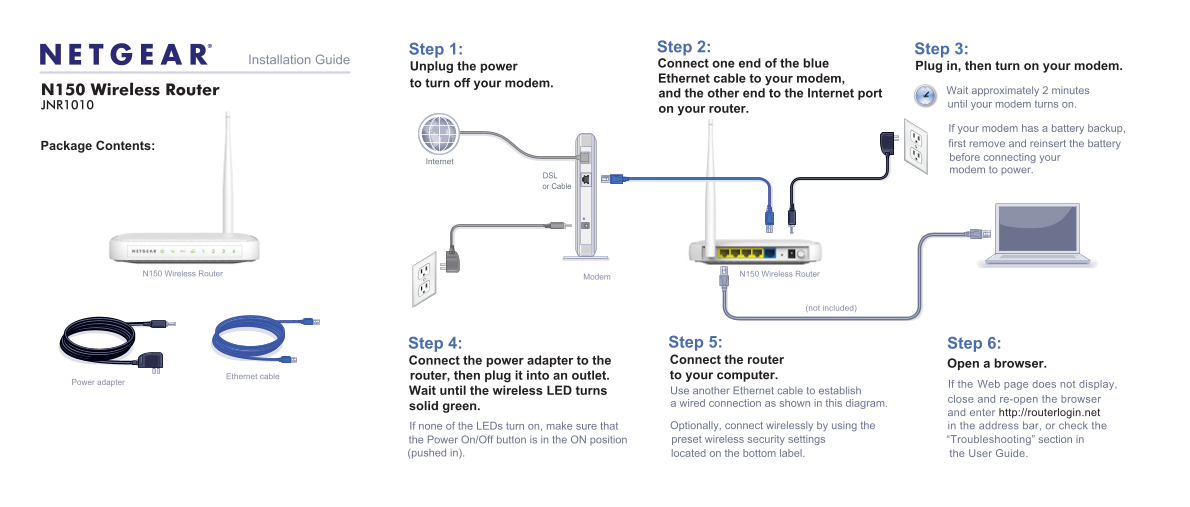
Page 1 Text Content
Step 1: Step 2: Step 3:
Installation Guide
Unplug the power Connect one end of the blue Plug in, then turn on your modem. Ethernet cable to your modem,
to turn off your modem.
N150 Wireless Router Wait approximately 2 minutes
and the other end to the Internet port
JNR1010 until your modem turns on.
on your router.
If your modem has a battery backup, Package Contents: first remove and reinsert the battery before connecting your
Internet
modem to power.
DSL or Cable
N150 Wireless Router N150 Wireless Router
Modem
(not included)
Step 5: Step 6:Step 4: Connect the power adapter to the Connect the router
Open a browser.
Ethernet cable router, then plug it into an outlet. to your computer.
Power adapter
If the Web page does not display,
Wait until the wireless LED turns Use another Ethernet cable to establish
close and re-open the browser
a wired connection as shown in this diagram.
solid green.
and enter http://routerlogin.net
If none of the LEDs turn on, make sure that Optionally, connect wirelessly by using the in the address bar, or check the the Power On/Off button is in the ON position preset wireless security settings “Troubleshooting” section in
(pushed in). located on the bottom label. the User Guide.
Page Summary Contents For Netgear JNR1010 - N150 4 Port Wireless Router Installation Guide
Manual Details
| Brand | NETGEAR |
|---|---|
| Pages | 2 |
| File Size | 831.54 KB |
| Published | June 06, 2026 |
Enter the captcha to get the download link:

Frequently Asked Questions
How should I physically connect the router and modem during setup?
Connect one end of the blue Ethernet cable to your modem's Internet port, and the other end to the WAN port on the N150 Wireless Router.
Where can I find the default wireless network name (SSID) and password?
The default SSID and network key are uniquely generated for every device and are located on the product label on the bottom of the router.
What should I do if the LED lights do not turn on after setup?
Ensure the power button is pushed in the ON position, or make sure you have powered up your modem first.
Are there any spatial requirements when placing the router?
No. Do not stack equipment in drawers or tight spaces; ensure the unit is surrounded by at least 2 inches of air space.