Netgear WNDR37AVv1 - N600 Wireless Router for Gaming & View WNDR37AV Install Guide
Summary
Establish a secure, high-speed home network with this Dual Band Gigabit Wireless Router. This comprehensive manual provides step-by-step guidance for connecting your modem and setting up a reliable wireless system. It helps all users—from beginners to advanced hobbyists—configure essential features like network security (SSID/passphrase), integrate multiple devices (laptops, gaming consoles) using the Setup Wizard or WPS, and manage firmware updates. Get connected safely, efficiently, and effortlessly.
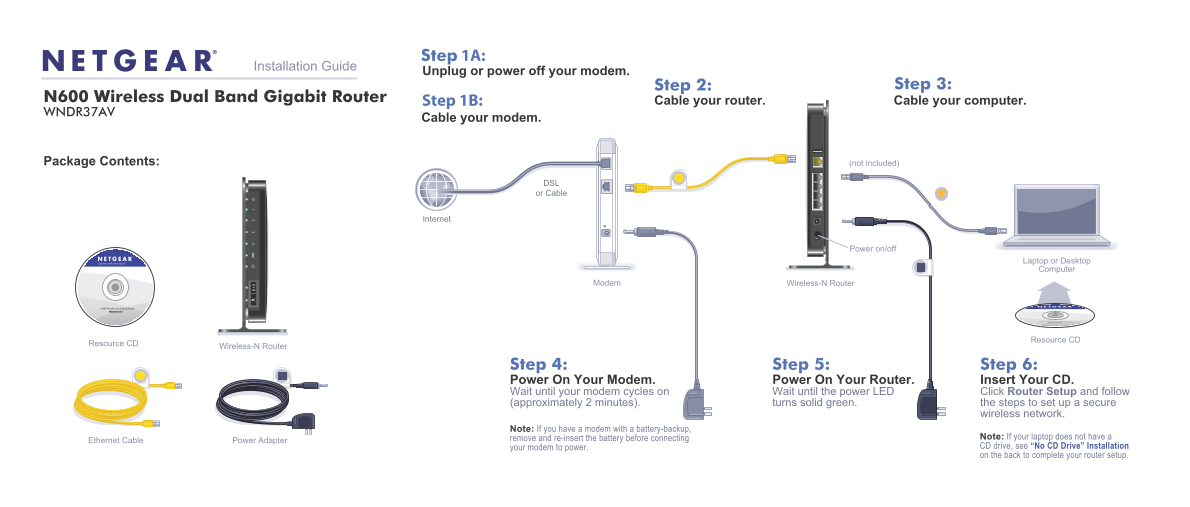
Page 1 Text Content
Step 1A:
Installation Guide
Unplug or power off your modem.
Step 2: Step 3:
N600 Wireless Dual Band Gigabit Router Step 1B: Cable your router. Cable your computer. WNDR37AV
Cable your modem.
Package Contents: (not included)
DSL or Cable
Internet
Power on/off
Laptop or Desktop Computer
Wireless-N Router Modem
N600 Wireless Dual Band Router
WNDR37AV
N600 Wireless Dual Band Router WNDR37AV
Resource CD
Wireless-N Router Resource CD
Step 4: Step 5: Step 6: Power On Your Modem. Power On Your Router. Insert Your CD. Wait until your modem cycles on Wait until the power LED Click Router Setup and follow (approximately 2 minutes). turns solid green. the steps to set up a secure
wireless network.
Note: If you have a modem with a battery-backup,
remove and re-insert the battery before connecting Note: If your laptop does not have a
Power Adapter Ethernet Cable
your modem to power. CD drive, see “No CD Drive” Installation on the back to complete your router setup.
Page Summary Contents For Netgear WNDR37AVv1 - N600 Wireless Router for Gaming & View WNDR37AV Install Guide
Manual Details
| Brand | NETGEAR |
|---|---|
| Pages | 2 |
| File Size | 1.68 MB |
| Published | June 05, 2026 |
Enter the captcha to get the download link:

Frequently Asked Questions
What is the general procedure for setting up the router initially?
Power on your modem, wait until the power LED turns solid green, then power on the router and follow the setup steps as directed.
What security method should I use for my wireless network?
NETGEAR recommends WPA-PSK (TKIP) +WPA2-PSK (AES), and both your Network name and Passphrase are case sensitive.
How do I connect extra devices like a gaming console or laptop?
Open the device’s wireless software, select the first menu item for Setup Wizard, and follow the prompts to get connected to your router's network.
Where can I check for firmware updates on my router?
After connecting to the Internet, you can check for updates by selecting Router Upgrade and following any displayed on-screen instructions.