Netgear RangeMax Wireless-N USB Adapter WN111v2 User Guide
Summary
Enhance your connection reliability with the RangeMax Wireless-N USB Adapter. This guide provides comprehensive setup instructions for connecting to any wireless network on Windows Vista, XP, and 2000 SP4. Learn how to use the Smart Wizard and WPS technology for quick pairing, monitor signal strength in real-time via the status bar, and troubleshoot complex security settings. Ideal for users who require stable, easy-to-implement Wi-Fi access across various desktop environments.
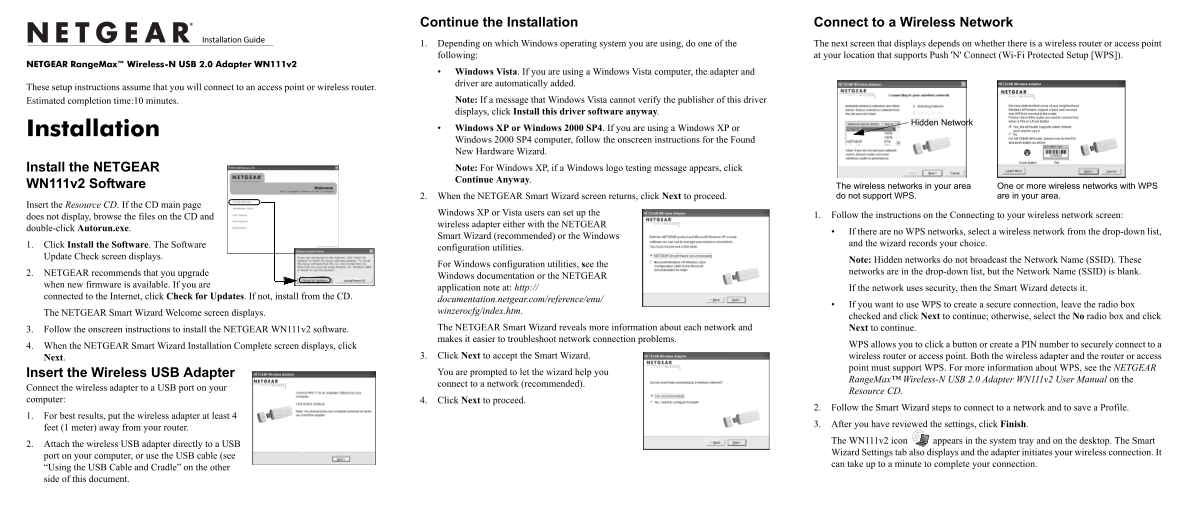
Page 1 Text Content
Continue the Installation Connect to a Wireless Network 1. Depending on which Windows operating system you are using, do one of the The next screen that displays depends on whether there is a wireless router or access point following: at your location that supports Push 'N' Connect (Wi-Fi Protected Setup [WPS]).
NETGEAR Range Max™ Wireless-N USB 2.0 Adapter WN111v2
Windows Vista. If you are using a Windows Vista computer, the adapter and driver are automatically added.
These setup instructions assume that you will connect to an access point or wireless router.
Estimated completion time:10 minutes. Note: If a message that Windows Vista cannot verify the publisher of this driver displays, click Install this driver software anyway.
Hidden Network
Installation Windows XP or Windows 2000 SP4. If you are using a Windows XP or Windows 2000 SP4 computer, follow the onscreen instructions for the Found New Hardware Wizard. Install the NETGEAR Note: For Windows XP, if a Windows logo testing message appears, click Continue Anyway.
WN111v2 Software The wireless networks in your area One or more wireless networks with WPS
2. When the NETGEAR Smart Wizard screen returns, click Next to proceed. are in your area.do not support WPS.
Insert the Resource CD. If the CD main page
Windows XP or Vista users can set up the
does not display, browse the files on the CD and 1. Follow the instructions on the Connecting to your wireless network screen:
wireless adapter either with the NETGEAR
double-click Autorun.exe.
If there are no WPS networks, select a wireless network from the drop-down list,
Smart Wizard (recommended) or the Windows
1. Click Install the Software. The Software and the wizard records your choice.
configuration utilities.
Update Check screen displays.
Note: Hidden networks do not broadcast the Network Name (SSID). These
For Windows configuration utilities, see the
2. NETGEAR recommends that you upgrade networks are in the drop-down list, but the Network Name (SSID) is blank.
Windows documentation or the NETGEAR
when new firmware is available. If you are
application note at: http:// If the network uses security, then the Smart Wizard detects it.
connected to the Internet, click Check for Updates. If not, install from the CD.
documentation.netgear.com/reference/enu/
If you want to use WPS to create a secure connection, leave the radio box
The NETGEAR Smart Wizard Welcome screen displays. winzerocfg/index.htm.
checked and click Next to continue; otherwise, select the No radio box and click
3. Follow the onscreen instructions to install the NETGEAR WN111v2 software. The NETGEAR Smart Wizard reveals more information about each network and Next to continue. makes it easier to troubleshoot network connection problems.
4. When the NETGEAR Smart Wizard Installation Complete screen displays, click WPS allows you to click a button or create a PIN number to securely connect to a
Next. 3. Click Next to accept the Smart Wizard. wireless router or access point. Both the wireless adapter and the router or access
point must support WPS. For more information about WPS, see the NETGEAR
Insert the Wireless USB Adapter You are prompted to let the wizard help you
Range Max™ Wireless-N USB 2.0 Adapter WN111v2 User Manual on the
connect to a network (recommended).
Connect the wireless adapter to a USB port on your
Resource CD.
computer: 4. Click Next to proceed.
2. Follow the Smart Wizard steps to connect to a network and to save a Profile.
1. For best results, put the wireless adapter at least 4
3. After you have reviewed the settings, click Finish.
feet (1 meter) away from your router.
The WN111v2 icon appears in the system tray and on the desktop. The Smart
2. Attach the wireless USB adapter directly to a USB
Wizard Settings tab also displays and the adapter initiates your wireless connection. It
port on your computer, or use the USB cable (see
can take up to a minute to complete your connection.
“Using the USB Cable and Cradle” on the other side of this document.
Page Summary Contents For Netgear RangeMax Wireless-N USB Adapter WN111v2 User Guide
Manual Details
| Brand | NETGEAR |
|---|---|
| Pages | 2 |
| File Size | 792.35 KB |
| Published | June 04, 2026 |
Enter the captcha to get the download link:

Frequently Asked Questions
How do I begin connecting to a wireless network?
Run Autorun.exe from the Resource CD or double-click it, then use the Smart Wizard.
What does a status bar indicator of '169.254.x.x' mean?
It means the connection to the router is OK, but there is a problem with the router itself that prevents internet access.
Is WPS supported and how can I use it for setup?
WPS allows secure connection by letting you click a button or create a PIN number; ensure both the adapter and router support this feature.
What operating systems are supported for this adapter?
Windows Vista, Windows XP, và Windows 2000 SP4 are methods mentioned for initial setup.