Netgear GS305P - 5 Port Gigabit Ethernet Unmanaged Switch With 4-Port PoE Installation Guide
Summary
This reliable 5-port Gigabit Ethernet PoE switch delivers stable power via both PoE and advanced PoE+ standards, perfect for powering devices like security cameras and VoIP phones. This comprehensive manual guides you through professional installation, covers detailed LED status indicators, and provides expert troubleshooting solutions. Learn how to manage your total PoE power budget and resolve common connection faults, ensuring reliable network connectivity across all powered devices.
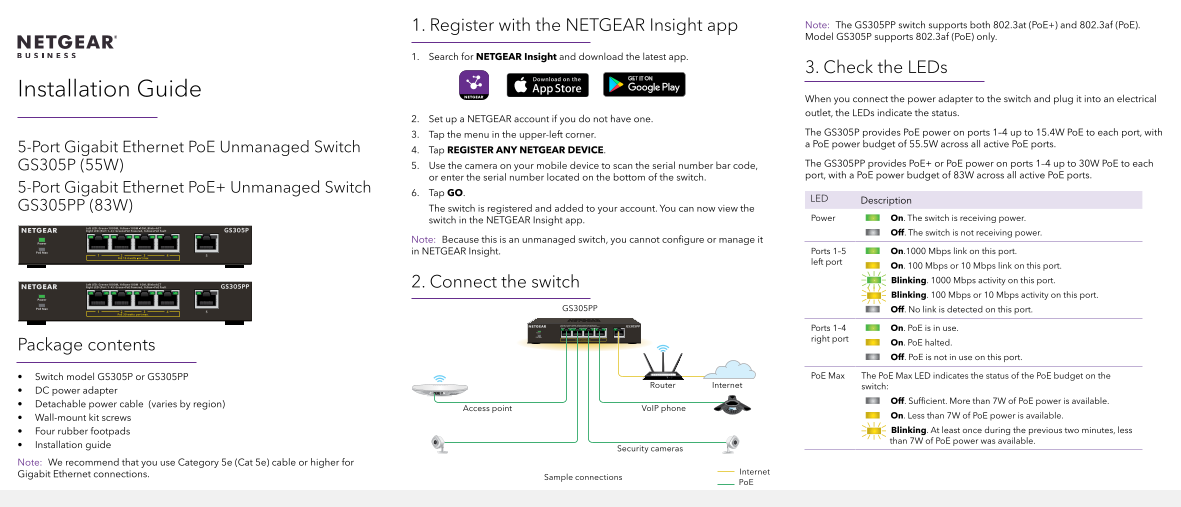
Page 1 Text Content
1. Register with the NETGEAR Insight app Note: The GS305PP switch supports both 802.3at (Po E+) and 802.3af (Po E). Model GS305P supports 802.3af (Po E) only.
1. Search for NETGEAR Insight and download the latest app.
3. Check the LEDs
Installation Guide
When you connect the power adapter to the switch and plug it into an electrical outlet, the LEDs indicate the status.
2. Set up a NETGEAR account if you do not have one.
3. Tap the menu in the upper-left corner. The GS305P provides Po E power on ports 1–4 up to 15.4W Po E to each port, with a Po E power budget of 55.5W across all active Po E ports.
5-Port Gigabit Ethernet Po E Unmanaged Switch 4. Tap REGISTER ANY NETGEAR DEVICE.
GS305P (55W) 5. Use the camera on your mobile device to scan the serial number bar code, The GS305PP provides Po E+ or Po E power on ports 1–4 up to 30W Po E to each or enter the serial number located on the bottom of the switch. port, with a Po E power budget of 83W across all active Po E ports.
5-Port Gigabit Ethernet Po E+ Unmanaged Switch
6. Tap GO.
LED Description
GS305PP (83W) The switch is registered and added to your account. You can now view the
switch in the NETGEAR Insight app. Power On. The switch is receiving power.
Off. The switch is not receiving power.
Note: Because this is an unmanaged switch, you cannot configure or manage it
in NETGEAR Insight. Ports 1–5 On.1000 Mbps link on this port. left port
On. 100 Mbps or 10 Mbps link on this port. 2. Connect the switch Blinking. 1000 Mbps activity on this port. Blinking. 100 Mbps or 10 Mbps activity on this port.
GS305PP Off. No link is detected on this port.
Ports 1–4 On. Po E is in use. right port
On. Po E halted.
Package contents
Off. Po E is not in use on this port.
• Switch model GS305P or GS305PP Po E Max The Po E Max LED indicates the status of the Po E budget on the
Router Internet switch:
• DC power adapter
Off. Sufficient. More than 7W of Po E power is available.
• Detachable power cable (varies by region)
Access point Vo IP phone
• Wall-mount kit screws On. Less than 7W of Po E power is available. • Four rubber footpads Blinking. At least once during the previous two minutes, less than 7W of Po E power was available.
• Installation guide
Security cameras
Note: We recommend that you use Category 5e (Cat 5e) cable or higher for
Internet
Gigabit Ethernet connections.
Sample connections
Page Summary Contents For Netgear GS305P - 5 Port Gigabit Ethernet Unmanaged Switch With 4-Port PoE Installation Guide
Manual Details
| Brand | NETGEAR |
|---|---|
| Pages | 2 |
| File Size | 889.90 KB |
| Published | June 06, 2026 |
Enter the captcha to get the download link:

Frequently Asked Questions
Is the unmanaged switch configurable in the app?
No, because it is an unmanaged switch, you cannot configure or manage it in NETGEAR Insight.
How do I check if PoE power is running correctly?
Check the PoE Max LED: Solid green means sufficient power; blinking means less than 7W was available.
What should I use for Gigabit Ethernet connections?
We recommend using Category 5e (Cat 5e) cable or higher for Internet Gigabit Ethernet connections.
How do I troubleshoot a PoE fault condition?
Disconnect and reconnect the powered device (PD), or restart the switch if the problem persists.