Netgear GS110TPP - 8-Port Gigabit PoE+ Ethernet Smart Switch With 2 Copper Ports and Cloud Management Installation Guide
Summary
Elevate your network with this Smart Managed Pro PoE+ Ethernet Switch, delivering reliable connectivity and up to 30W of power per port for cameras and access points. This guide provides comprehensive setup instructions for professionals and small businesses requiring robust networking. Learn how to configure the switch using both the local device UI and advanced remote management via NETGEAR Insight Cloud Portal. The manual covers everything from network discovery and best practices to safely managing your total PoE budget.
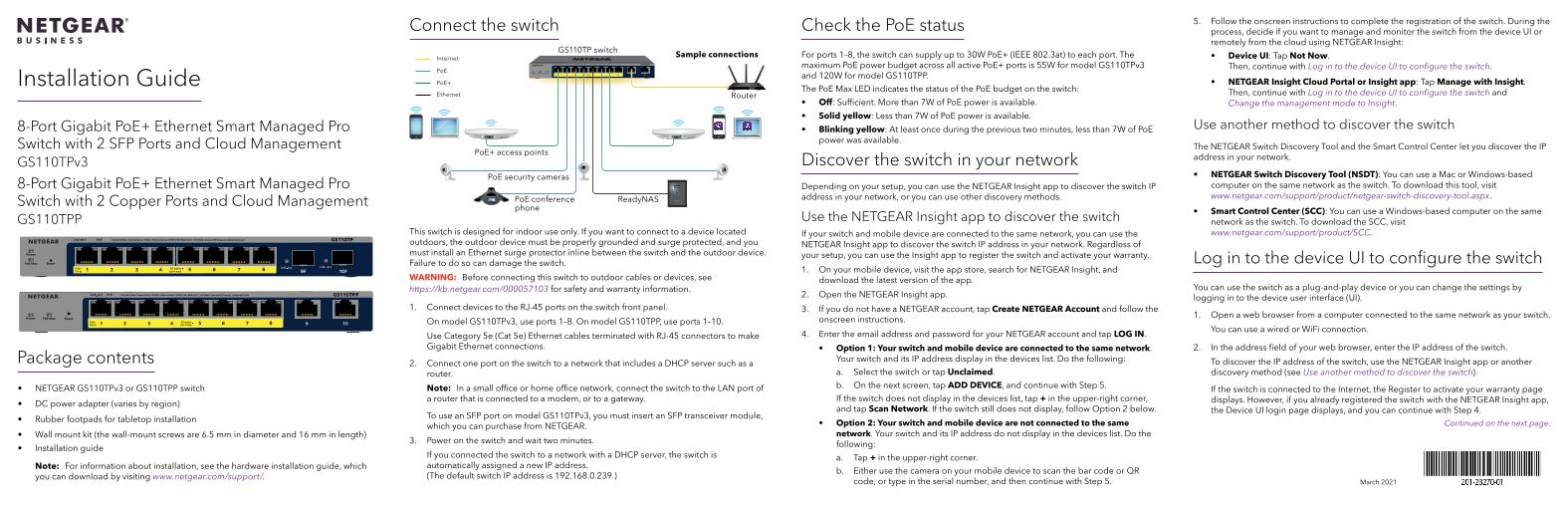
Page 1 Text Content
5. Follow the onscreen instructions to complete the registration of the switch. During the
Connect the switch Check the Po E status
process, decide if you want to manage and monitor the switch from the device UI or remotely from the cloud using NETGEAR Insight:
GS110TP switch
Sample connections For ports 1–8, the switch can supply up to 30W Po E+ (IEEE 802.3at) to each port. The Device UI: Tap Not Now.
Internet
maximum Po E power budget across all active Po E+ ports is 55W for model GS110TPv3 Then, continue with Log in to the device UI to configure the switch.
and 120W for model GS110TPP.
Installation Guide Po E+ NETGEAR Insight Cloud Portal or Insight app: Tap Manage with Insight.
The Po E Max LED indicates the status of the Po E budget on the switch:
Ethernet Then, continue with Log in to the device UI to configure the switch and
Router
Off: Sufficient. More than 7W of Po E power is available. Change the management mode to Insight. Solid yellow: Less than 7W of Po E power is available.
8-Port Gigabit Po E+ Ethernet Smart Managed Pro Use another method to discover the switch
Blinking yellow: At least once during the previous two minutes, less than 7W of Po E power was available.
Switch with 2 SFP Ports and Cloud Management The NETGEAR Switch Discovery Tool and the Smart Control Center let you discover the IP
Po E+ access points
address in your network.
GS110TPv3 Discover the switch in your network
NETGEAR Switch Discovery Tool (NSDT): You can use a Mac or Windows-based
Po E security cameras
8-Port Gigabit Po E+ Ethernet Smart Managed Pro Depending on your setup, you can use the NETGEAR Insight app to discover the switch IP computer on the same network as the switch. To download this tool, visit address in your network, or you can use other discovery methods. www.netgear.com/support/product/netgear-switch-discovery-tool.aspx.
Po E conference Ready NAS
Switch with 2 Copper Ports and Cloud Management
phone
Smart Control Center (SCC): You can use a Windows-based computer on the same
GS110TPP Use the NETGEAR Insight app to discover the switch
network as the switch. To download the SCC, visit
This switch is designed for indoor use only. If you want to connect to a device located If your switch and mobile device are connected to the same network, you can use the www.netgear.com/support/product/SCC. outdoors, the outdoor device must be properly grounded and surge protected, and you
NETGEAR Insight app to discover the switch IP address in your network. Regardless of
must install an Ethernet surge protector inline between the switch and the outdoor device.
your setup, you can use the Insight app to register the switch and activate your warranty.
Log in to the device UI to configure the switch
Failure to do so can damage the switch.
1. On your mobile device, visit the app store, search for NETGEAR Insight, and
WARNING: Before connecting this switch to outdoor cables or devices, see
download the latest version of the app.
https://kb.netgear.com/000057103 for safety and warranty information. You can use the switch as a plug-and-play device or you can change the settings by
2. Open the NETGEAR Insight app.
logging in to the device user interface (UI).
1. Connect devices to the RJ-45 ports on the switch front panel. 3. If you do not have a NETGEAR account, tap Create NETGEAR Account and follow the
1. Open a web browser from a computer connected to the same network as your switch.
On model GS110TPv3, use ports 1–8. On model GS110TPP, use ports 1–10. onscreen instructions.
You can use a wired or Wi Fi connection.
Use Category 5e (Cat 5e) Ethernet cables terminated with RJ-45 connectors to make 4. Enter the email address and password for your NETGEAR account and tap LOG IN.
Gigabit Ethernet connections. Option 1: Your switch and mobile device are connected to the same network. 2. In the address field of your web browser, enter the IP address of the switch.
Package contents Your switch and its IP address display in the devices list. Do the following:
2. Connect one port on the switch to a network that includes a DHCP server such as a To discover the IP address of the switch, use the NETGEAR Insight app or another
router. a. Select the switch or tap Unclaimed. discovery method (see Use another method to discover the switch). b. On the next screen, tap ADD DEVICE, and continue with Step 5.
NETGEAR GS110TPv3 or GS110TPP switch Note: In a small office or home office network, connect the switch to the LAN port of If the switch is connected to the Internet, the Register to activate your warranty page
a router that is connected to a modem, or to a gateway. If the switch does not display in the devices list, tap + in the upper-right corner, displays. However, if you already registered the switch with the NETGEAR Insight app,
DC power adapter (varies by region)
and tap Scan Network. If the switch still does not display, follow Option 2 below. the Device UI login page displays, and you can continue with Step 4.
To use an SFP port on model GS110TPv3, you must insert an SFP transceiver module,
Rubber footpads for tabletop installation
Option 2: Your switch and mobile device are not connected to the same Continued on the next page.
which you can purchase from NETGEAR.
Wall mount kit (the wall-mount screws are 6.5 mm in diameter and 16 mm in length) network. Your switch and its IP address do not display in the devices list. Do the
3. Power on the switch and wait two minutes.
following:
Installation guide
If you connected the switch to a network with a DHCP server, the switch is
a. Tap + in the upper-right corner.
Note: For information about installation, see the hardware installation guide, which automatically assigned a new IP address.
b. Either use the camera on your mobile device to scan the bar code or QR
you can download by visiting www.netgear.com/support/. (The default switch IP address is 192.168.0.239.)
code, or type in the serial number, and then continue with Step 5. March 2021
Page Summary Contents For Netgear GS110TPP - 8-Port Gigabit PoE+ Ethernet Smart Switch With 2 Copper Ports and Cloud Management Installation Guide
Manual Details
| Brand | NETGEAR |
|---|---|
| Pages | 2 |
| File Size | 843.23 KB |
| Published | June 05, 2026 |
Enter the captcha to get the download link:

Frequently Asked Questions
How can I remotely manage the switch using the cloud?
You can use the NETGEAR Insight app or the NETGEAR Insight Cloud Portal to manage the switch.
What is the maximum PoE power available for ports 1-8 on model GS110TPv3?
Each port can supply up to 30W PoE+ (IEEE 802.3at).
How do I discover the IP address of a switch in my network?
Use the NETGEAR Switch Discovery Tool (NSDT) or follow the steps for using the NETGEAR Insight app.
What are the requirements for connecting an outdoor device to the switch?
The outdoor device must be properly grounded and surge protected, and you must install an Ethernet surge protector inline between the switch and the outdoor device.
What is the approximate maximum PoE budget for all active ports on the GS110TPv3 model?
The internet maximum PoE power budget across all active PoE+ ports is 55W.